Packing slip
Deposit markings / information for packing slips
Serves to avoid having to store a marker for each new order, which means that it is only stored once for the customer. (Deposit of constant information about the customer for the shipping employees who pack the goods).
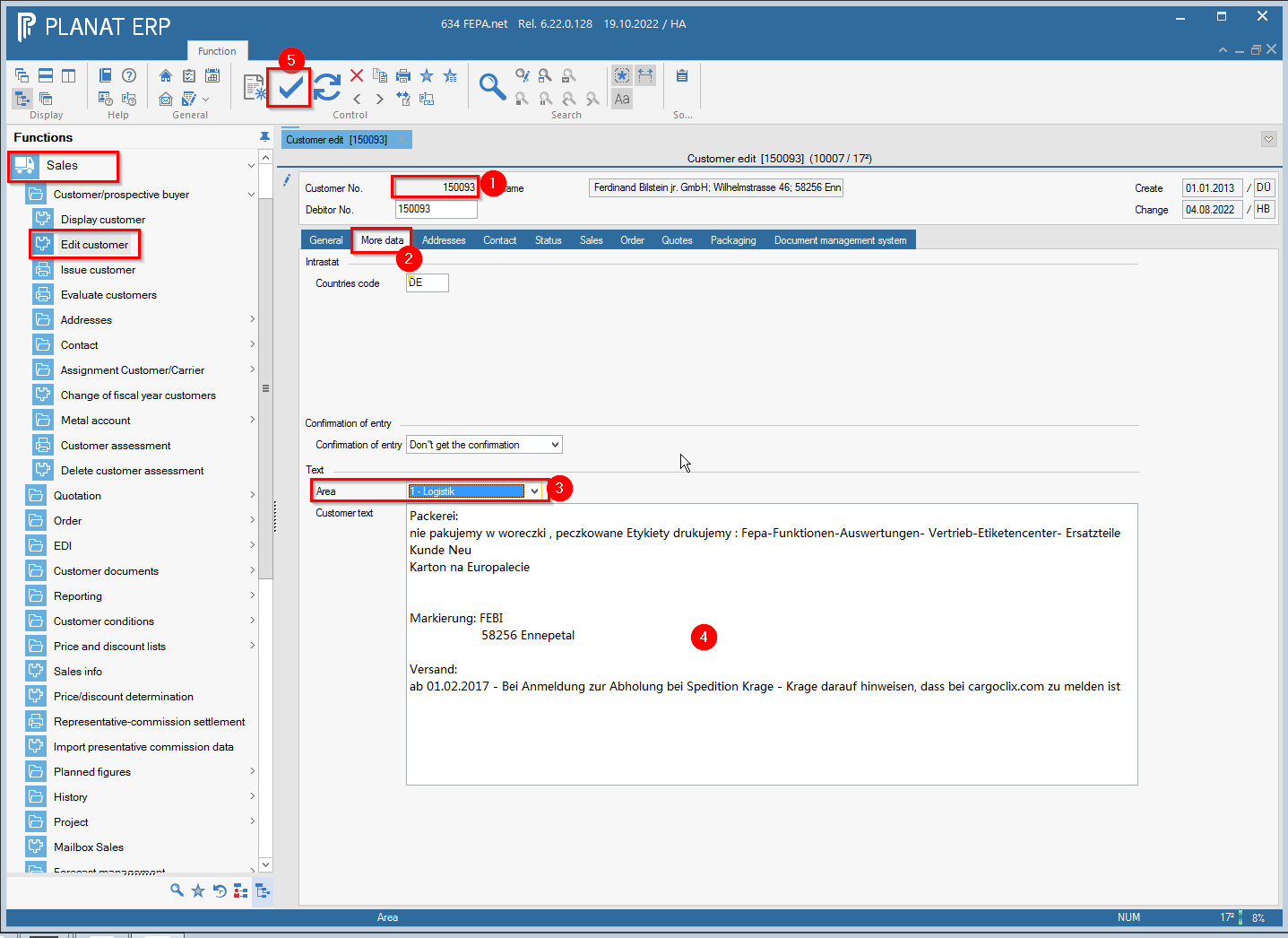
FEPA function: Sales > Customer/prospective buyer > Edit Customer
- enter customer number, press enter
- click on the tab More data
- select Logistics in the Text drop-down menu
- enter the desired marking in the field Customer text
- save
Create packing slip
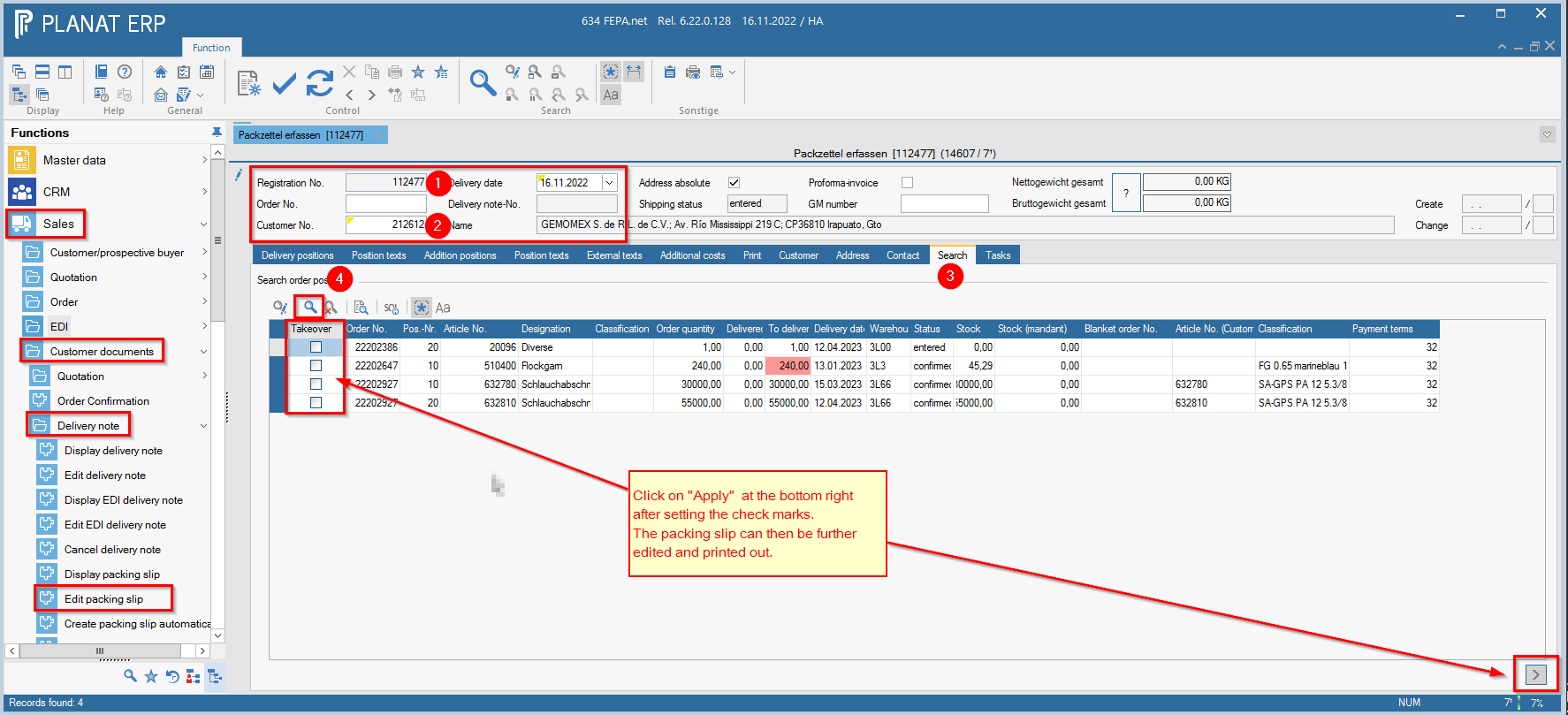
FEPA Function: Sales > Customer Papers > Edit Packing Slip
- press enter at registration number (an registration number will be generated)
- enter order number or customer number, enter delivery date or confirm current date, enter
- FEPA jumps to the search tab, otherwise click on this tab.
- click on start search (magnifying glass)
- All items for this order appear
- In the box at the front, check the box take over for the positions you need. (The items marked in red have no or not enough stock to deliver the item completely in the warehouse that is also displayed here).
- Then click on ">" at the bottom right (positions are taken over).
-
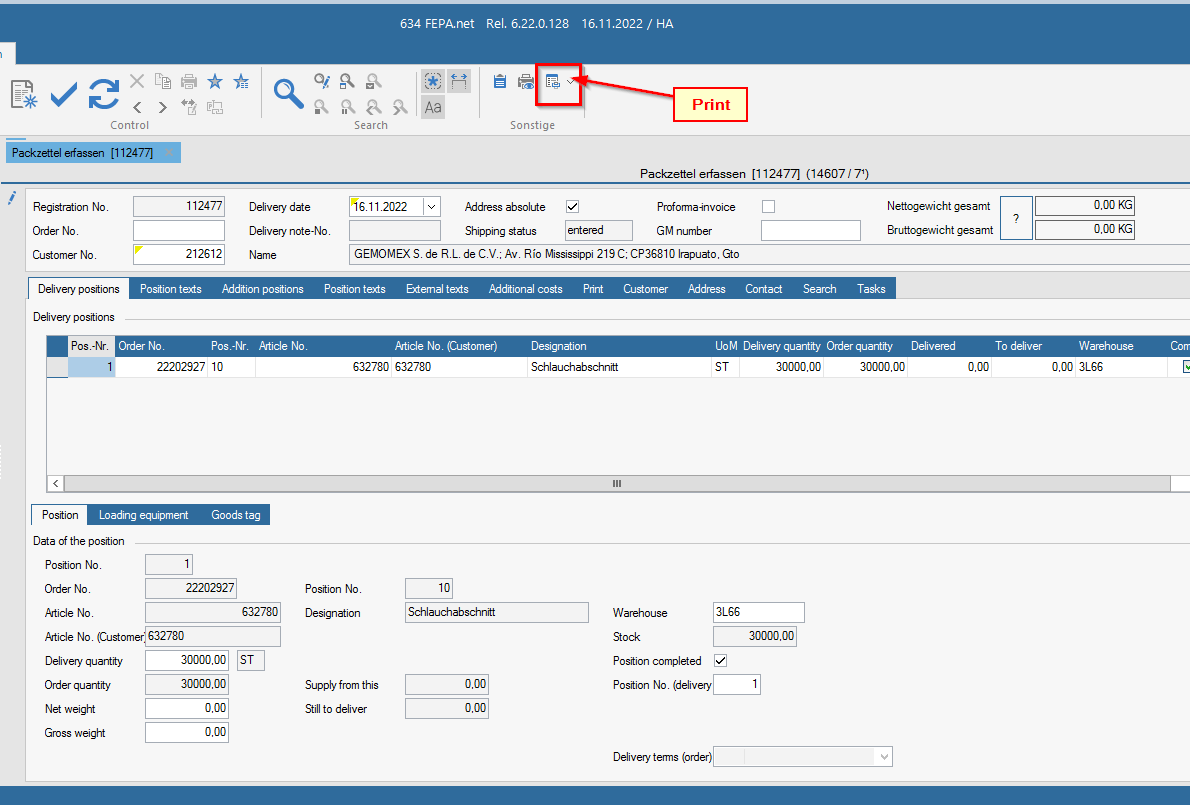
Return to the Delivery positions tab and check everything, change the delivery quantity if necessary.
-
In the External Texts tab, enter the prefix text, e.g. the week in which it is to be packed and other notes, e.g. in the package
-
If everything is OK, click on Print and the packing order will be printed and saved.
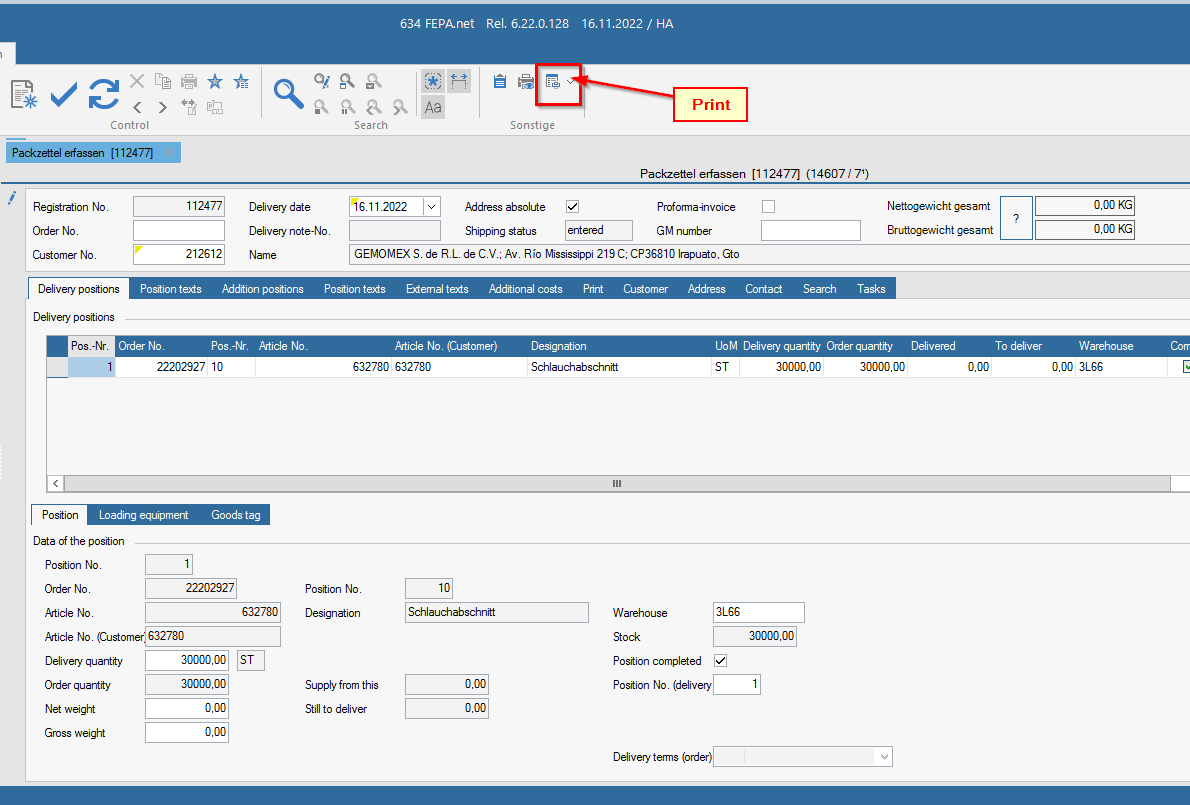
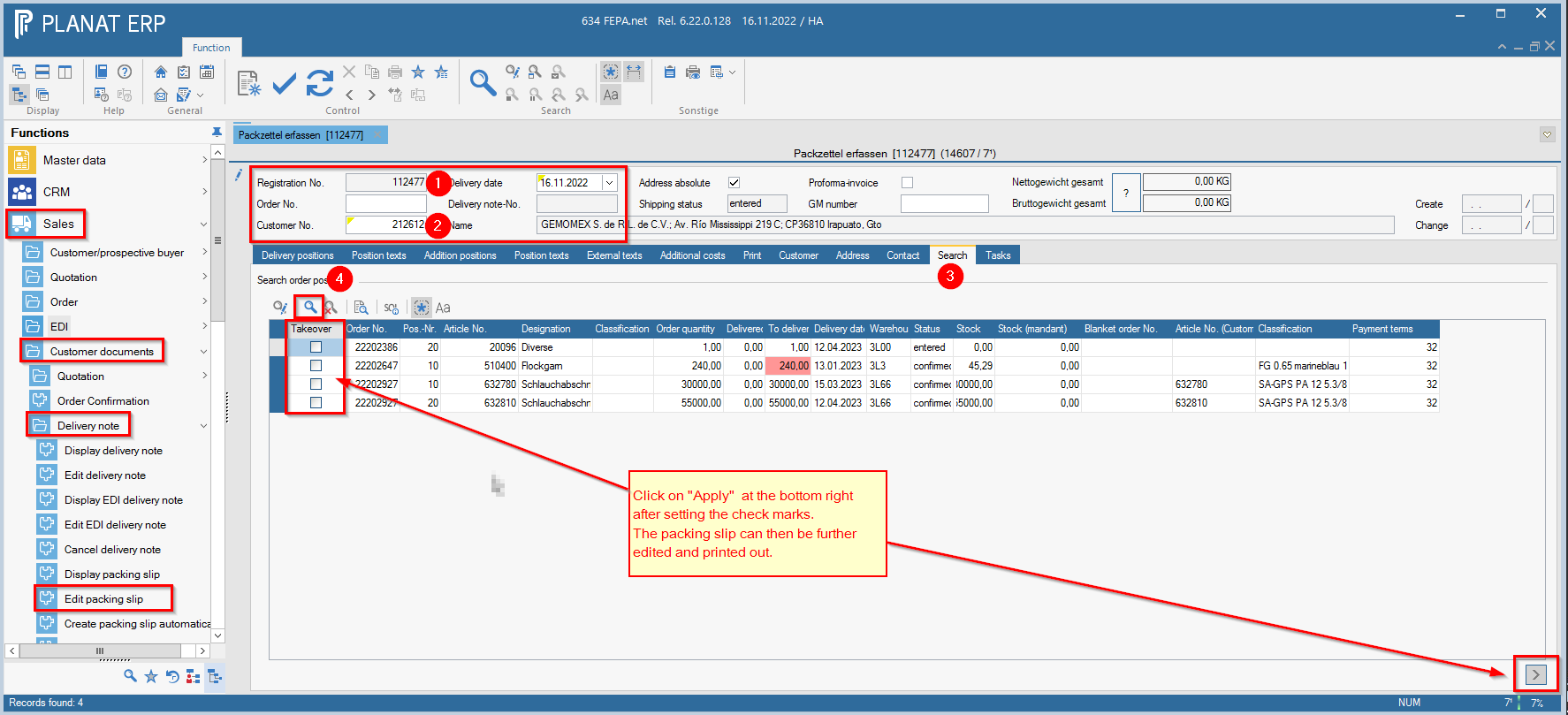
Note: If there are more customer orders to be included in one packing slip for the same customer, only start with the customer number (2)!
Create EDI packing slip
FEPA function Sales > Customer documents> Delivery note > Edit EDI packing slips
- press enter at registration number (an registration number is generated)
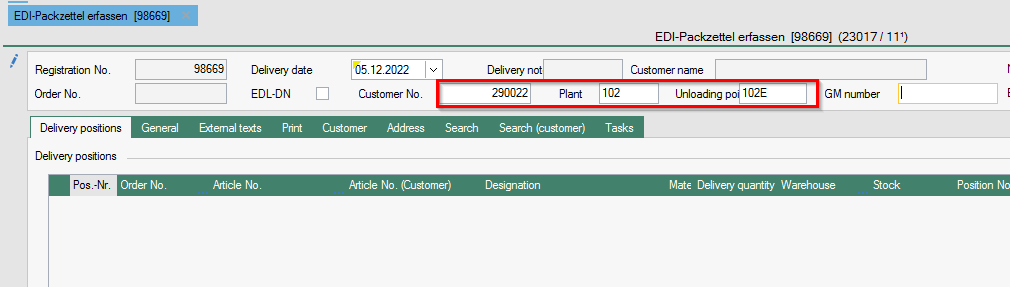
- enter either - order number or - customer number, plant and unloading point
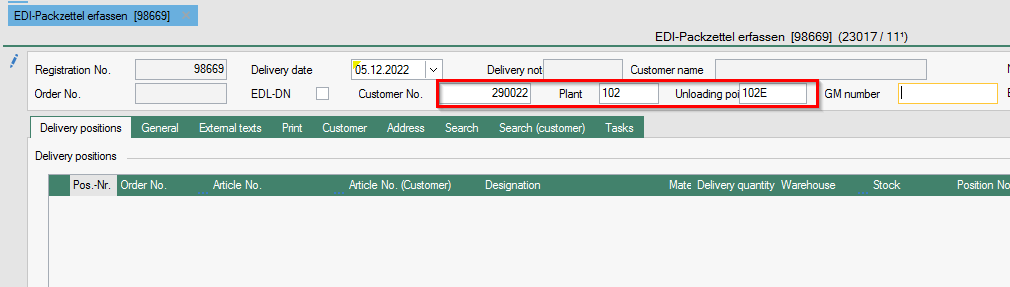
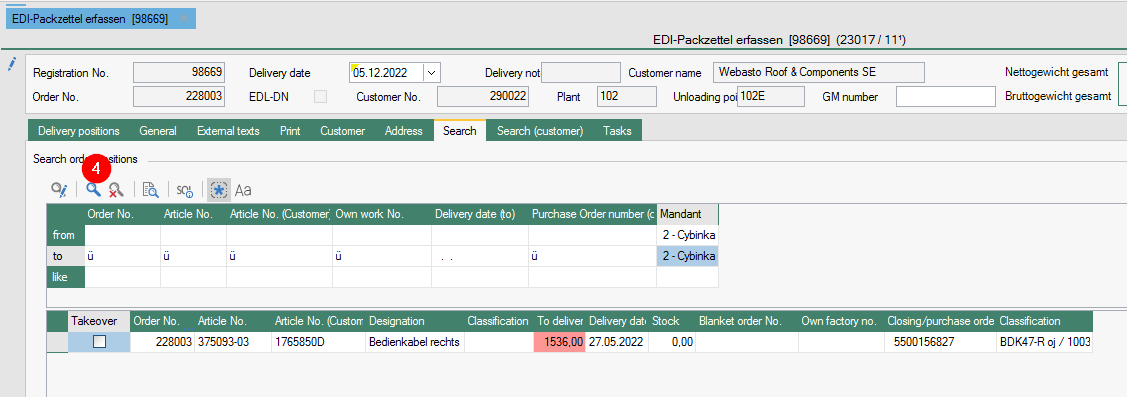
- If the next position is not automatically set as the Delivery position, then continue on the Search tab otherwise 4.4.
- click on Start search... (magnifying glass)
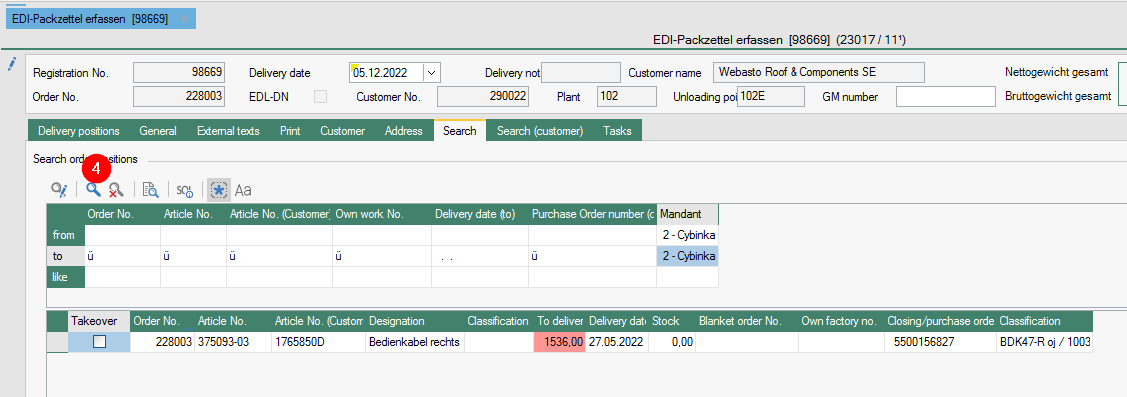
4.1 All items for this order or this customer are displayed up to the set delivery date of the search.
Attention !
If nothing is displayed there:
Click on the selection area of the search and check how far you have limited the delivery date.
and extend it if necessary.
Entry into the packing slip without customer order, all open delivery positions for this customer are displayed in the search result. As a rule, only one sales order is selected per delivery note. Unless mixed pallets are allowed for the customer. See note.
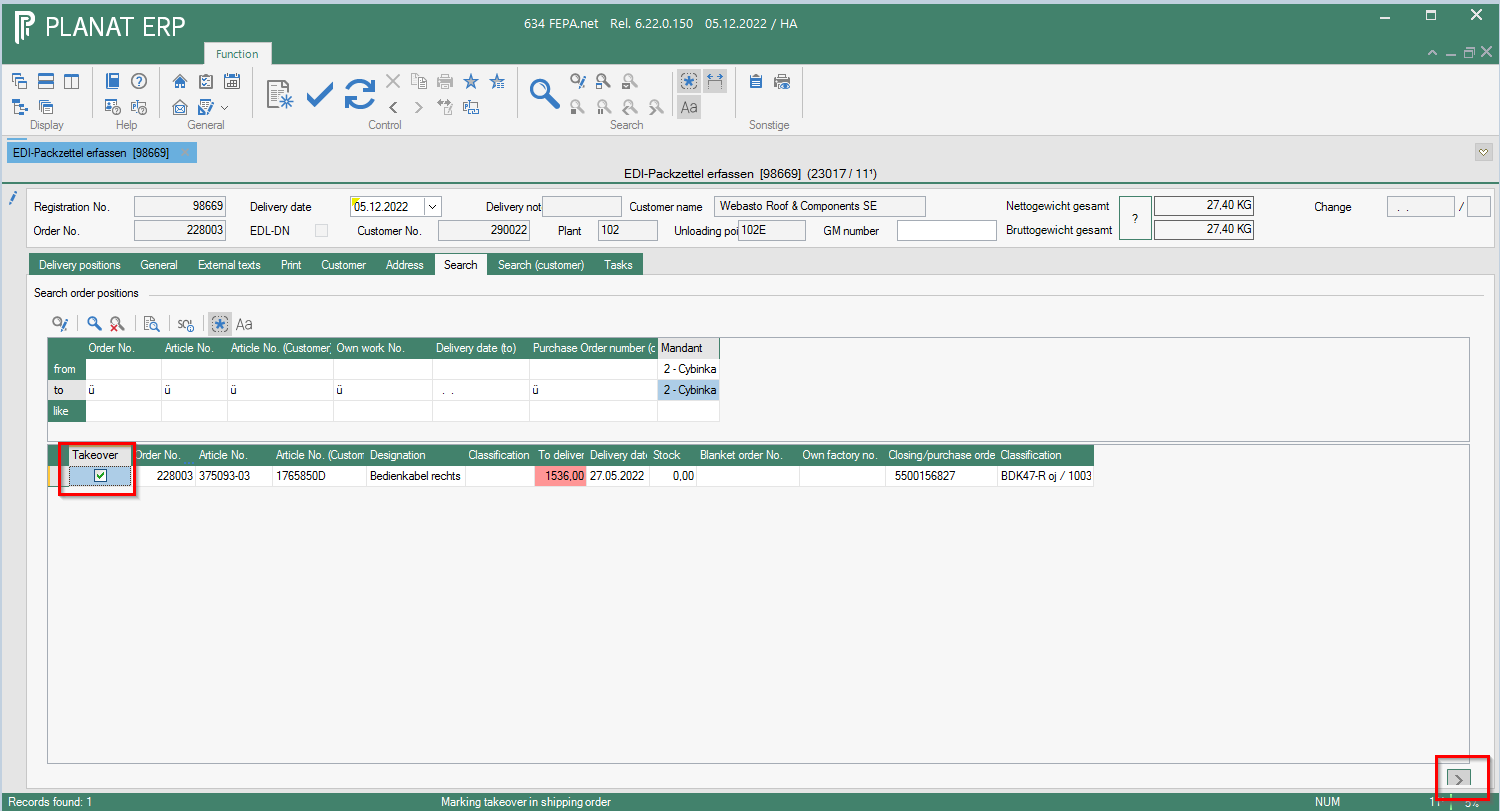
4.2 Check the box in front for the respective positions you need. (Those marked in red have no or not enough stock to deliver the position completely) -> possibly partial delivery.
4.3 Then click on the button > at the bottom right (positions are transferred to Delivery positions).
NOTE: In a packing slip, only items should be combined into mixed pallets where the customer receives the ASN according to VDA4905 and the items have the same customer order number, otherwise there will be problems when receiving the ASN, as the customer order number is only transferred for the first delivery note item!
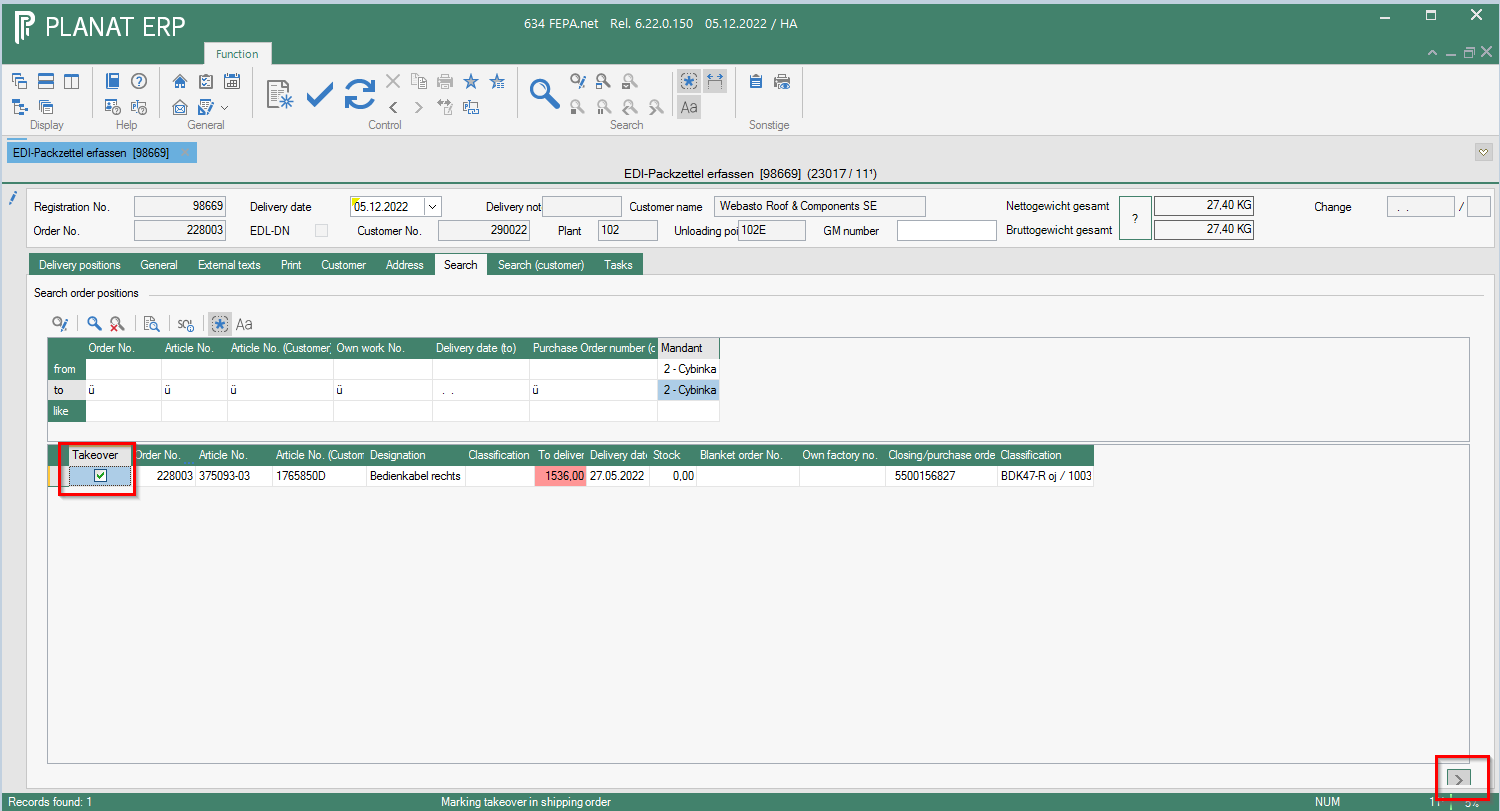
4.4 Back to Delivery positions tab
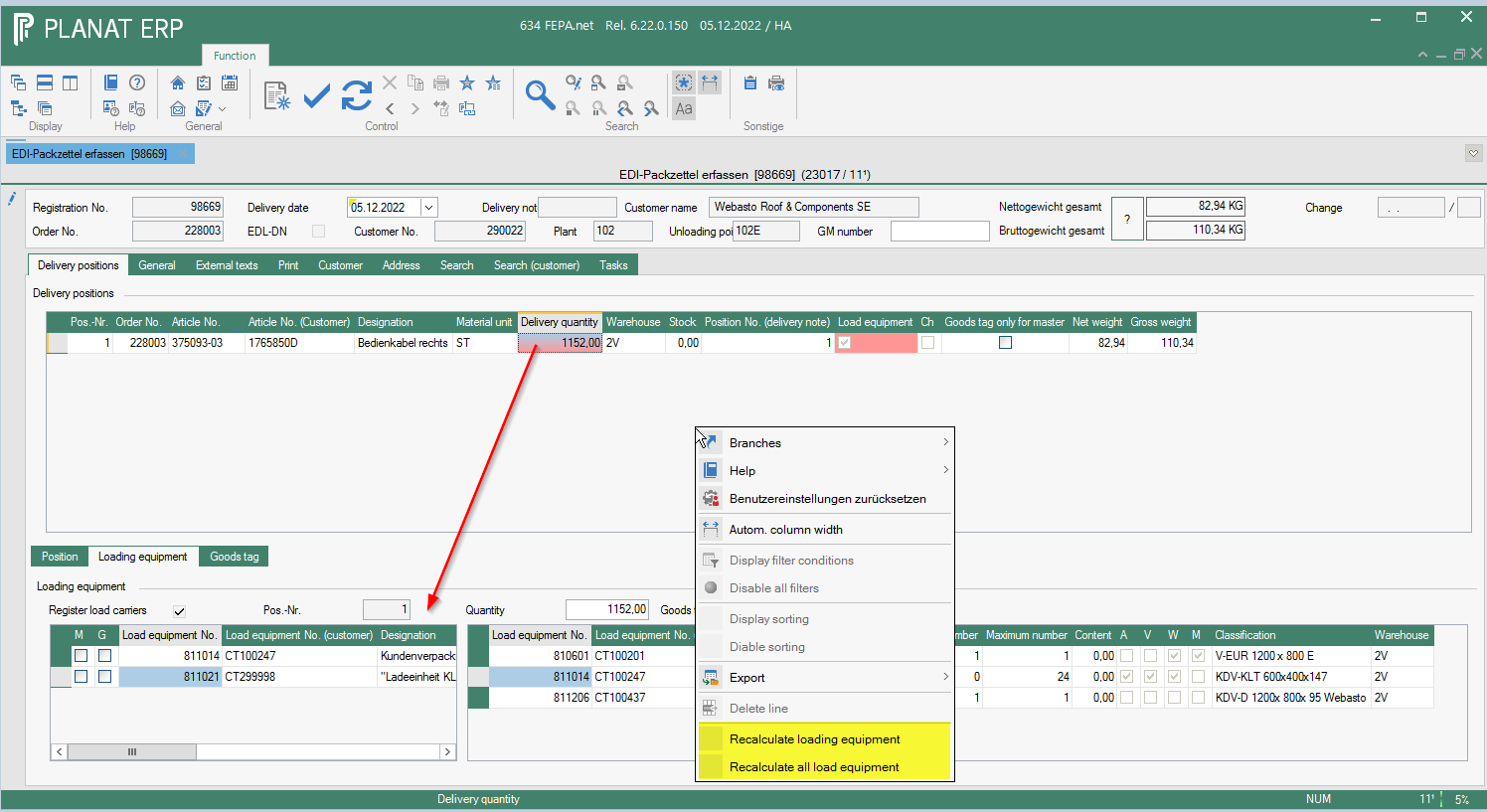
4.4.1 Enter the desired delivery quantity for each item.
4.4.2. right click in each position and recalculate loading equipment (Fepa calculates how many pallets etc. are needed).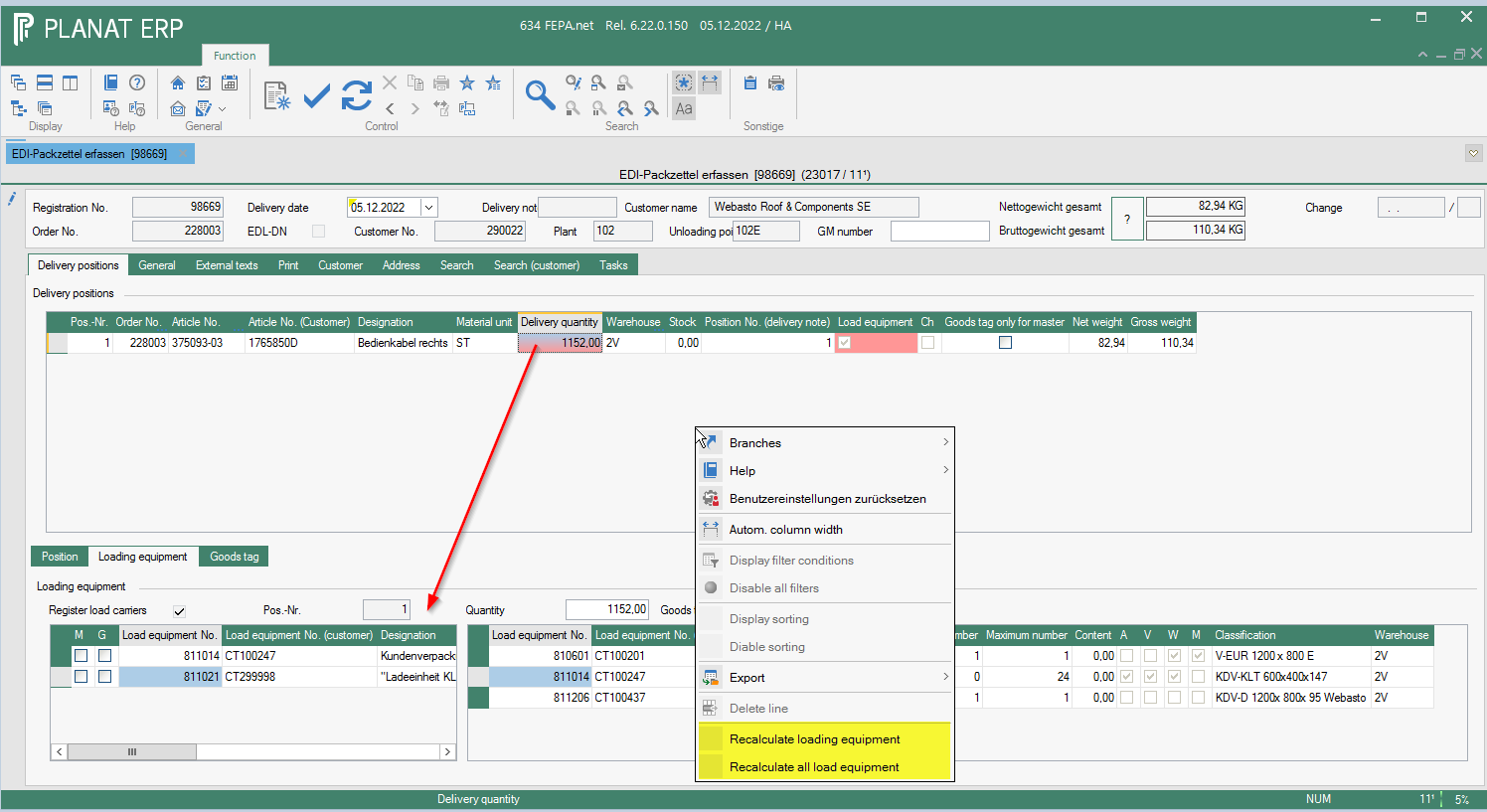
-
Click on the printer button and the packing order will be created.