Internet Explorer Mode (IE mode) in Edge Browser
Background / What happened?
On 14.02.2023 Microsoft released an update that disables the Internet Explorer and instead opens their new solution: Microsoft Edge Browser. In general this is a good step as using the Internet Explorer can be quite dangerous because it does not get any updates anymore and is based on pretty old technology.
This update will get installed on the GEMO computers step by step. This means it is possible that some colleagues can still use the Internet Explorer while others cannot.
Unfortunately there is still some websites or services where the Internet Explorer is needed as the Website will not work without it. One of this solutions is the internally used IMS.
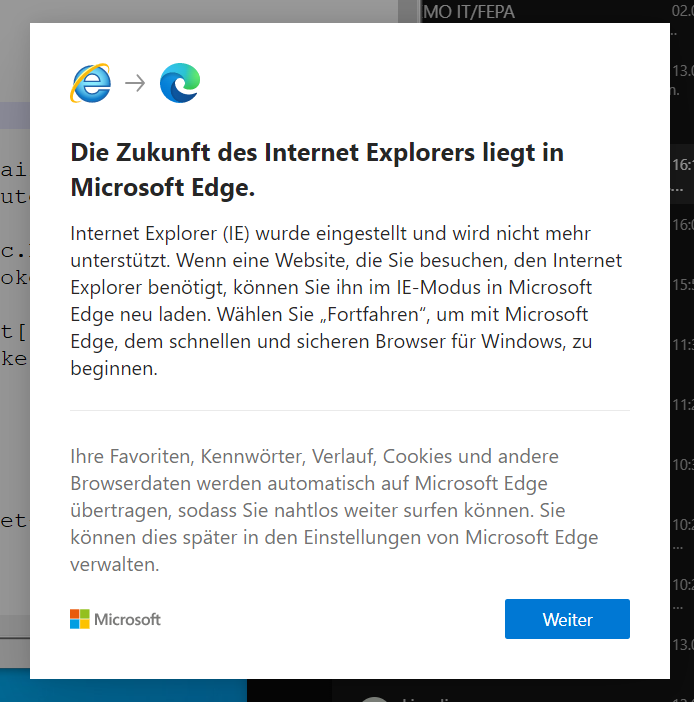
When you're affected and try to open IMS via icon on the dekstop, the Internet Explorer will shop up shortly, close and a new information will be promted looking like the following screenshot.
Unfortunately at the moment we onlny have a German language version of that screenshot but the message is the same in every language: The Internet Explorer has been replaced with Microsoft Edge.
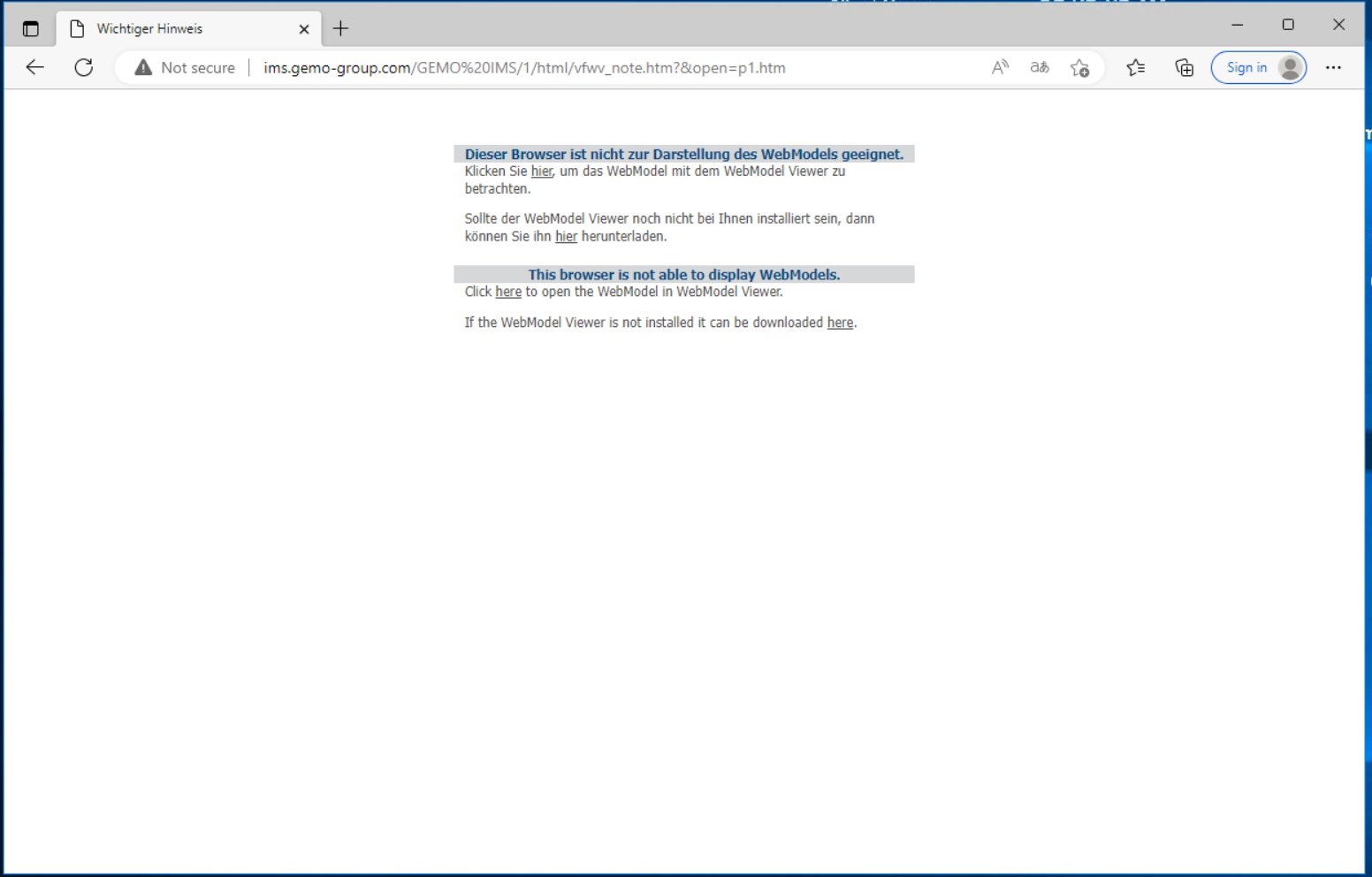
Then, Edge will start up and instead of the IMS it will display a page asking you do use "WebModel". We don't want to do this so please follow the instructions mentioned below to get it working again: Internet Explorer Mode in Edge
Internet Explorer Mode in Edge
The Microsoft "Edge Browser" is based on the same engine as the well known "Chrome Browser" from Goole, called "Chromium". This enables fast browsing the web, use of modern standards and pleayback of any kind of modern media from the web. The difference is that the "Edge Browser" carries some functionality from the Internet Explorer but to use it, we have to activate it first.
1. Start Edge Browser
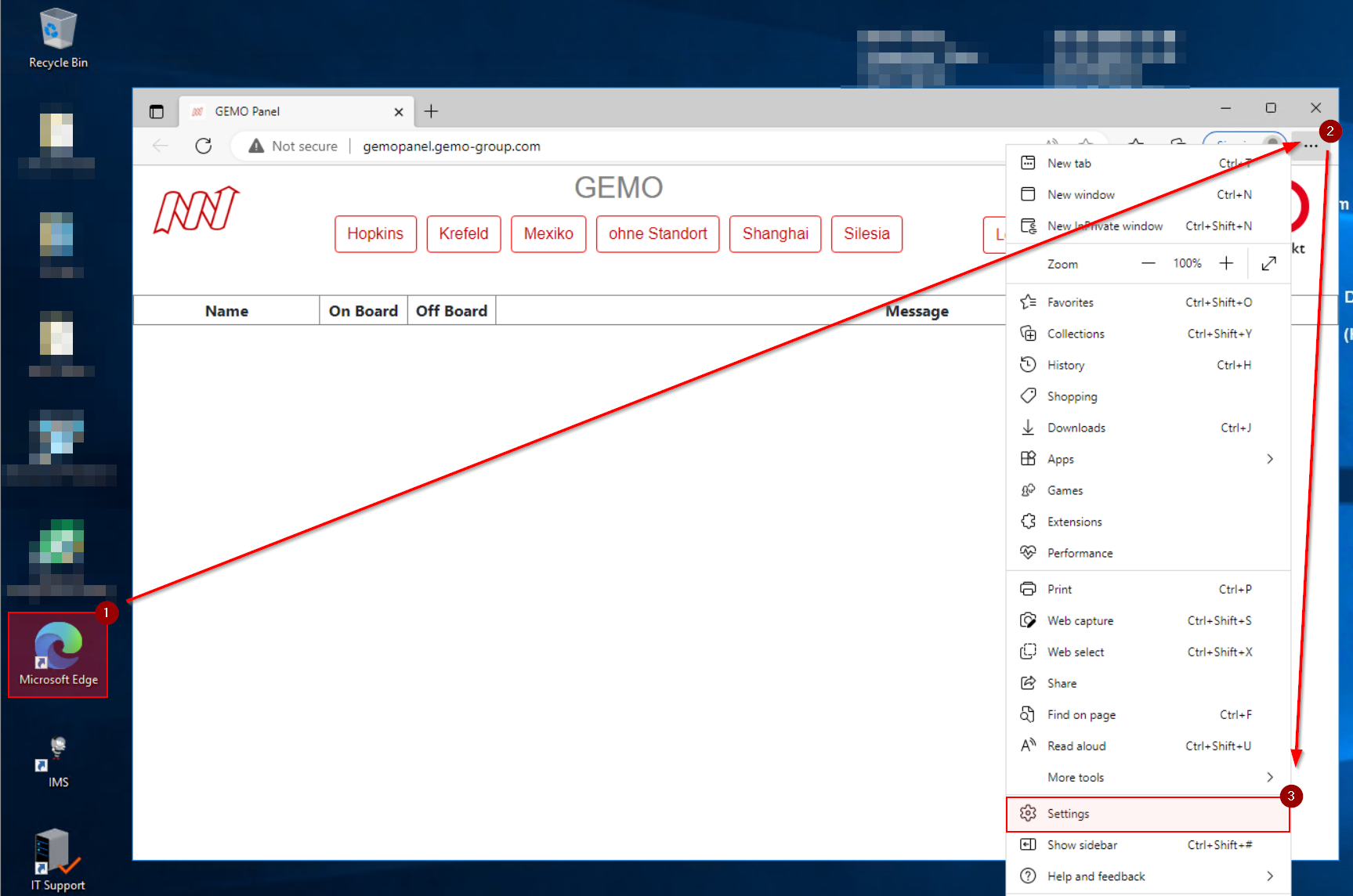
Start the Edge browser from your desktop [1] or the windows main menu, open the "More" menu [2] and navigate to "Settings" [3].
2. Allow IE mode
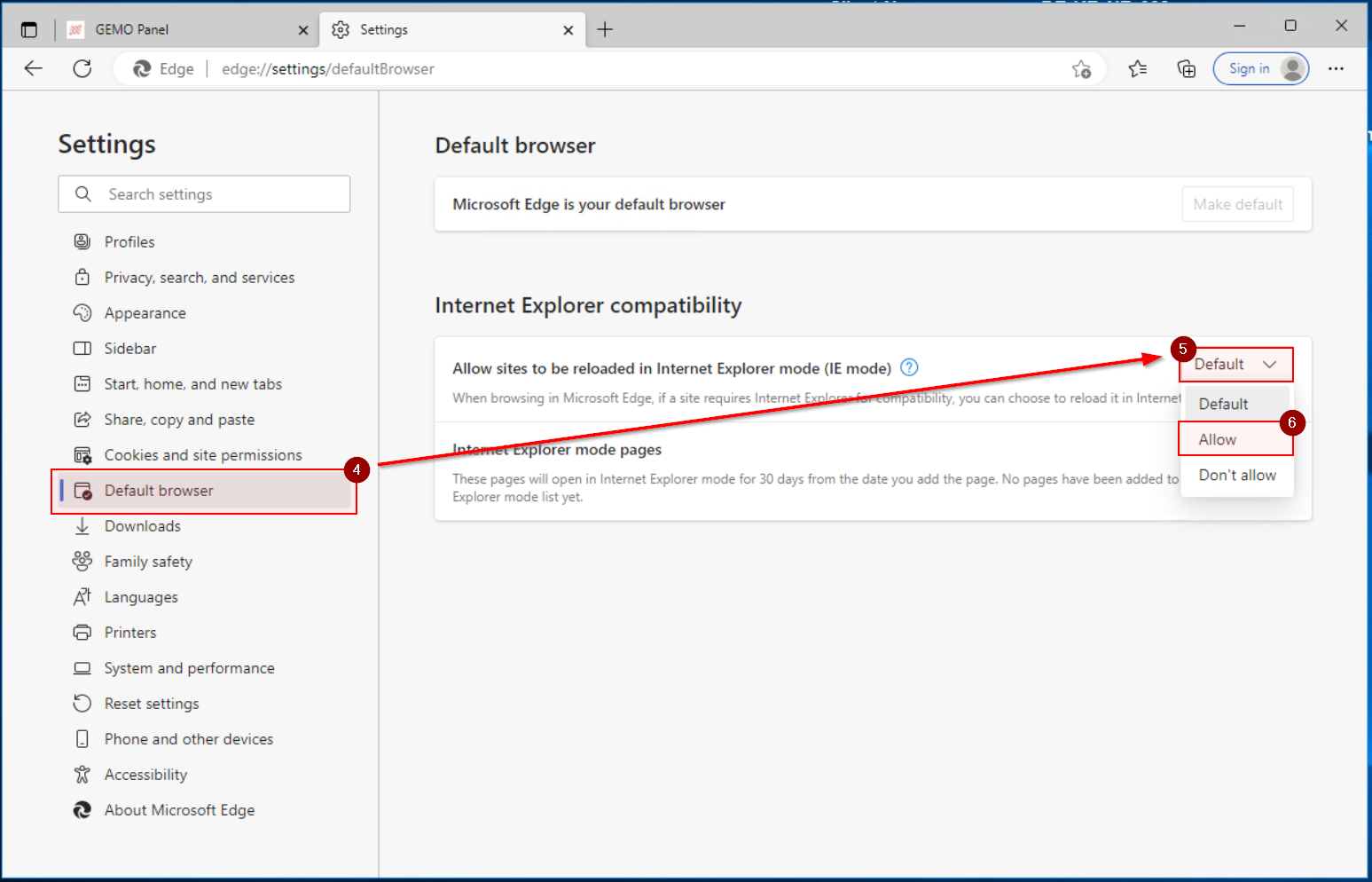
A new tab will open with all the settings. Here, select "Default browser" from the left list [4], go to the "Allow sites to be reloaded in Internet Explorer mode (IE mode)" combobox [5] and choose "Allow" [6] option.
3. Restart Edge browser
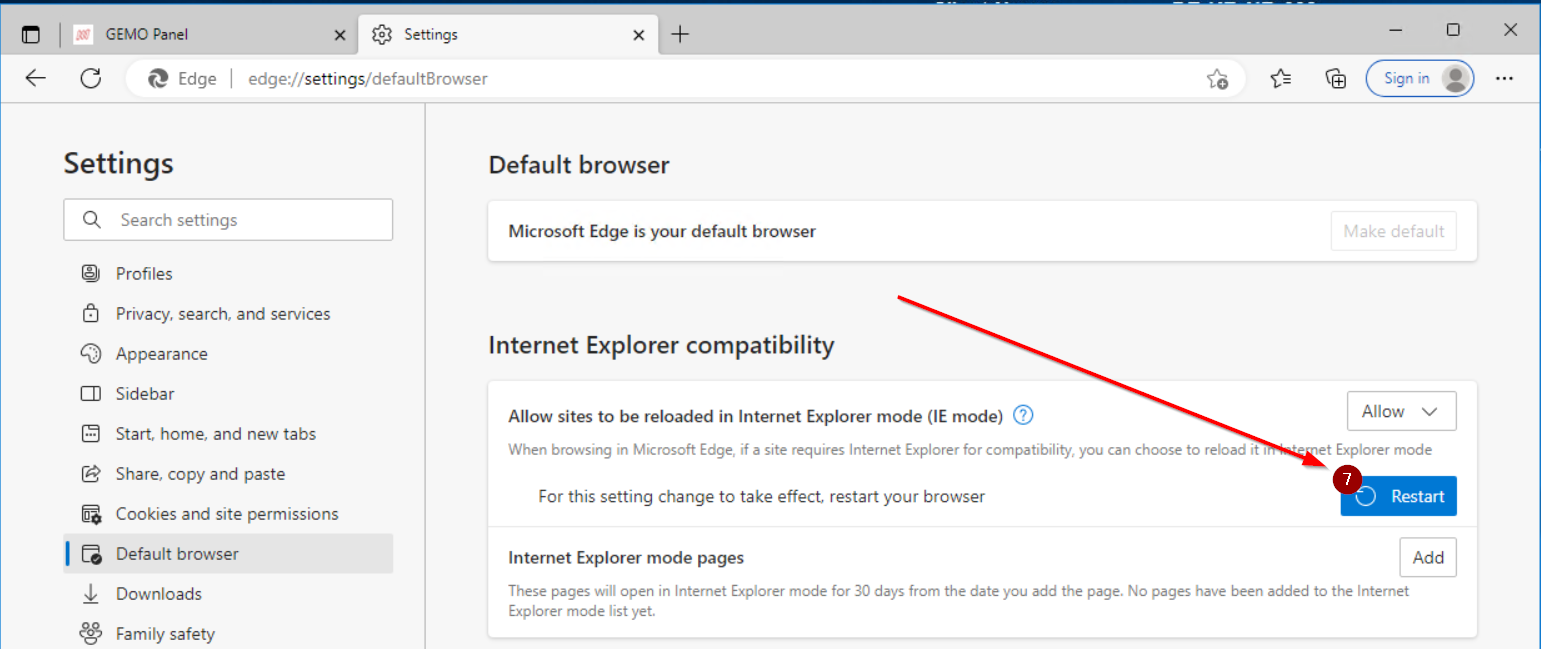
The browser will ask for a restart, click it [7].
4. Configure IE mode for IMS
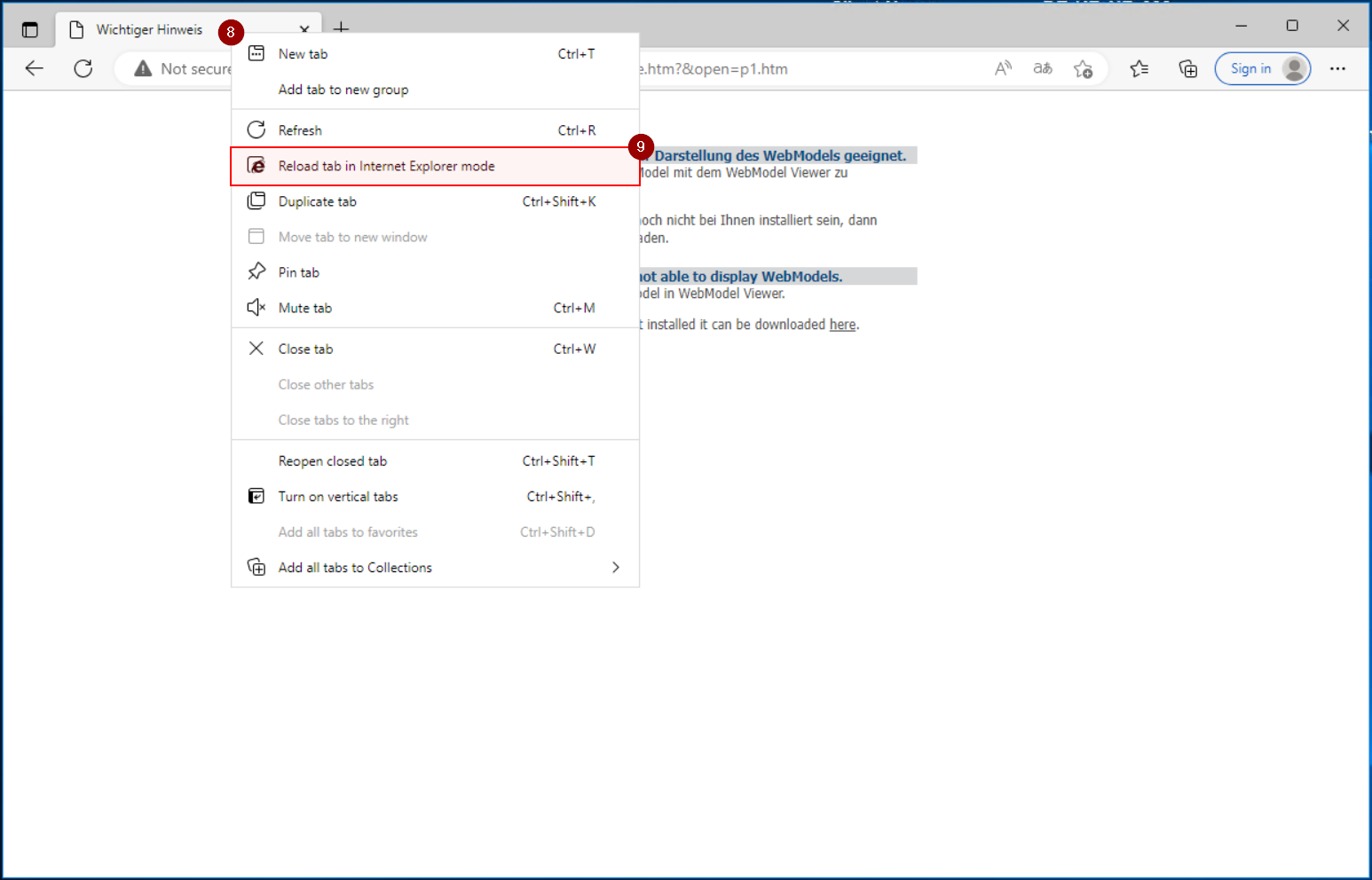
On the next screen the sequence is important. First, select "Open this page in Internet Explorer mode next time" [10] and afterwards "Open this page in Compability view" [11]. The page will be reloaded with IE mode.
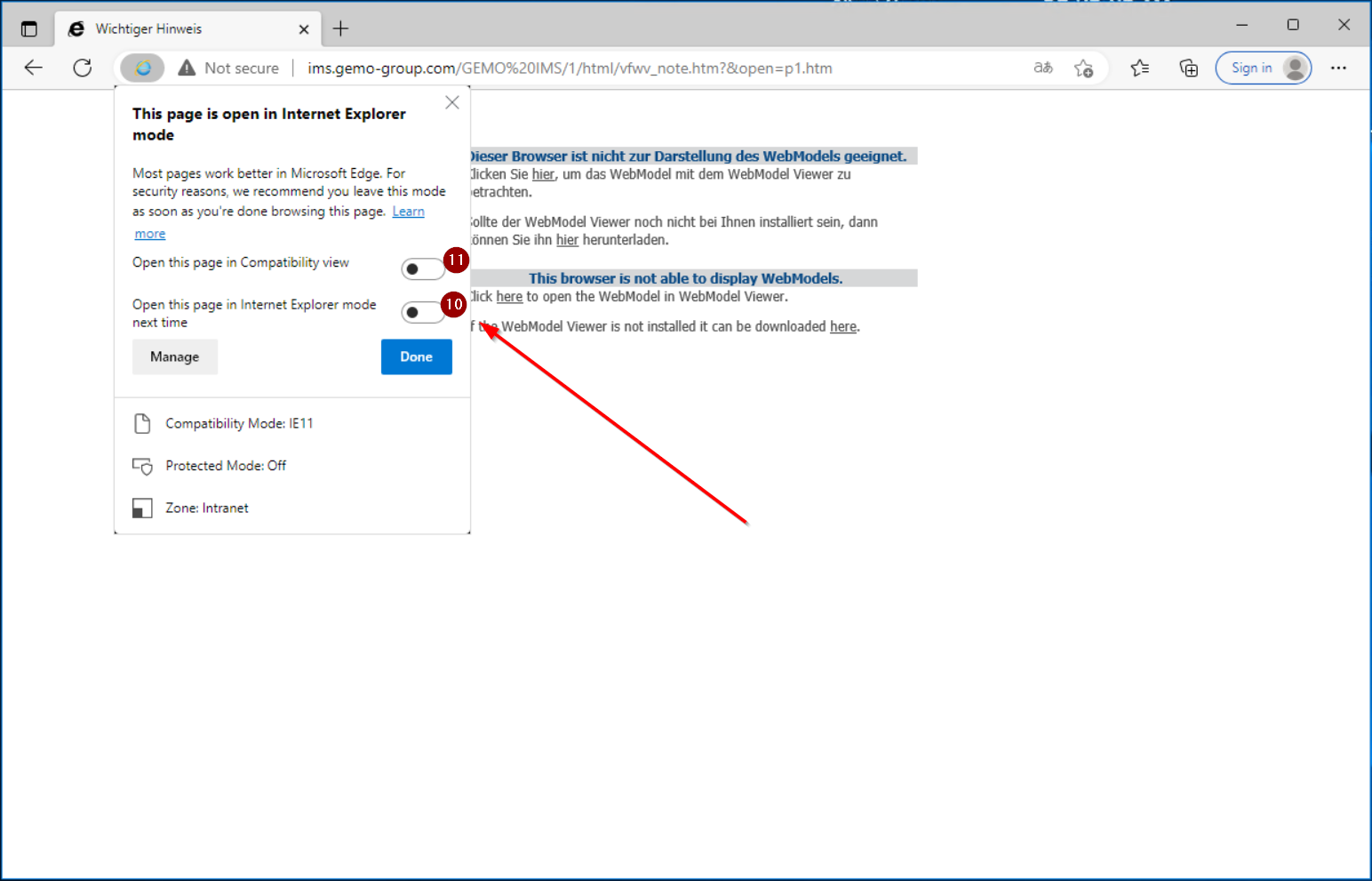
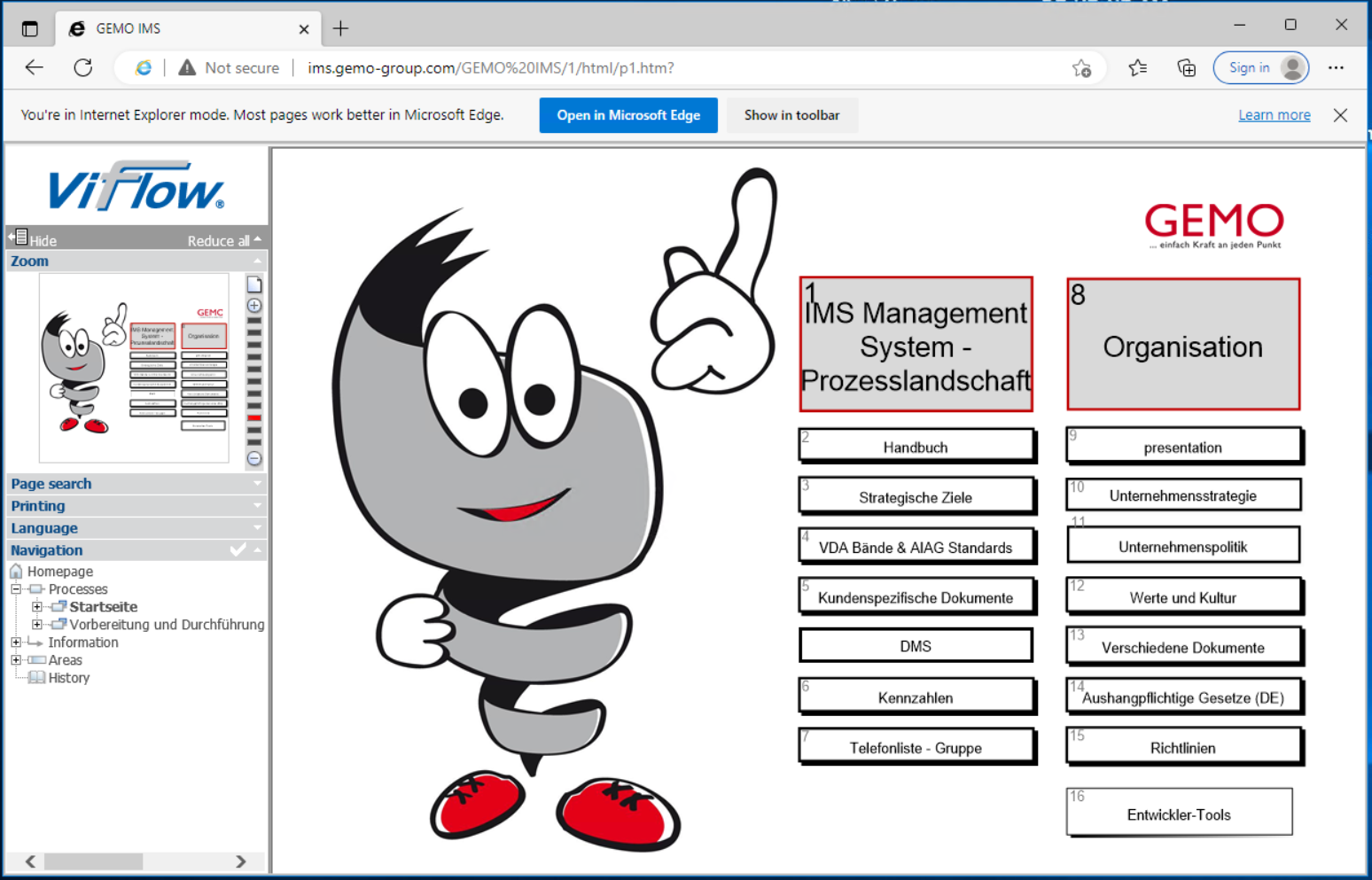
From now on this page will alwas start in "IE mode" and will always prompt you with that information with the banner above the page itself. This setting will stay active until you deactivate it.
Deactivate IE mode
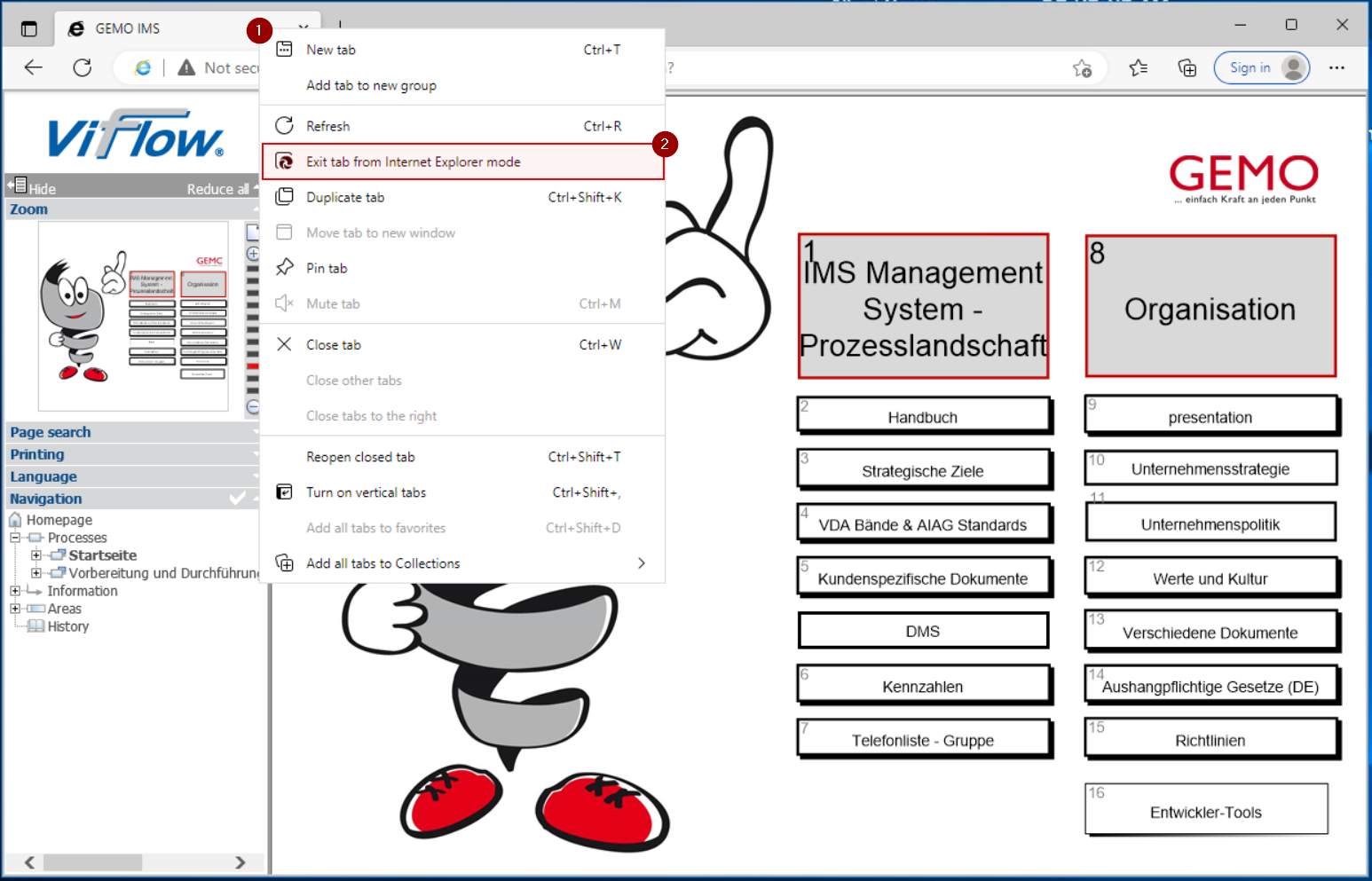
To deactivate the IE mode for a page navigate to the website, right-click on the tab [1] and select "Exit tab from Internet Explorer mode" [2].