
Add mail account to Mobilephone
This page will explain how you can add your GEMO mail address to your mobile device.
Prerequisites
First of all, make sure that you have a valid internet connection. Mobile data or WIFI will be sufficient. In order to connect to a GEMO WIFI it might be needed to inform IT before you're able to connect your mobile phone.
In some WIFI guest networks the traffic needed for the configuration might be blocked so turn off WIFI if you're in a guest network and expirience connection issues.
Connect a new mobile device
At the moment we're only providing support for Android devices. The generel steps will be similar on all devices but be aware of our screenshots might be out of date pretty fast.
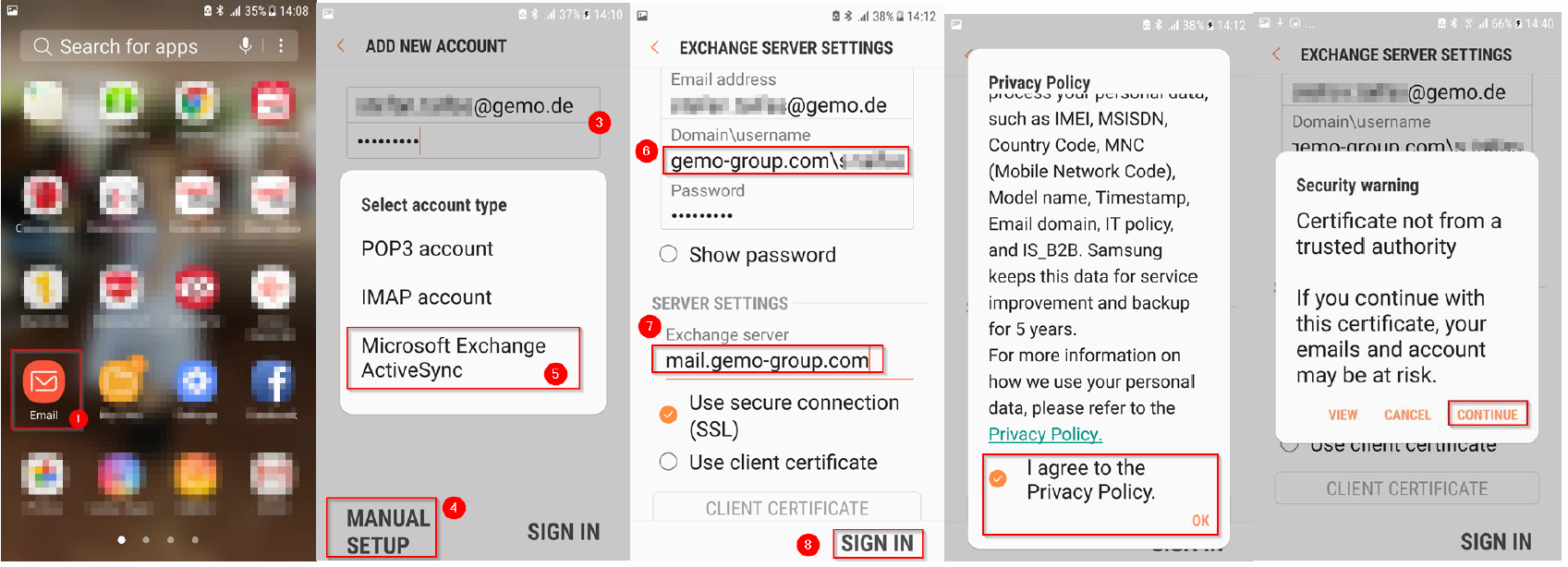
- Open the standard mail app.
- Select the option to "Setup new mail account" (not visible in the screenshots).
- Type your GEMO Email address and password (like the password you use to login to your computer).
- Select "manual setup".
- Choose "Microsoft Exchange ActiveSync".
- Remove the preentered domain name and write down our GEMO domain and your windows user ID with a “\” between them. For example: “gemo-group.com\m.mustermann”.
- Remove the preentered server name and write the correct one “mail.gemo-group.com”.
- Press, “sing in”.
- If it shows up, please accept policy warnings (not visible in the screenshots).
You need to accept the exchange server as "Device Administrator" for your device. You have to accept that in order to get the mails on your mobile device. This means that GEMO IT can remote-wipe your device in case it gets lost.
Troubleshooting
If the program gives you errors please make screenshots and send them to: it-support@gemo.de. One known issue is that you have already connected more devices than allowed (maximum 10 ) and then IT can help you removing the old devices.