
Precalculation
Create precalculation
FEPA function: Calculation > Calculation > Create precalculation > Create calculation.
You can also refer to the FEPA help, menu bar button "Help" (question mark in circle). Here you will find information on the FEPA basic version and the fields displayed.
Note: Master calculation is calculation no. 1. It is displayed in the client in the master data in the Calc. Client results tab in the client. If the master cost estimate is created via Create precalculation, the costing lot size is overwritten with the lot size in the cost estimate in the master data!
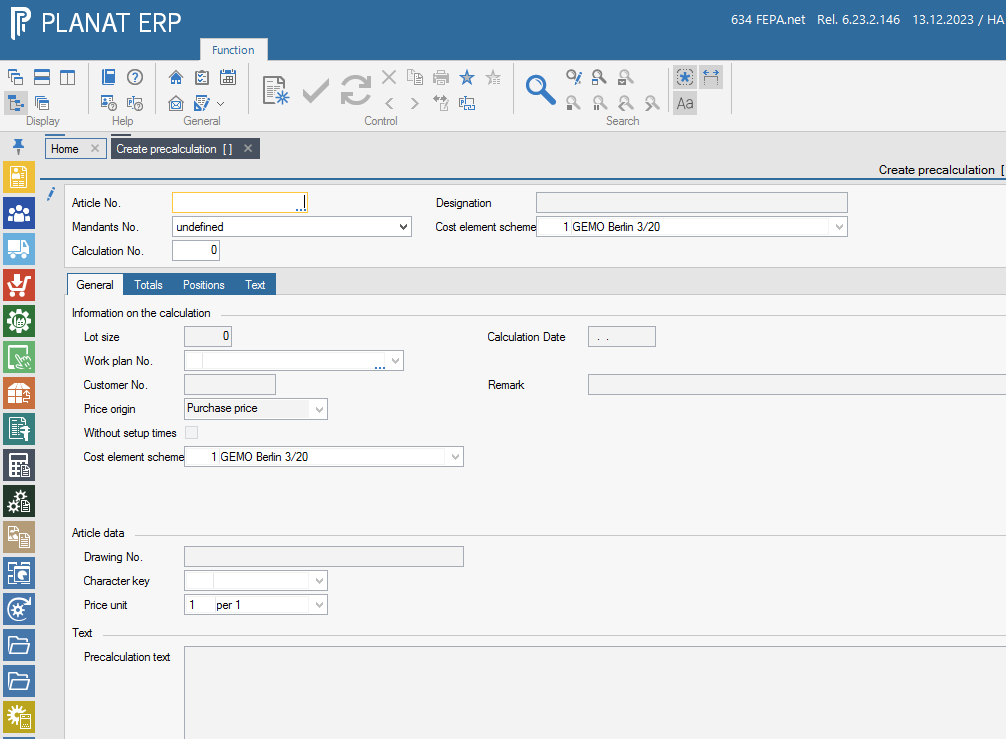
- Article no. - Enter Press Enter
- Mandant - select from list and press Enter
- Calculation no. - if new calculation, then continue with Enter or open known calculation, then enter the calculation no. and press Enter. Then the name and the cost element scheme, if stored, are taken from the master data (article) and it is checked whether the article is not a purchased part. The lot size is taken from the [to quantity] field in the routing assignment.
- Lot size - check, change if necessary
- Cost element scheme - check no. and change if necessary
- Price origin - purchase price = last MEK, graduated price = from delivery conditions (is taken as it was stored in the calculation schema)
- Toggle without setup times, if this is ticked, setup times are not drawn
- Then press the [Create new calculation] button. The item is calculated with the set data. The message [Action is being executed] appears. This must be confirmed with [OK].
After creating the calculation, nothing changes in the view except the menu bar in the header and the Totals and Items tabs are filled.
The Totals tab contains the values of the cost estimate for the cost elements and surcharges stored in the cost element structure and the prices resulting from the routing and the bill of materials.
You can change changeable surcharges (Changeable column: allowed), but FEPA only recalculates according to manufacturing costs. I.e. I can change the MGK Total (21) in the Surcharge column, but FEPA still does not recalculate because this cost element comes before the cost of goods manufactured (80). This means that only cost elements from no. 81 onwards are taken into account in the recalculation of a cost estimate.
Positions tab
For an improved display, click in the table with the mouse and click on [Auto column alignment] with the right mouse button.
Columns that you do not want to see can be hidden by clicking with the mouse in the heading and unchecking the relevant column.
The table is organised by levels and types.
Work centre type = operation from the routing
Material type = parts list item from the routing
Assembly type:
If a BOM item is an "in-house production" and has a BOM and a routing, it becomes an assembly and the type work centre and material are assigned level 2. (This would continue if this applies to BOM items again. → Level 3, level 4 etc.)
If the material is a pseudo item, the operation must not have full costs, as it also occurs in level 1. Only material prices are relevant here.
The value in the Full costs column is transferred to the totals list (Totals tab) for the line of the relevant cost element. The full costs are already shown here including the overhead surcharge (if applicable).
If the work plan has several stages (screenshot = stage >1), the calculation builds on each other, taking into account the scrap and the quantity used in the next stage. However, the full costs displayed only relate to the item and cannot simply be totalled to recalculate something in Excel!