
Login to FEPA.net
How to get into the PLANAT ERP system named FEPA?
STEP 1: The remote servers
Our ERP system „FEPA” is installed on a group of remote servers. The first step is to connect and login to one of them. The task of choosing the right server is provided by a shortcut which should be placed to your computers desktop automatically. Users of thin-client-devices do not need this this first step because the initial login while starting the device already connects you properly.
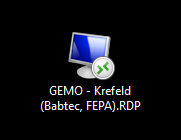
All other users have to use the shortcut GEMO - Krefeld (Babtec).RDP on the desktop. If the shortcut was sent to you via e-mail you have to place it at first on your desktop before using it.
STEP 2: Starting the FEPA-Login
After the login on one of the remote servers you should see some FEPA-shortcuts. The first login can take some time as the system needs to create your profile and make all resources available you might need.
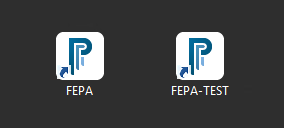
- „FEPANET” starts the productive system.
- „FEPANET-Test” starts the testing system.
The language the system is starting depends on your FEPA user settings and can be changed by IT as well as on your own. To change the language settings on your own read the following page: How to change the FEPA language?
STEP 3: The credentials
Normally FEPA will be opened without asking for your FEPA username nor password because IT configured a so called “Single-Sign-On” function. FEPA will use the username you authenticated yourself starting the computer with (or loged into the remote desktop server with) and, if configured correctly, it will approve your login automatically.
But you do have a password for FEPA and you need to keep it save as every password, usually users receive that starting password with the mail when IT sets up the account. It is needed when working with the handheld scanners (stock taking) or when you need to login on a different computer, for example to give a training to somebody with your login because you have different permissions.
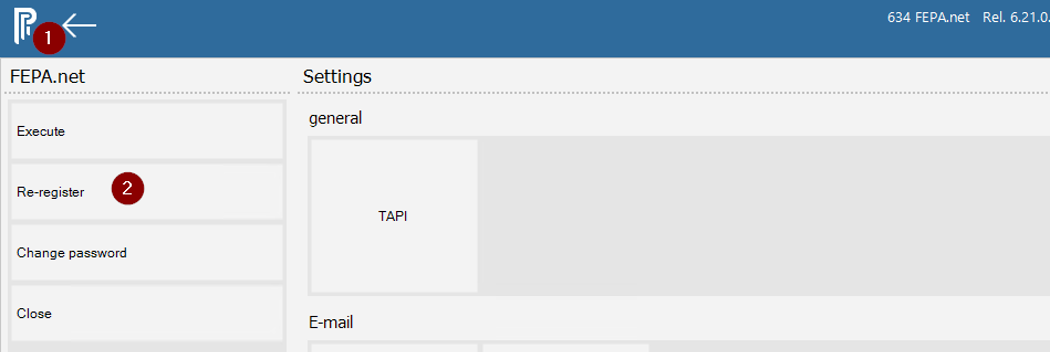
For that purpose everybody can always use the function “re-register” to login into a different FEPA user at any time. You can find the function clicking on the programs logo in the top left (1) and then start the program clicking on “Re-register” (2).
On first login: Please change your password!
When you first start with FEPA you’ll receive an email from IT with your starting credentials. Every user should change this starting password after the first login. This is a security precaution against unauthorized access. The password should never be shared - also not with the colleagues from the IT department.
If you don't know how, there is a document for that: How to change the FEPA password.