Invoices
General
Here you will find general information on creating and cancelling invoices in FEPA. Location- or customer-specific features are not taken into account here!
Create invoices
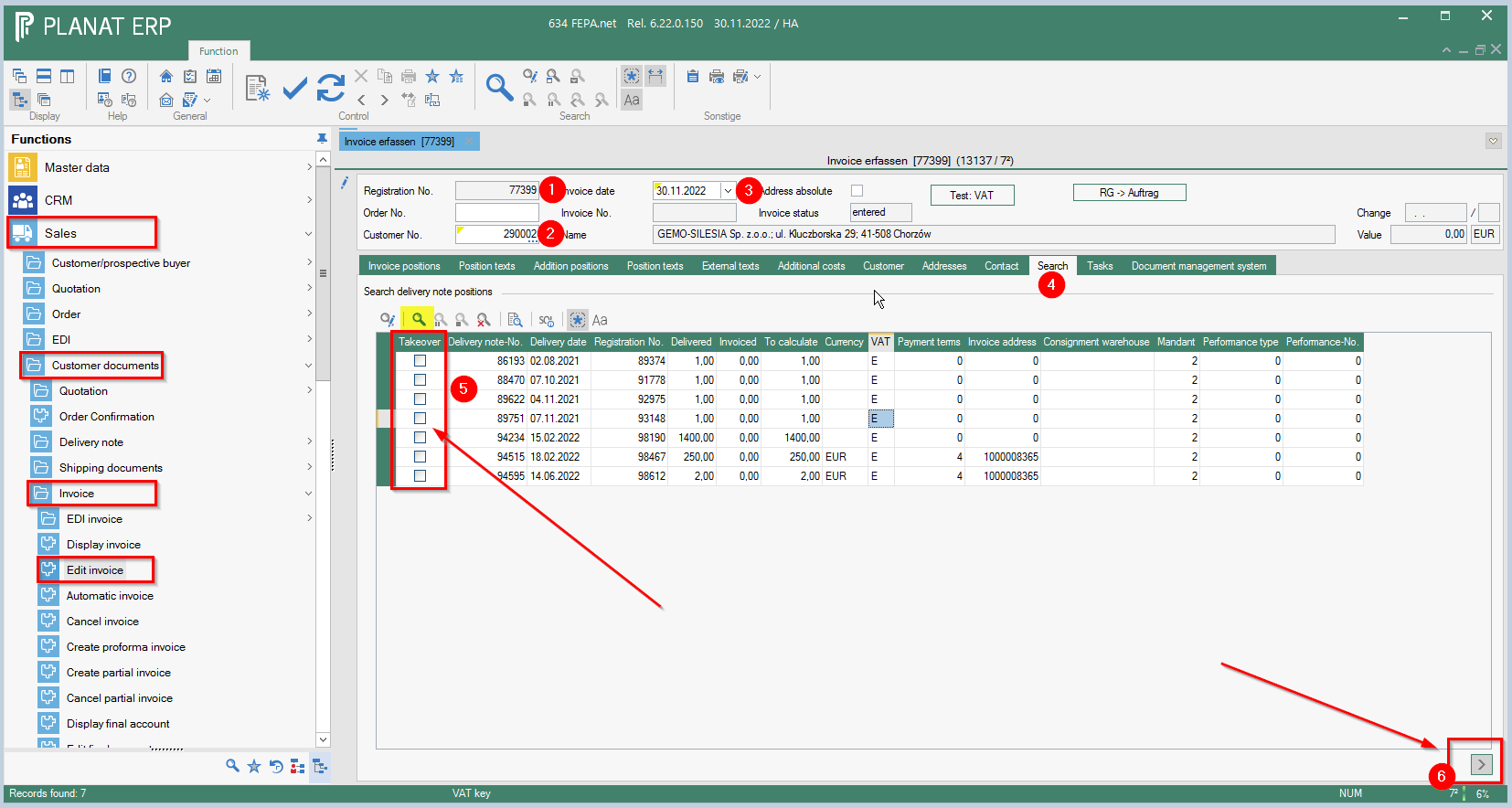
FEPA function: Sales > Customer documents > Invoice > Edit invoice
1. press Enter ( registration number will be assigned)
2. enter the customer number in the Customer No. field
3. confirm invoice date
4. go to the search tab and start the search with the magnifying glass (click!).
5. all delivery notes not yet invoiced for the customer will be displayed, tick the desired delivery note number in the Take over field
6. click on the button ">" at the bottom right (delivery note positions are taken over into the invoice positions)
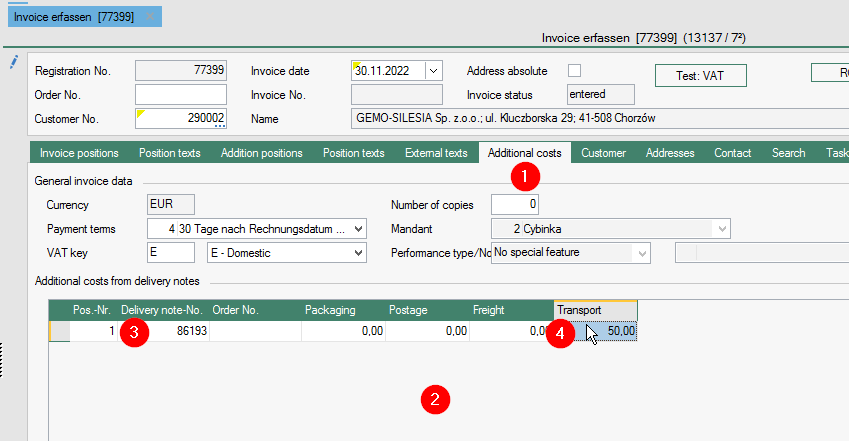
6.1 Calculate packaging costs, transport costs, etc:
6.1.1. additional costs tab
6.1.2. append line
6.1.3. enter the delivery note number
6.1.4. and enter the desired value in the respective field
7. click on the button Print and process (invoice is created)

In the External Texts tab, prefix or suffix texts can be entered for the invoice, which are then printed on the invoice.
A print preview (button Printer with eye) can be used to check the invoice before processing.
Create EDI invoice
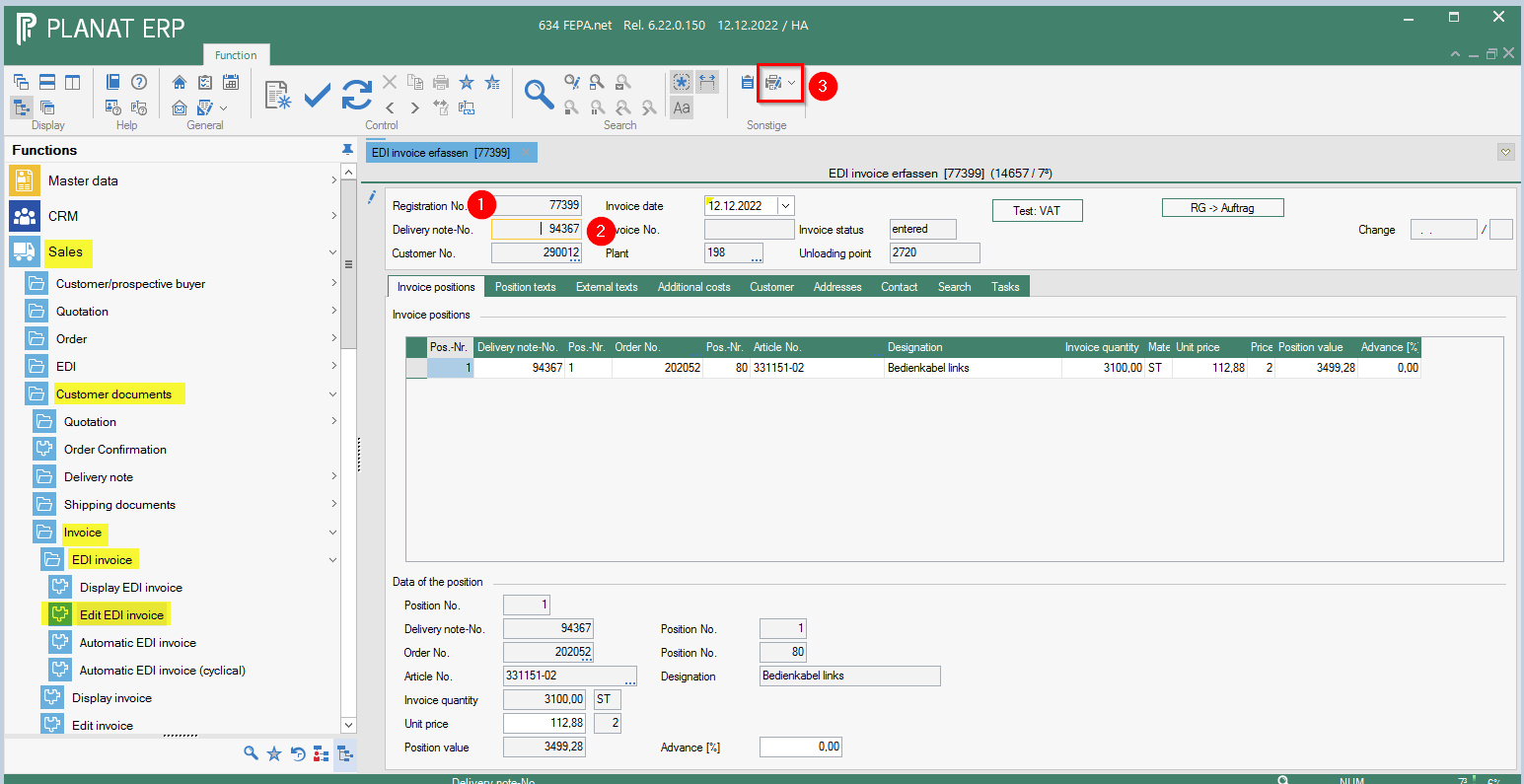
FEPA function: Sales > Customer documents> Invoice > EDI Invoice> Edit EDI Invoice
- Press Enter (Registration number is assigned).
- Enter delivery note number
- Click on the printer button and the invoice is created.
Cancel invoice
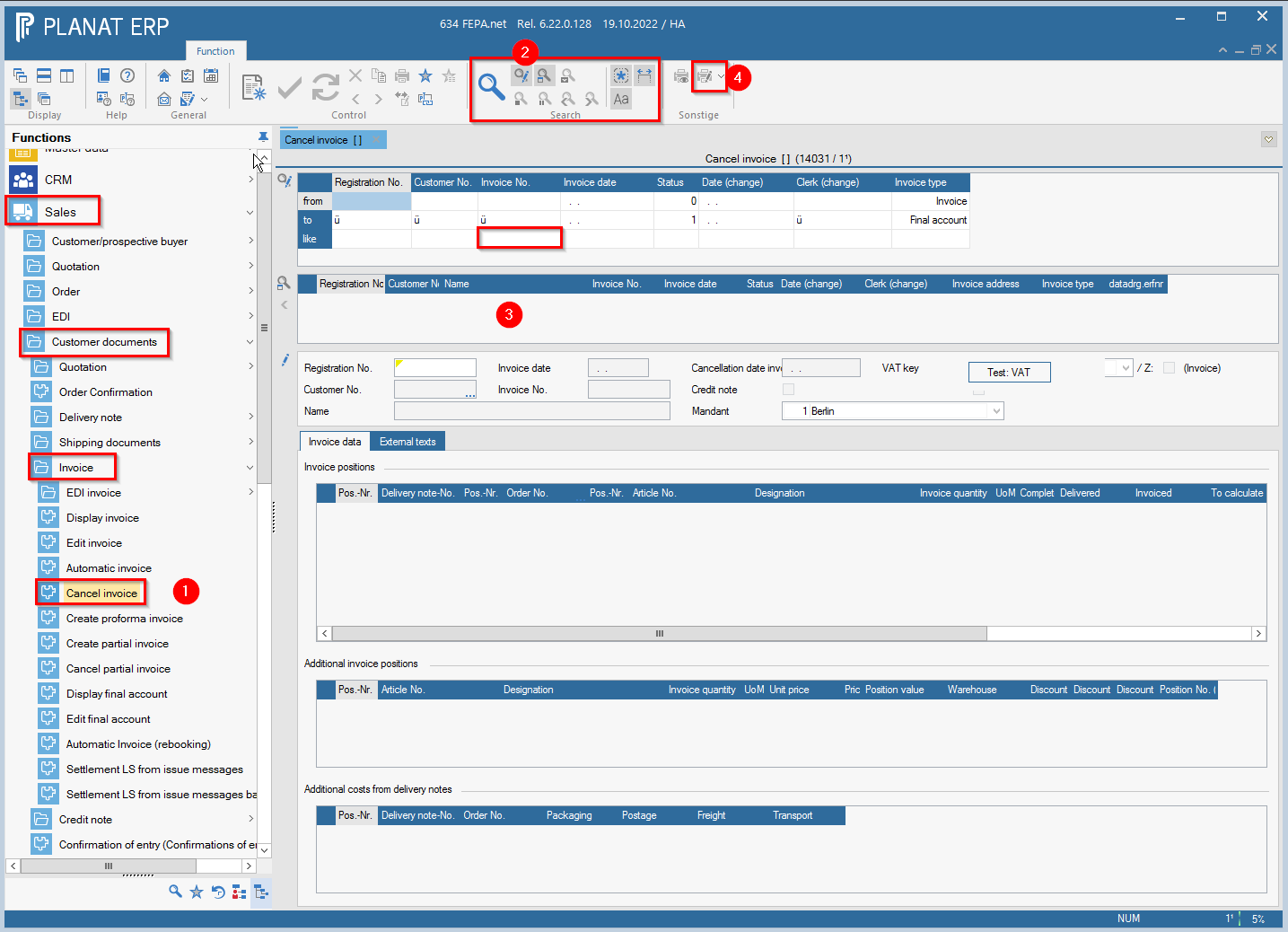
1. Mask under: Sales > Customer Papers > Invoice > Cancel Invoice
2. Open search (magnifying glass with pen) enter the desired invoice number in the search field at like, press magnifying glass
3. Select the desired invoice (double click), the invoice will be loaded - check for correctness
4. Cancel the invoice with the button for printing and processing, the cancellation invoice is printed out.