
Invoice
General
The Edit Invoice Receipt function is used to enter the invoices sent by the supplier on the corresponding order item. It is possible to transfer the entered data to the financial accounting system via an interface.
The invoice receipt check also serves to compare the delivered quantities with the invoiced quantities, as well as to check the invoiced prices.
On the part of Planat, there is no fixed linking of goods receipts with the invoices entered here.
For the entry of invoices, the specifications valid at the location must be observed.
Edit invoice receipt
FEPA function: Purchasing > Deliveries > Invoice receipt > Edit invoice receipt
Header data
- Press Enter, document no. is assigned (if necessary, the client is queried).
- If the invoice is for only one order, the transaction number can be entered. Otherwise continue with the entry of the supplier no.
- Select the date of receipt of the invoice
- Select the invoice date
- Enter gross invoice amount
- Enter the invoice number of the supplier
- Check or select posting period
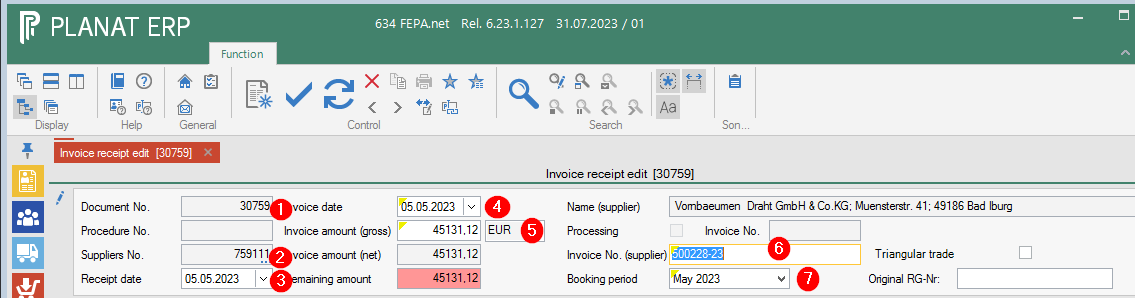
As long as the balance is not 0, the entered invoice cannot be processed.
Invoice data tab
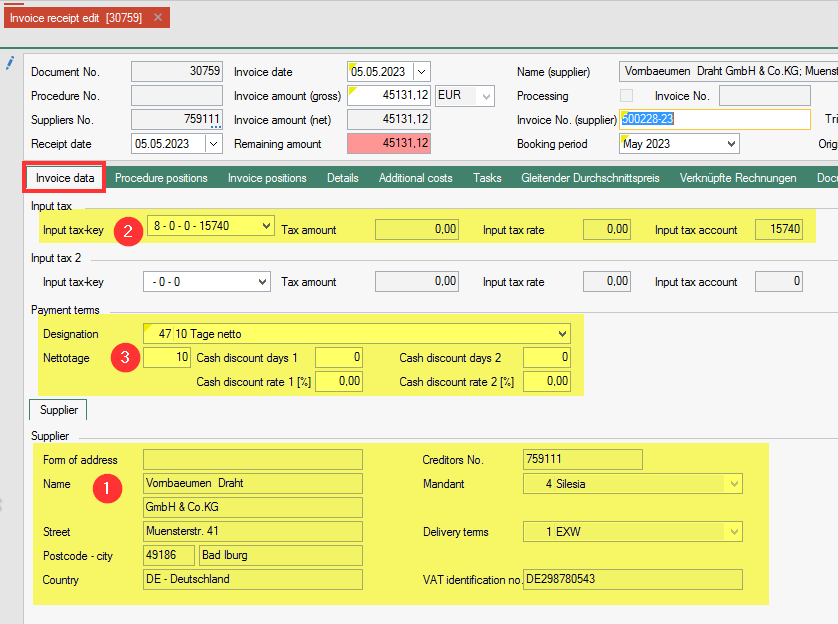
- After entering the header data, the supplier is displayed here. Compare address and VAT ID. Must match
- If it is a domestic transaction, the tax rate and the tax amount are displayed here.
- Check or change the terms of payment are possible here. Compare with the invoice.
Procedure positions tab
- Click on the tab Procedure positions
- Press the magnifying glass, then only the open positions for the supplier are loaded.
- From the displayed order items, I select the item(s) listed in the invoice by clicking in the checkboxes at the very front (green tick) (order no. = procedure no., item, article, quantity ...).
- By clicking on the arrow > in the bottom right-hand corner of the screen, the items are transferred to the Invoice positions tab.
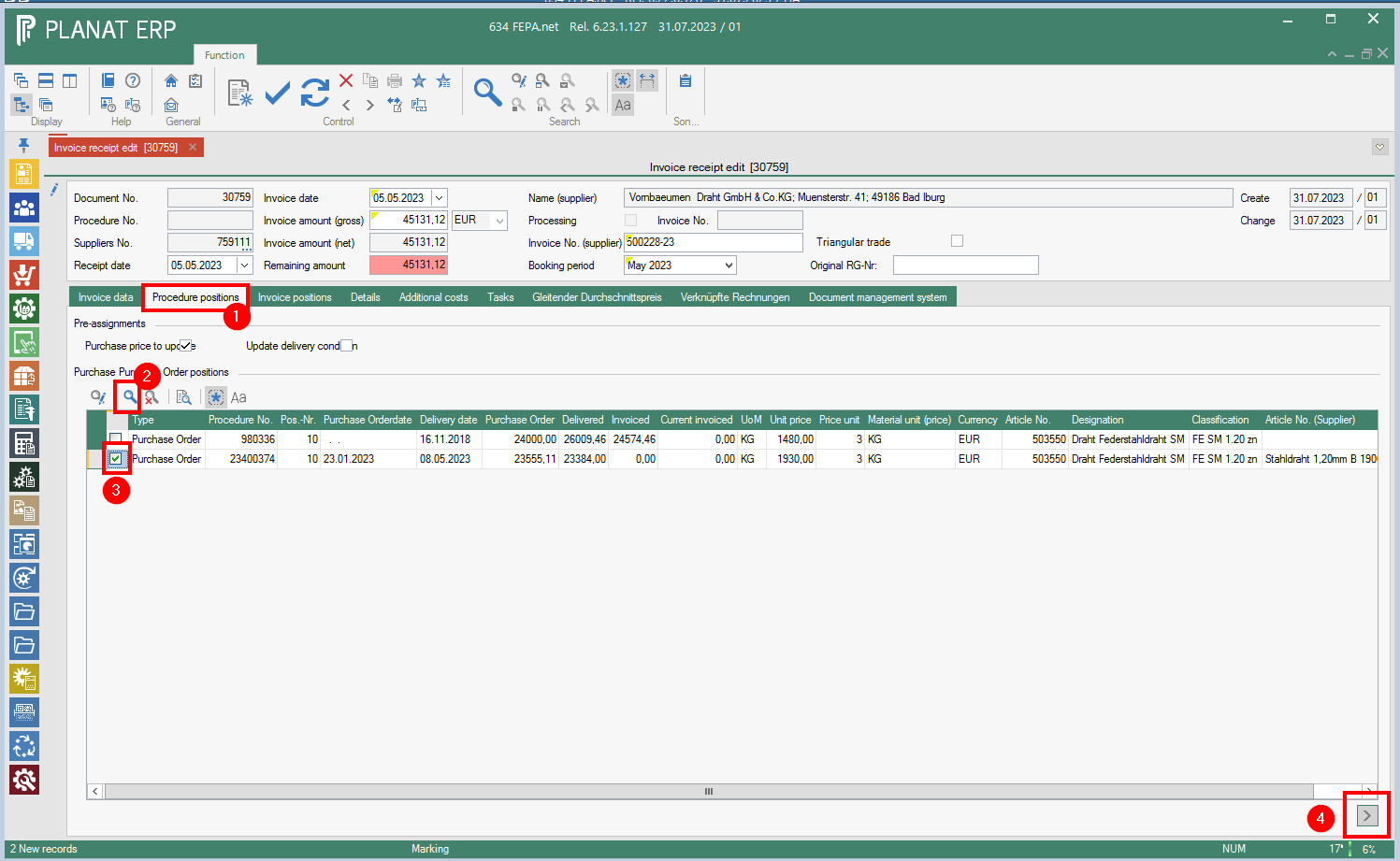
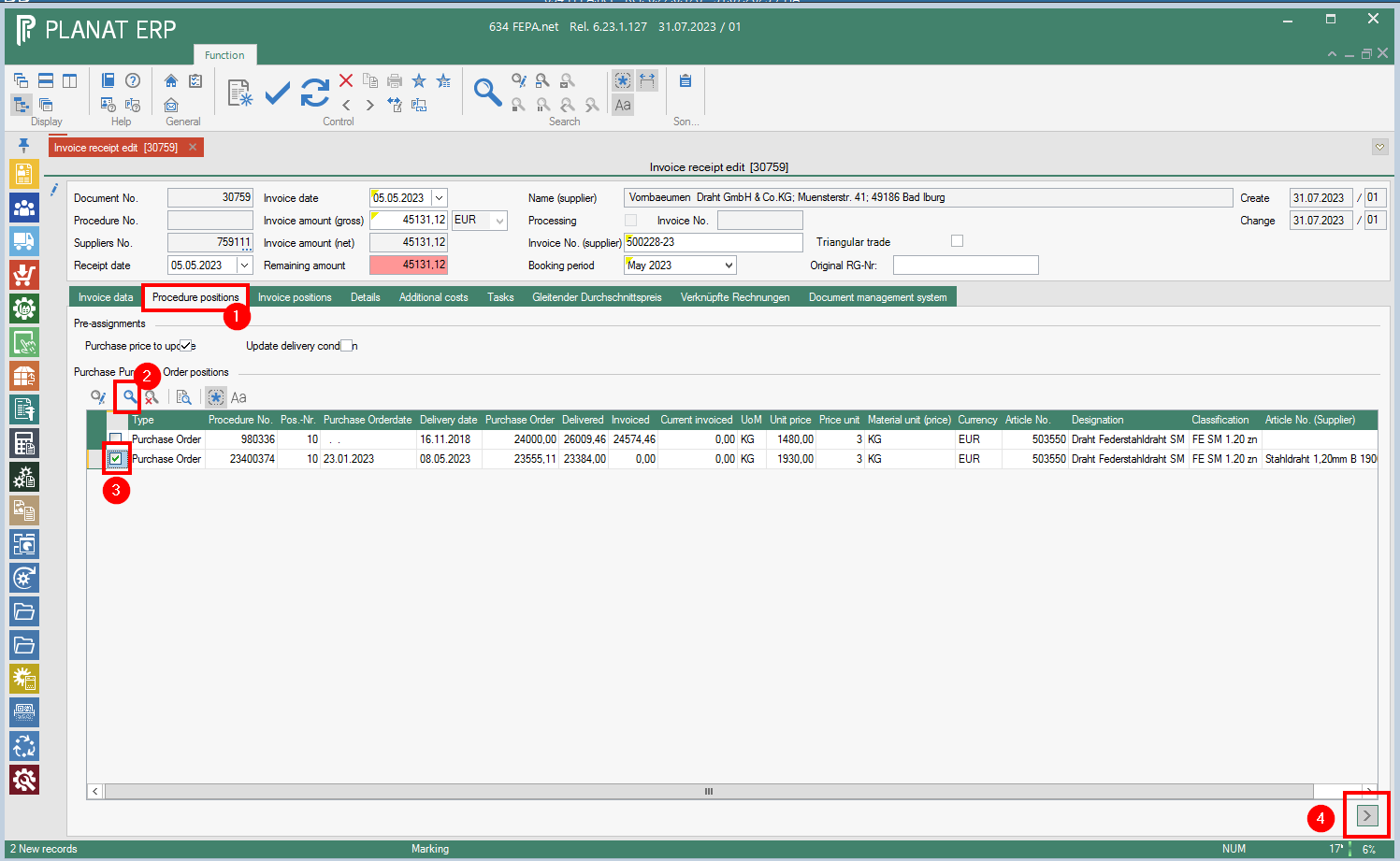
The entry automatically jumps to the invoice positions tab. If any are still missing, you can go back to the Procedure positions tab and also select the missing ones and transfer them to the invoice positions.
Invoice positions & details tab
Invoice positions
In the tab Invoice positions, the positions are displayed in table form. At the bottom, the item texts from the purchase order are displayed for the position in which the cursor is placed.
Field contents can be edited. This can be seen in more detail in the tab Details. According to the content of the invoice, e.g. quantity and price can be adjusted to the invoice.

Details tab
The data from the Invoice positions tab is displayed here in the form of a mask. The values can also be edited in the invoice item data.
According to the information on the invoice, only the quantity, price, discounts, etc. are checked here according to the invoice content and adjusted if necessary.
If the quantity corresponds to the ordered quantity, the check mark "Item completed" is automatically set. It can also be set manually. This completes the order item after processing.
The tick for updating the purchase price in the item master is set automatically.
The tick for updating the delivery condition can be set manually if required. The price is then updated when processing the invoice entry.
Cost centres
If cost centres are required for an article, they must be entered in the Cost centres tab. The tab can be found in the Details tab under the data on the invoice position. Here you can select one of the cost centres and the percentage (Portion) for it. A maximum of 3 cost centres are possible. Cost centres already entered in the transaction or the master data are taken over here.
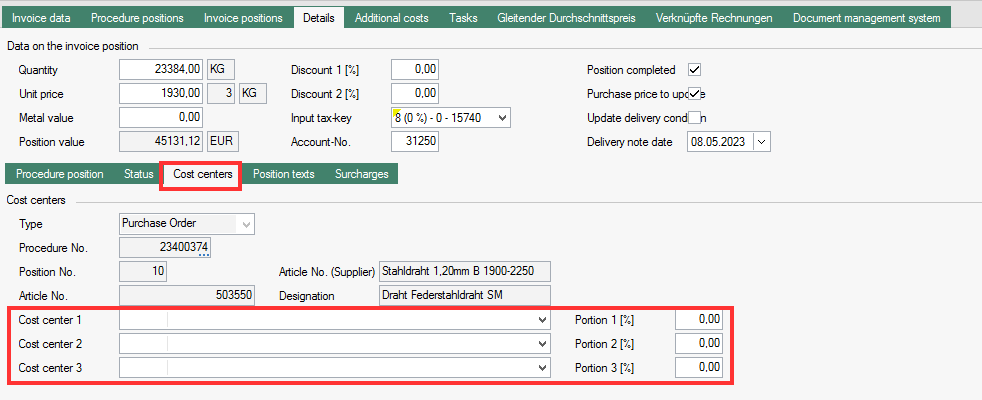
A cost centre is required for some material groups. This is checked when the invoice is saved and information is displayed that the cost centre must still be entered. Without a cost centre, processing is not possible.
Surcharges
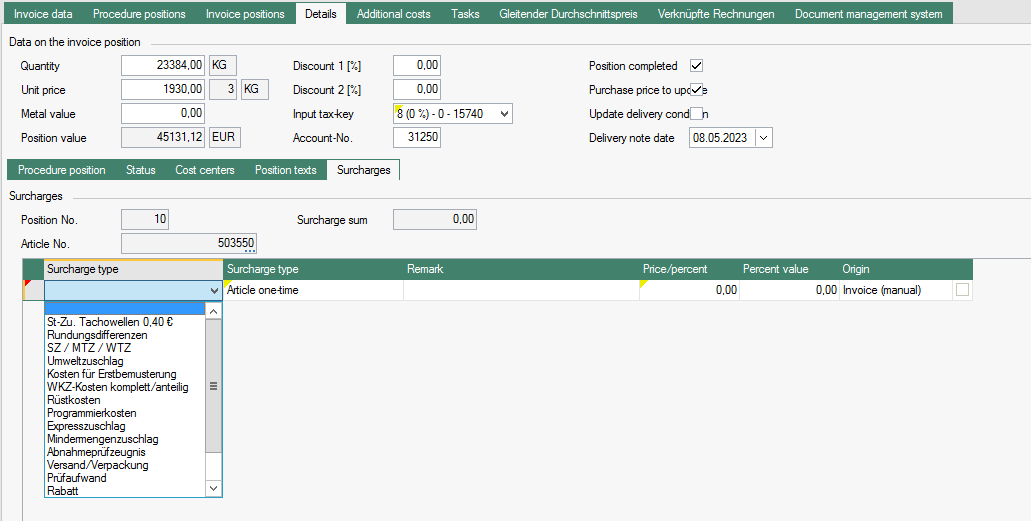
Surcharges are an add-on in FEPA. In the Surcharges tab, surcharges can be entered for the invoice. The costs are then added to the item value of the invoice item. How they are to be used must be agreed with the purchasing management. They are not automatically allocated to the purchase price. By means of a GEMO own program, the surcharge is allocated to the Last Receipt price and replaced in the master data item when processing the invoice entry.
- Add line
- Select type of surcharge (Ask the CPO to enter the surcharge types in other languages.)
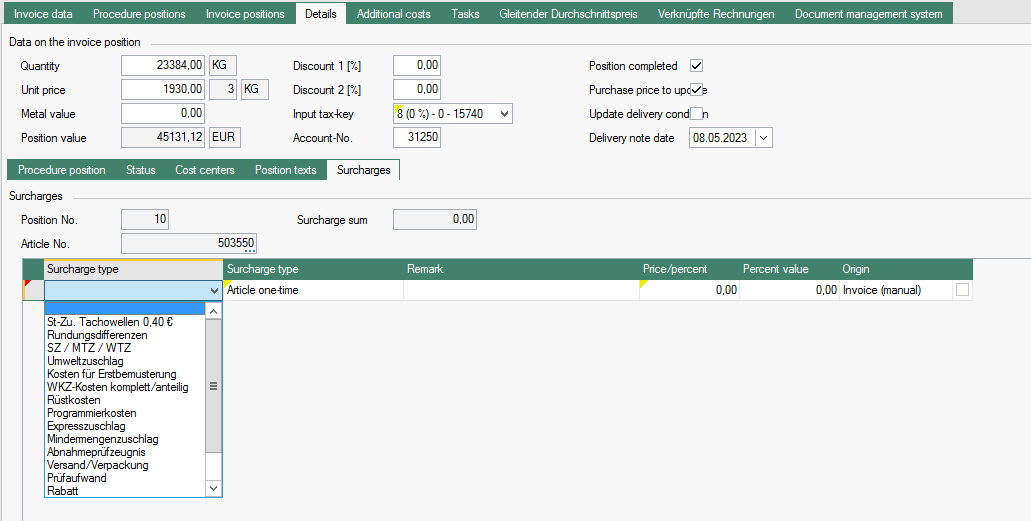
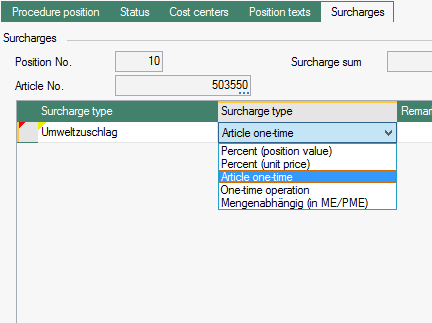
- Select type of surcharge
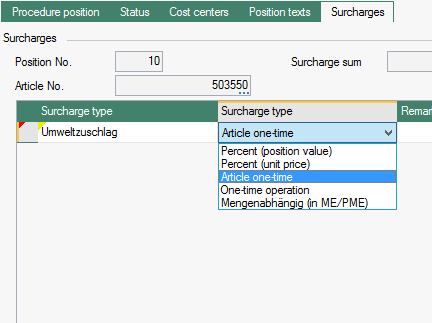
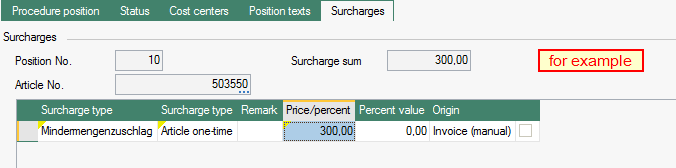
- Enter a remark, maximum 30 characters possible
- Enter price or percentage
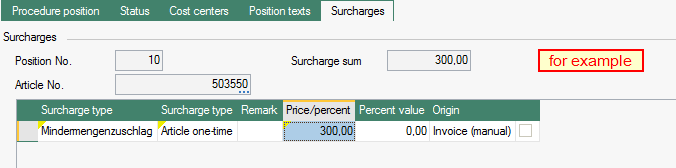
-
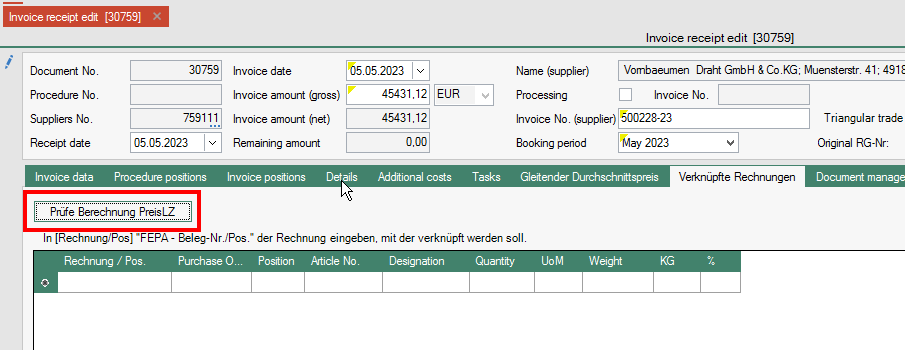
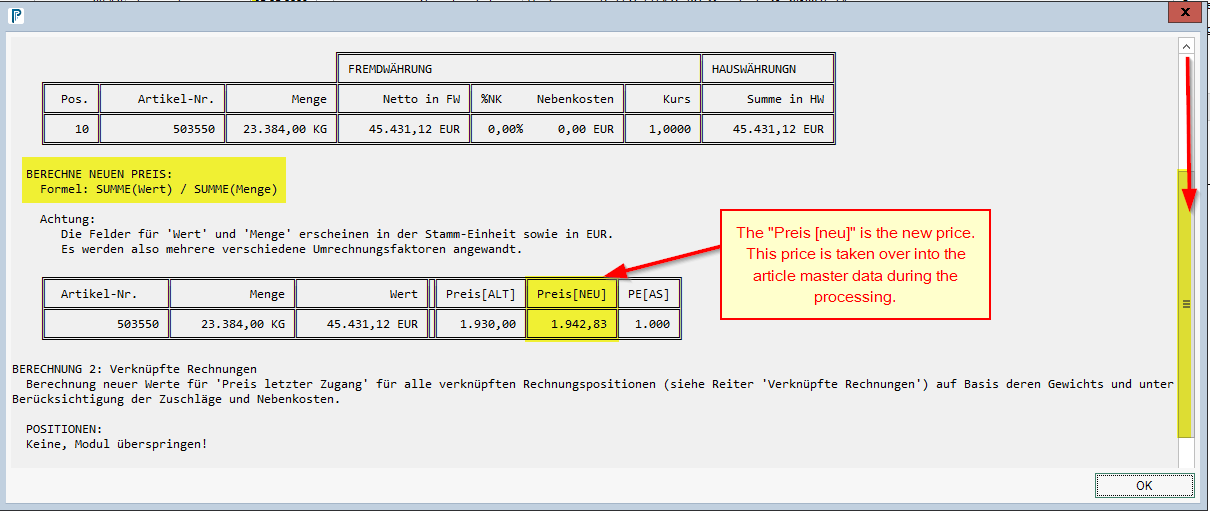
The surcharge is added to the "purchase price" and transferred to the price of the last receipt. To check the calculation, click on the tab Linked invoices and click on the button
[Prüfe Berechnung PreisLZ]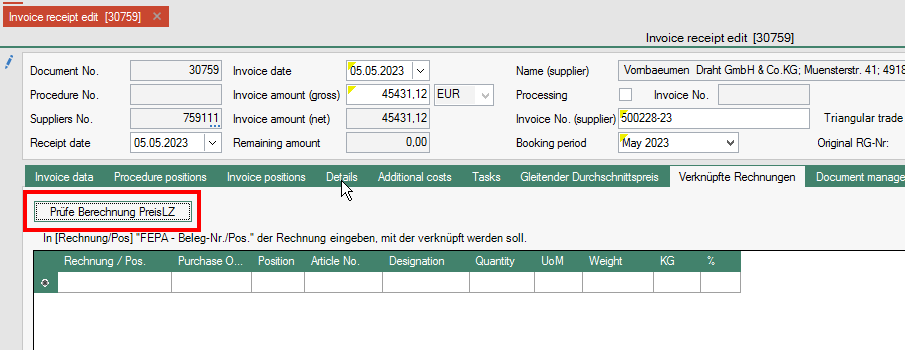
- A window opens showing how the price is recalculated. (scroll in the window) Press the [OK] button to close the window.
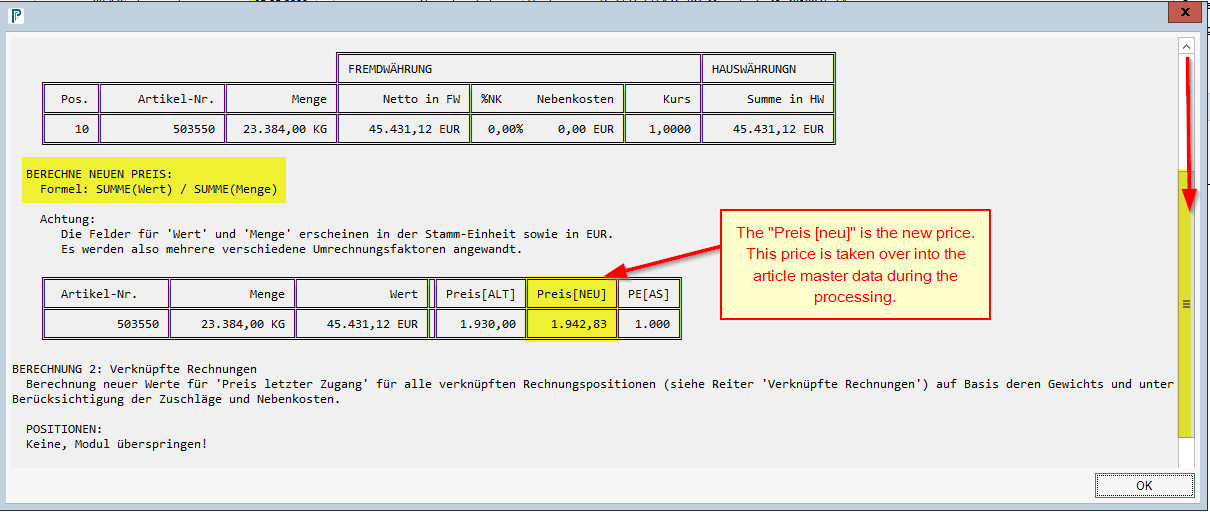
-
To check this, you can look in the item master data to see whether the price has been adopted.
Incidental costs tab
In the tab Additional Costs, additional costs listed in the invoice (e.g. freight or packaging) can be entered.
The value is to be entered in the column "Amount" behind the appropriate description. The exact use of the possible types must be agreed with the purchasing management.