Inventory
General
Open inventories with incorrect article/warehouse combinations or other errors can be deleted using the Reject Stock-taking (without processing) function. The article/warehouse combinations are then available again for a new stocktaking.
Open stocktaking
FEPA function: Materials Management > Stock-taking > Open/Edit stock-taking
A number is automatically assigned for each new stocktaking. The last number can be stored under Utility program > Company data > number ranges. (Materialwirtschaft - Inventur)
The proposed number can be changed; an existing number can also be entered.
New entries can be added at any time to an inventory that has not yet been completed. The name of the inventory should at least contain the own FEPA mandant or the warehouse prefix for a better overview of the inventories. See Stock-taking Info.
The article/warehouse combinations to be included in the current inventorystocktaking can be selected according to the following criteria
- warehouse no.
- article no.
- classification
- character key
- article group
- material group
- date of last inflow
- date of last stock-taking
- stock (quantity)
- Storage location (if used)
can be selected in each case (from - to) (the search library can be extended, if desired please open a ticket for this).
Procedure:
- enter, (number will be assigned automatically, alternatively you can enter your own number), Enter
namenaming - assign a name for theinventory,stocktaking, Enter- open search - click magnifying glass with
styluspen - enter search criteria, click magnifying glass
- check result! Only storage location/article combinations for your own location may be included. (Warehouse no. must start with your own mandant!) - If this is not the case, close without saving and start again.

-
Search result is as desired, save inventory with the tick in the tool bar. Fepa opens the inventory for the selected items.
-
To enter an article subsequently, open the inventory here and enter the warehouse and the article via the search or append a line and enter both values.

Issue stocktaking counting list
A complete stocktaking or individual selections from the stocktaking can be output to count lists. count lists.
FEPA function: Materials Management > Stocktaking > Issue Stocktaking Counting List
Via the selection and the sorting you can control which article - warehouse combinations are on the list. It is only important that at the end everything has been counted and that there is a list for all article-storage combinations. The item number here is the position of the article-storage combination in the inventory.
Here is an example: All item-storage combinations sorted by storage location
- Enter inventory number
- Sort field 1 = [Stock no.] Sort field 2 [Item no.] Sort field 3 = [Item no.]. press the marked button
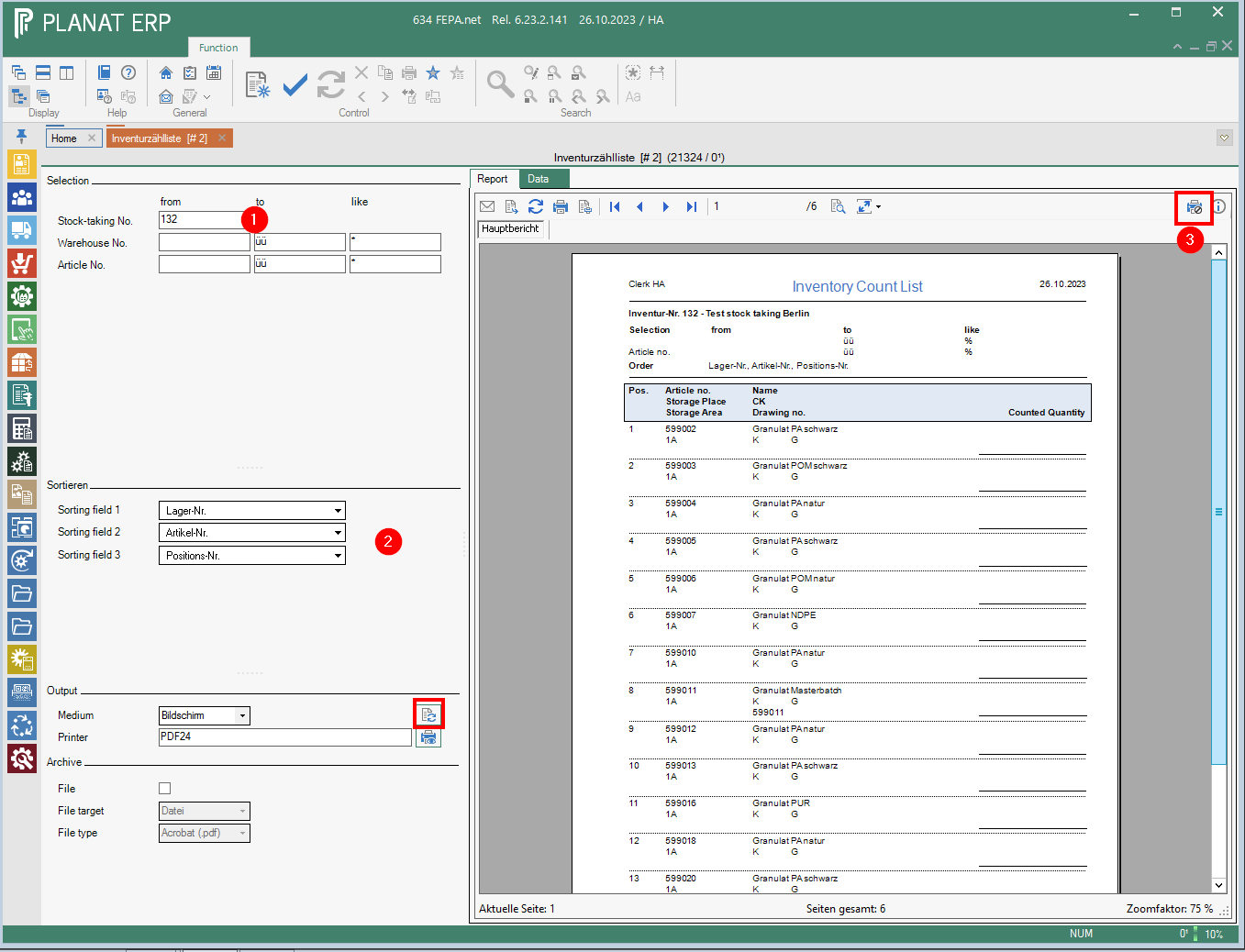
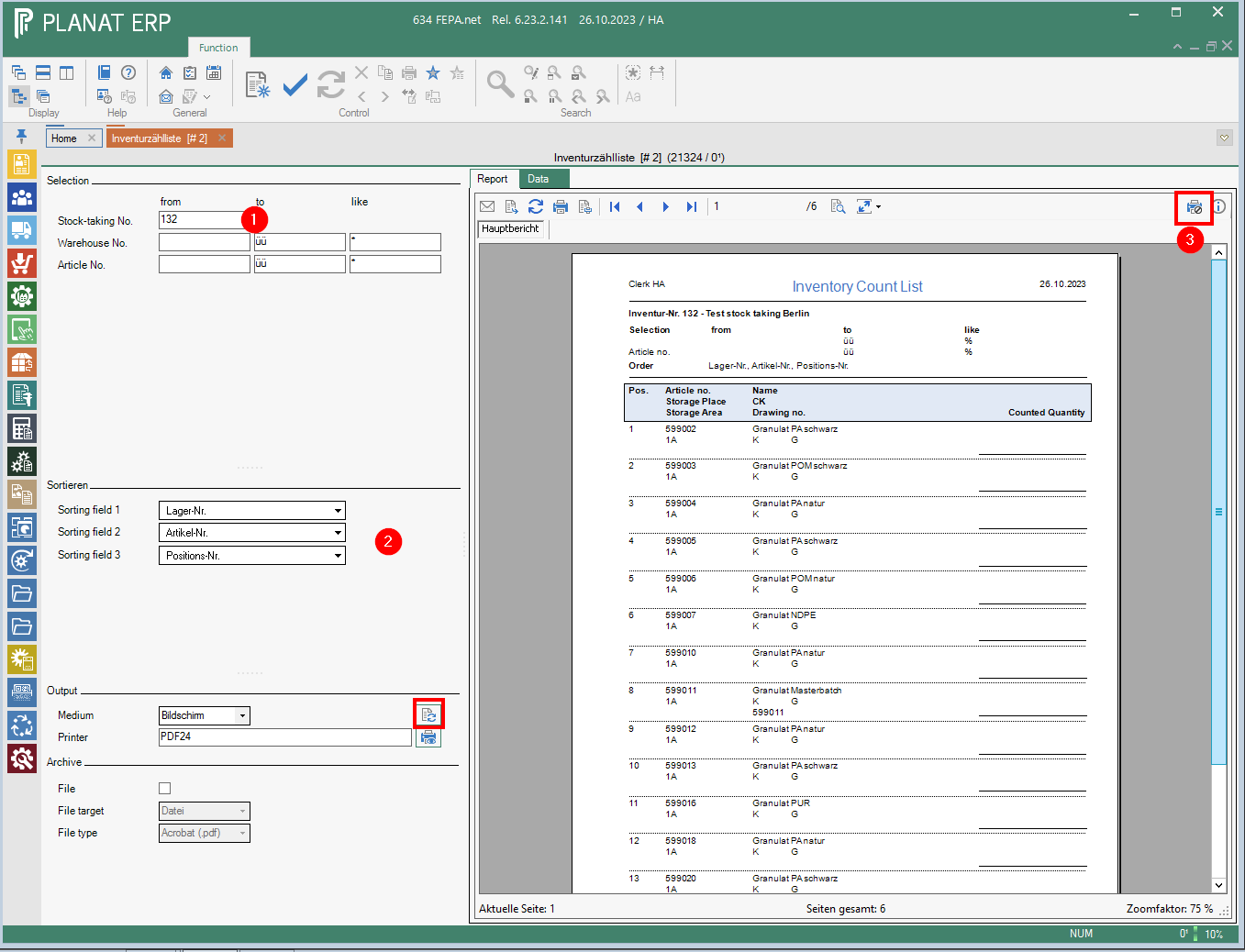
- Printing is started with the printer symbol above the screen output. List will be printed and the mask will be closed.
Edit stock-taking count
Only entries that meet the selection criteria are displayed. If an entry is made, the quantity is added to the previous inventory count quantity; the indicator is set to "counted" (status = '!').
Enter / correct counted quantities
FEPA function: Materials management > Stock-taking > Edit stock-taking count
If you have made a mistake, you can re-enter the last entry with a minus sign. Then the quantity is subtracted from the total.
- Enter inventory no., Enter
- Open search (press magnifying glass with stylus)
- If a page is to be recorded, simply click on the search and all items will be loaded. If only a specific item is to be recorded, enter [Stock no.] + [Item no.] in the Like line and click on the magnifying glass.
- The counted value for the item-stock combination is entered in the counted quantity column.
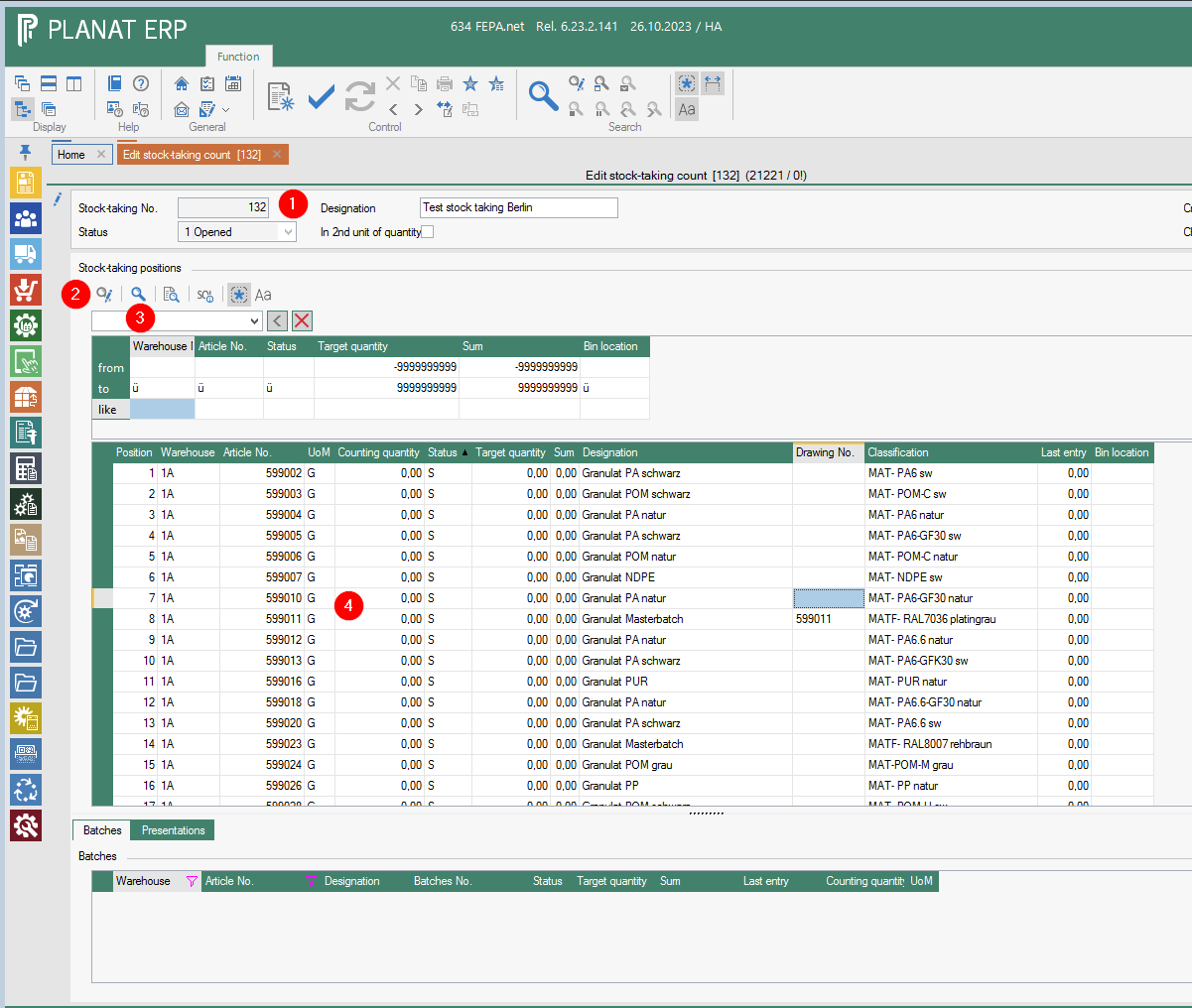
If this is the 1st entry, the status in the line with the "!" indicator is automatically set. The entered value appears in the [total] column and in the [last entry] column.

Erfasst man eine zweite Zählmenge in der gleichen Zeile wird der 2. Wert zum ersten Wert addiert und die Summe steht in der Spalte [Summe]. In der Spalte [letzte Eingabe] steht nur der eben zuletzt erfasste Wert.

Note: Please always note the unit of measure. In the inventory, the value is recorded in the 1st unit of measure of the item. There are items with 2 units of measure. The counter must always write the unit of measure on the count list.
The columns can be moved according to your own wishes. Simply click on the column heading at the top, hold it and move it. - Save, klick the button in the tool bar

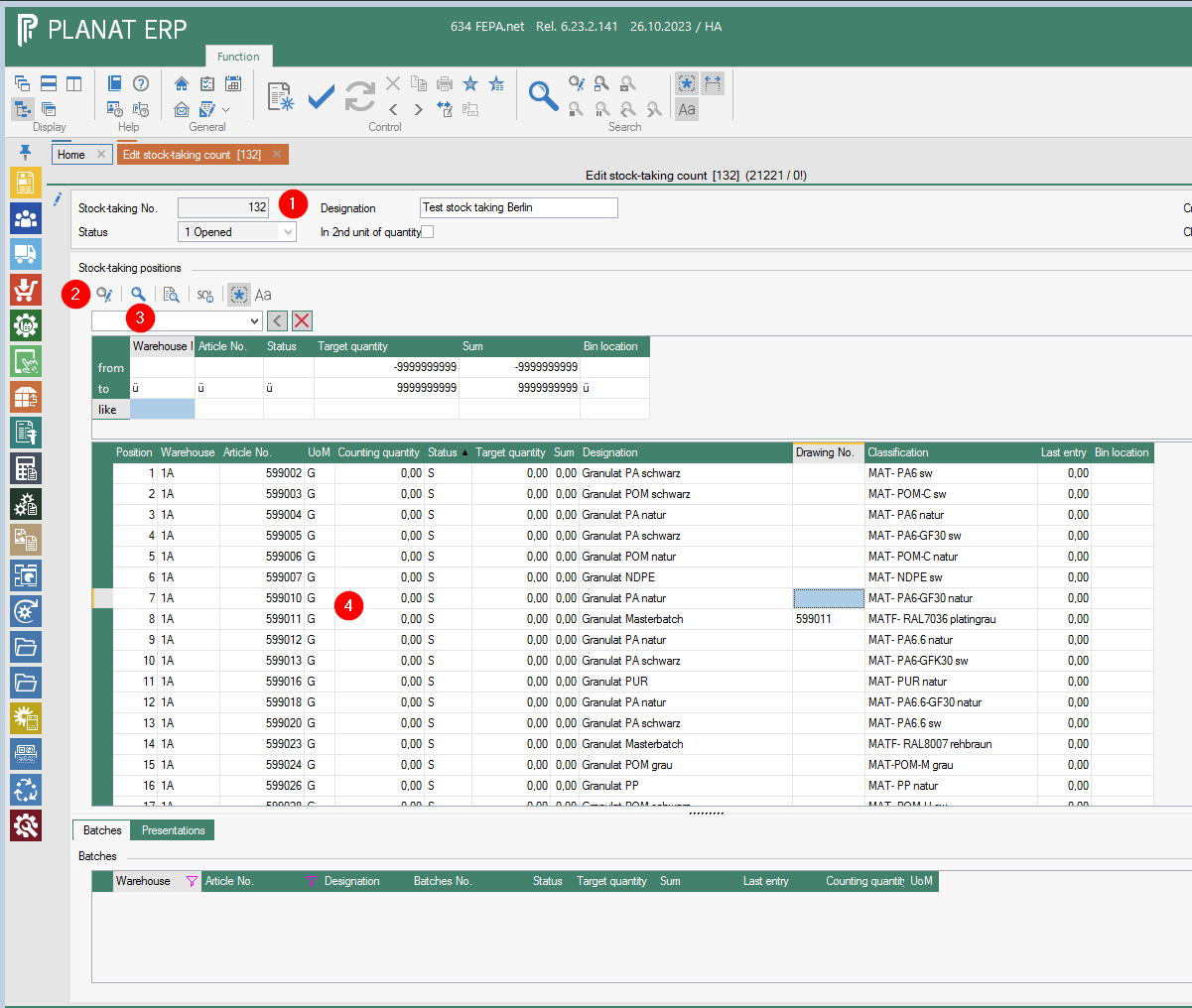



If you go back to the stocktaking to enter values, no old values are displayed in the [last entry] column!
Evaluate stocktaking differences
To compare the manually counted inventory data with the calculated inventory data, there is an inventory difference list.
FEPA function Materials Management > Stock-taking> Evaluate stock-taking differences
After all counted values have been entered, the inventory difference list is printed.
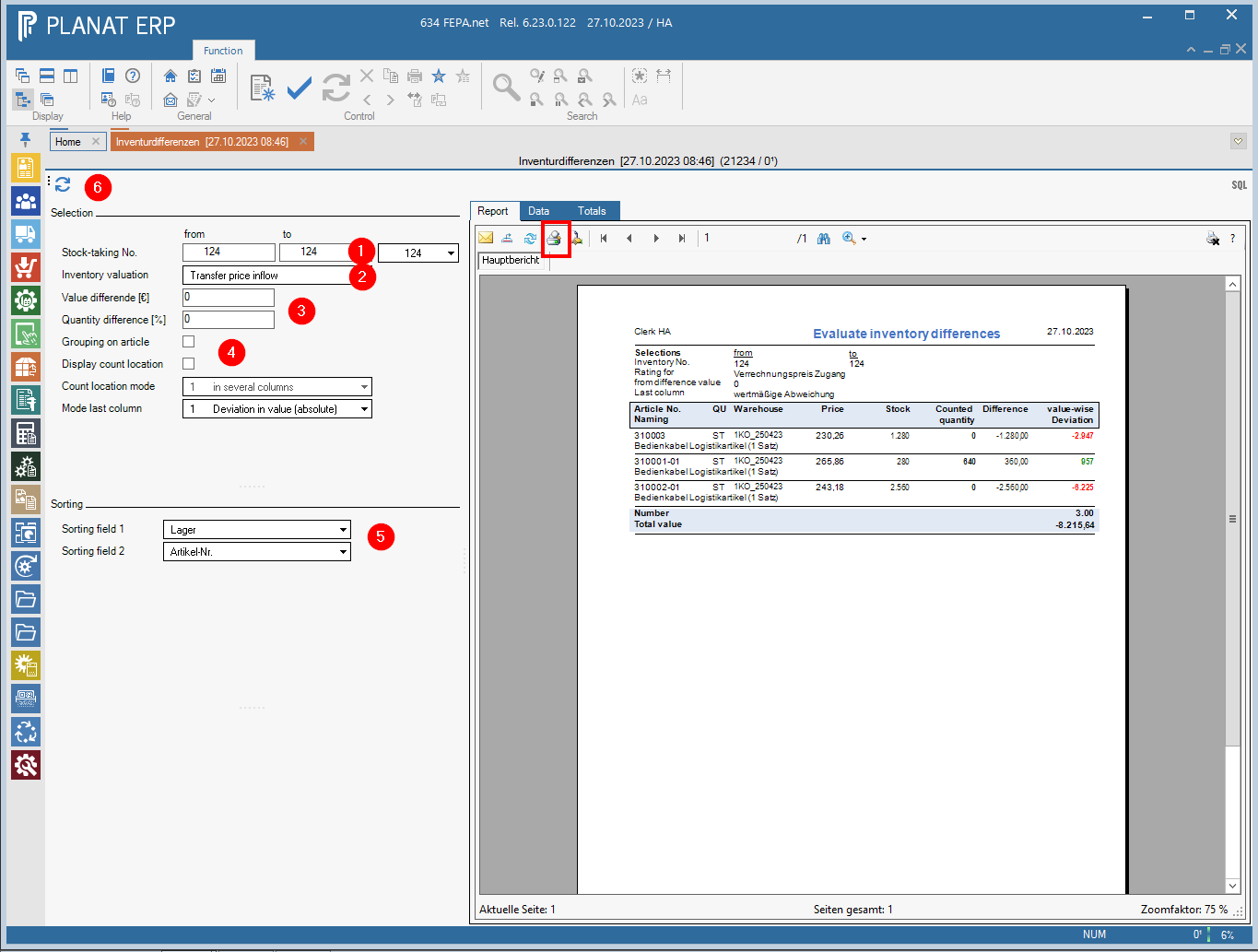
- Enter inventory no. (preselection is the last entered inventory no.)
- Inventory valuation: "transfer price inflow" = preselected
- Now you can choose whether you want to see differences from a certain value and/or a certain percentage quantity difference. The default is 0, so all differences are shown.
- Grouping on article, shows everything only in total for the article. It makes more sense to use a list without grouping for the first list. It has the advantage that you can see the warehouse no. where the value was entered (makes recounting easier).
- Sort field 1 e.g.: Article no. and sort field 2 e.g.: Stock.
- Then press the "Refresh" button over the selection area and the list is created. Print out with the printer button about the report.
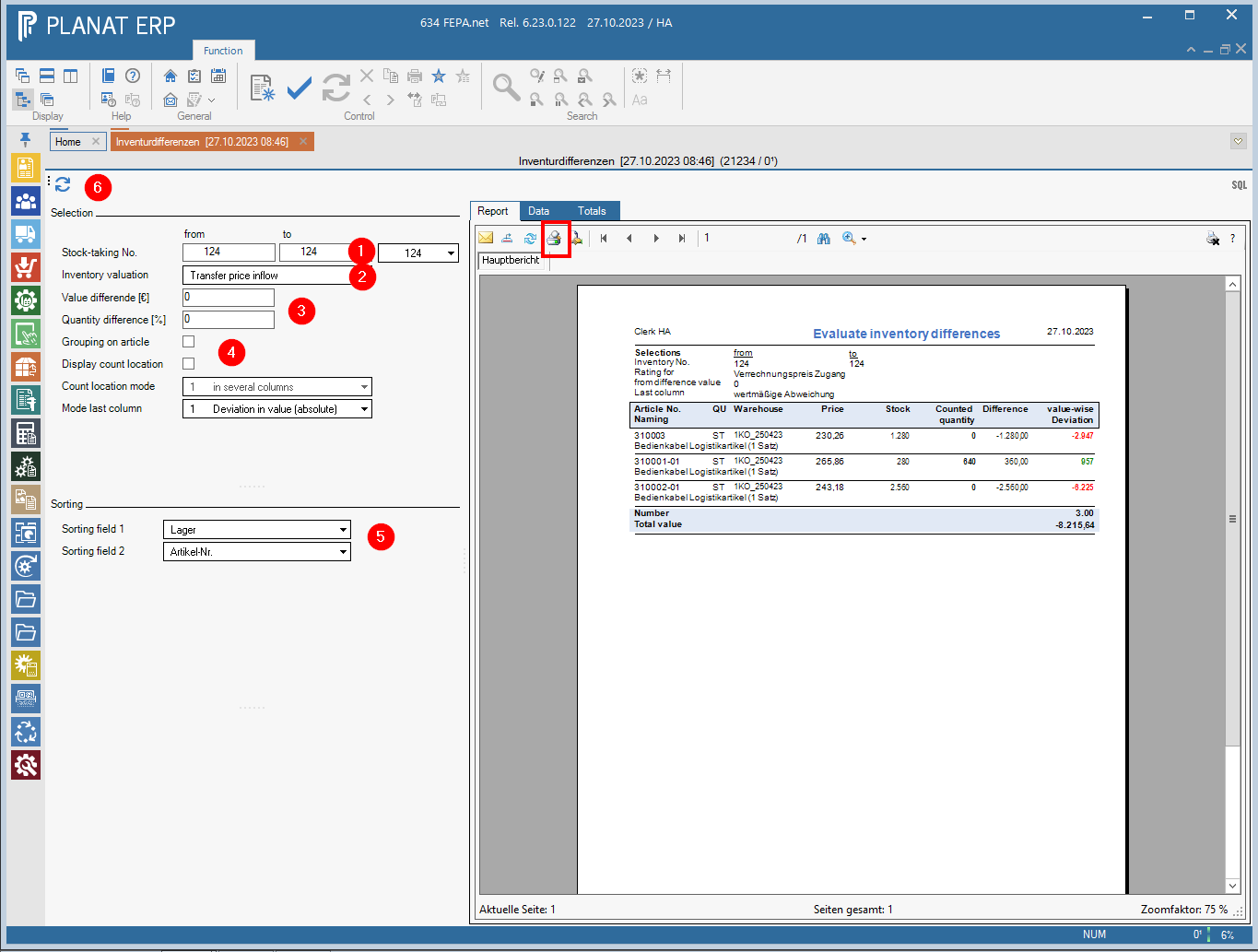
Now the list can be used to decide what, if anything, needs to be checked. One can also combine a list over several stocktakings, as long as they follow each other.
-
Exporting the lists
-
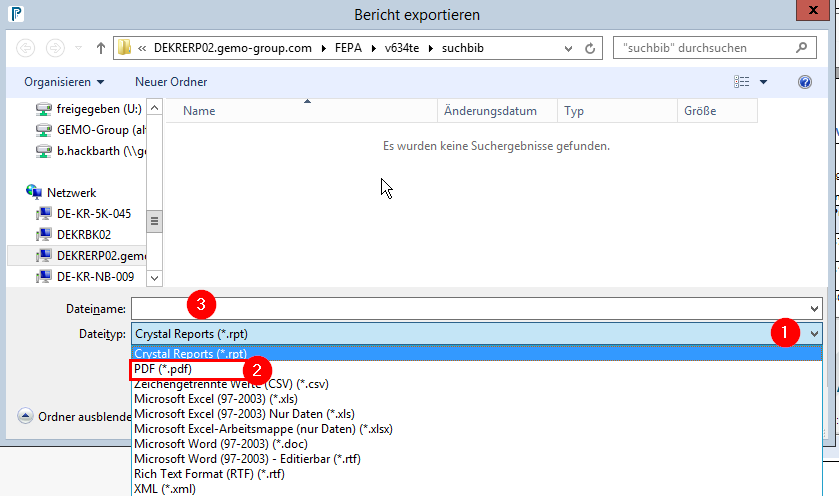
Export the report to a PDF
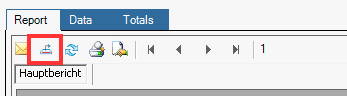
click on the marked button for export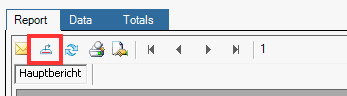
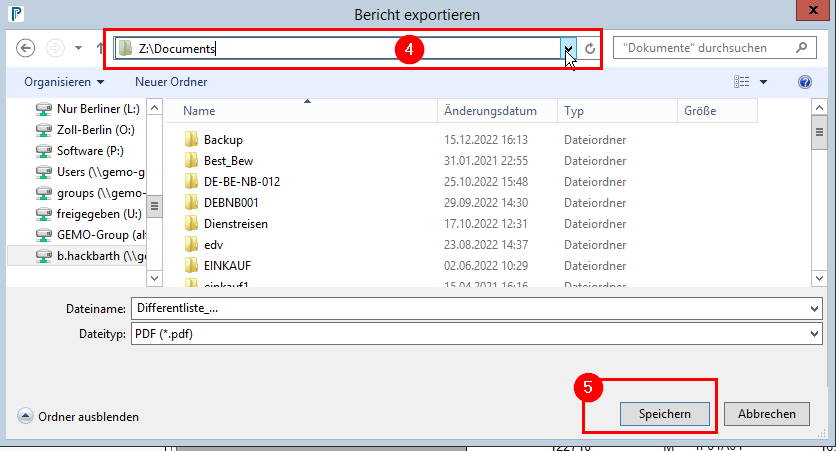
Then select the document type (1) + (2),
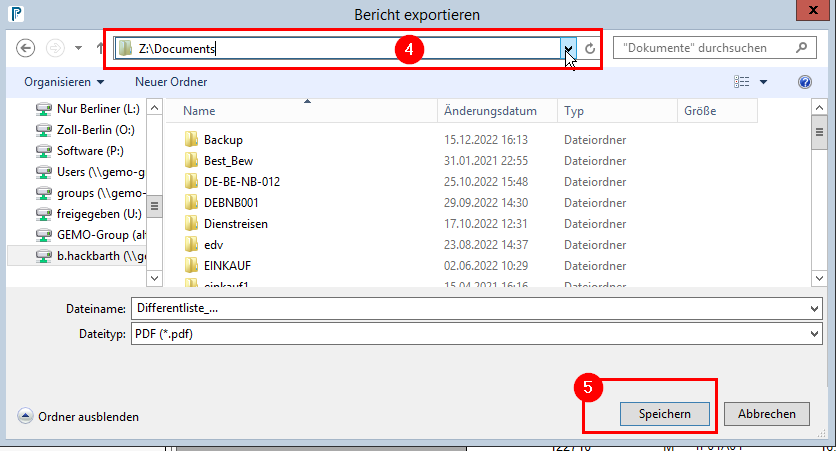
then assign the file name (3), select the storage location (4) then click on save. The file is saved there.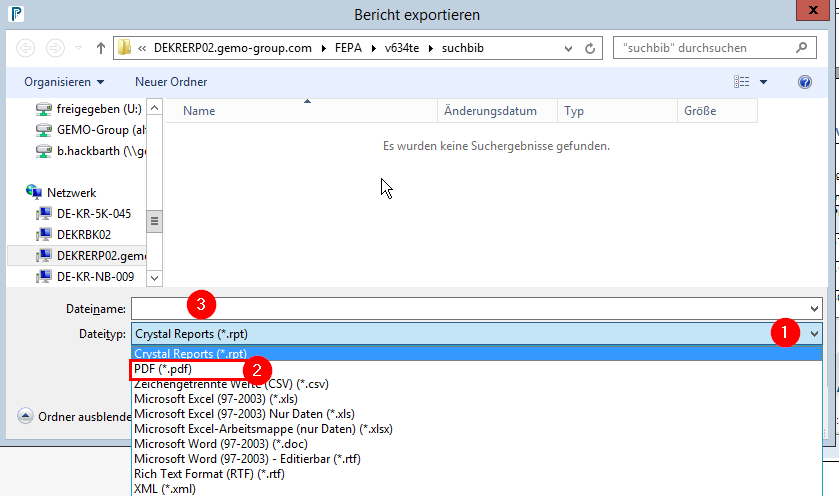
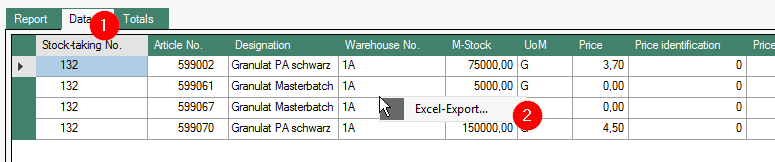
- Export data to Excel
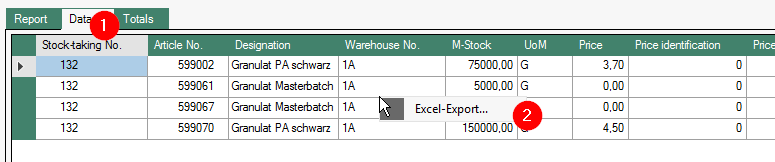
Click on the tab Data (1), in the list with the right click (2) you can export the data to Excel and save it.
-
Note: the sum at the end of the list must match the same criteria in the individual list and in the grouped list!
Set zero quantities
For entries that are not counted, the counted quantity is set to 0.0 (no stock) and the indicator is set to "counted" (status = '!').
A stocktaking must be carried out once a year for all articles and the open stocktaking can contain article-warehouse combinations that have a stock but no stock is physically present. With this function the counted quantities are set to "0" and also all contained items that currently have a zero stock as long as they were entered in the inventory.
FEPA function: Materials Management > Stock-taking > Set zero quantities
- Enter inventory-no., press Enter -> FEPA loads all items that have the status "S" = "not counted". Here you can check again whether something has been forgotten to be counted.
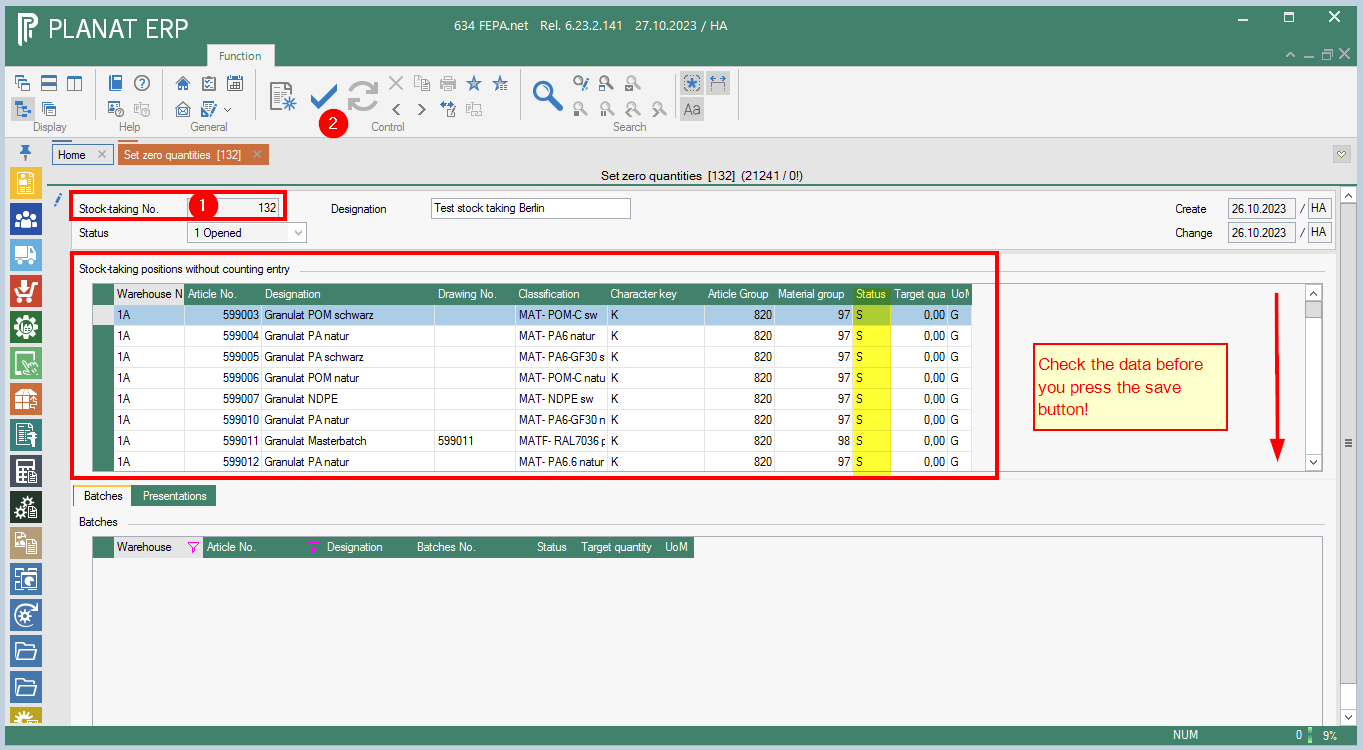
- If all the data is OK, save using the tick in the tool bar. FEPA sets the status of all items to counted and the counted quantity of the stocktaking to 0. The window closes.
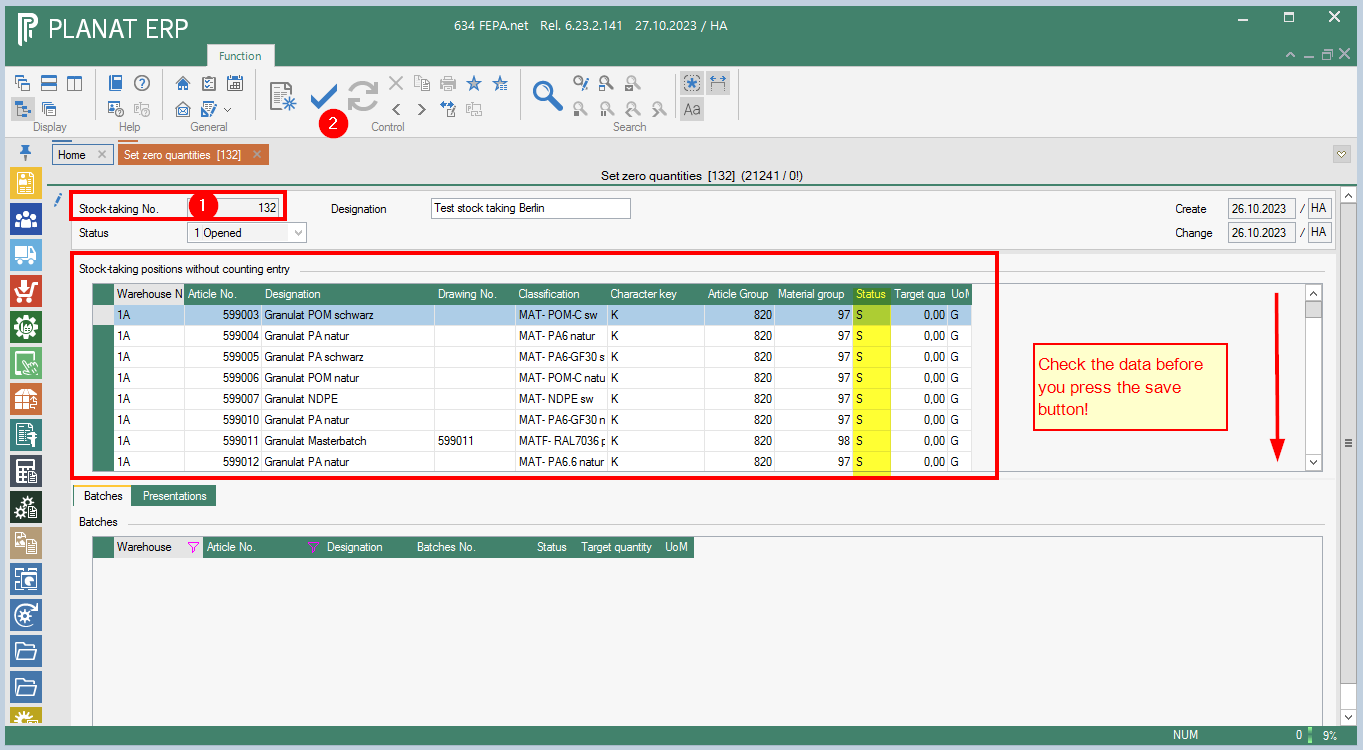
Note: The column Target Quantity contains the stock currently in FEPA. This is set to 0 with this function. This list can also be exported to Excel before pressing "Process".
Complete stocktaking
A year change is carried out for all counted entries (status = '!') and the entries in the DB tables for materials management and the article master are updated.
The indicator is set to "counted closing". For all other entries, the indicator is set to "uncounted closing, no inventory", i.e. if no counted quantity has been entered and no zero quantity has been set.
Afterwards, all entries are available again for a new inventory.
FEPA function: Materials Management > Stock-taking > Complete Stock-taking
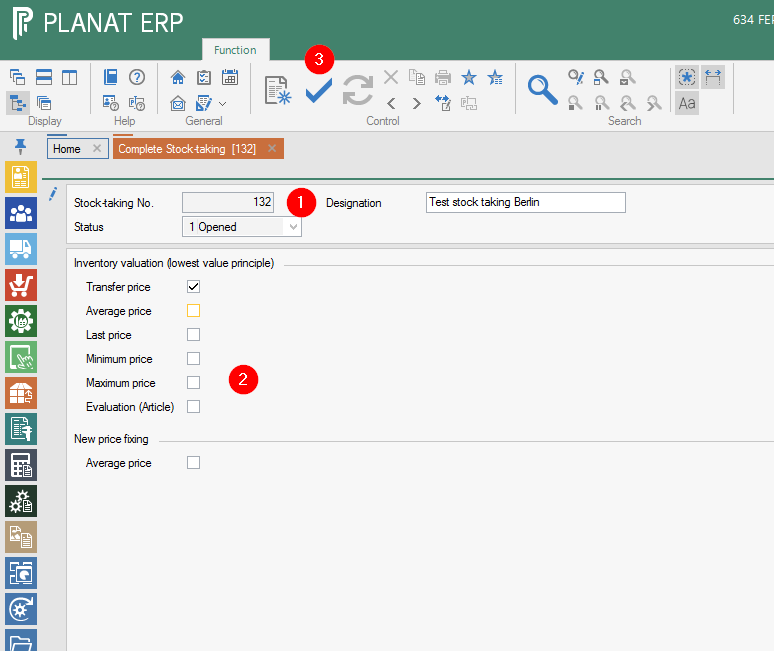
- enter the inventory no.
- select a price for the determination of the value (if necessary, ask the person responsible for the stocktaking).
- If everything is OK (nothing more to change), save/process via the tick in the tool bar.
Inventory valuation
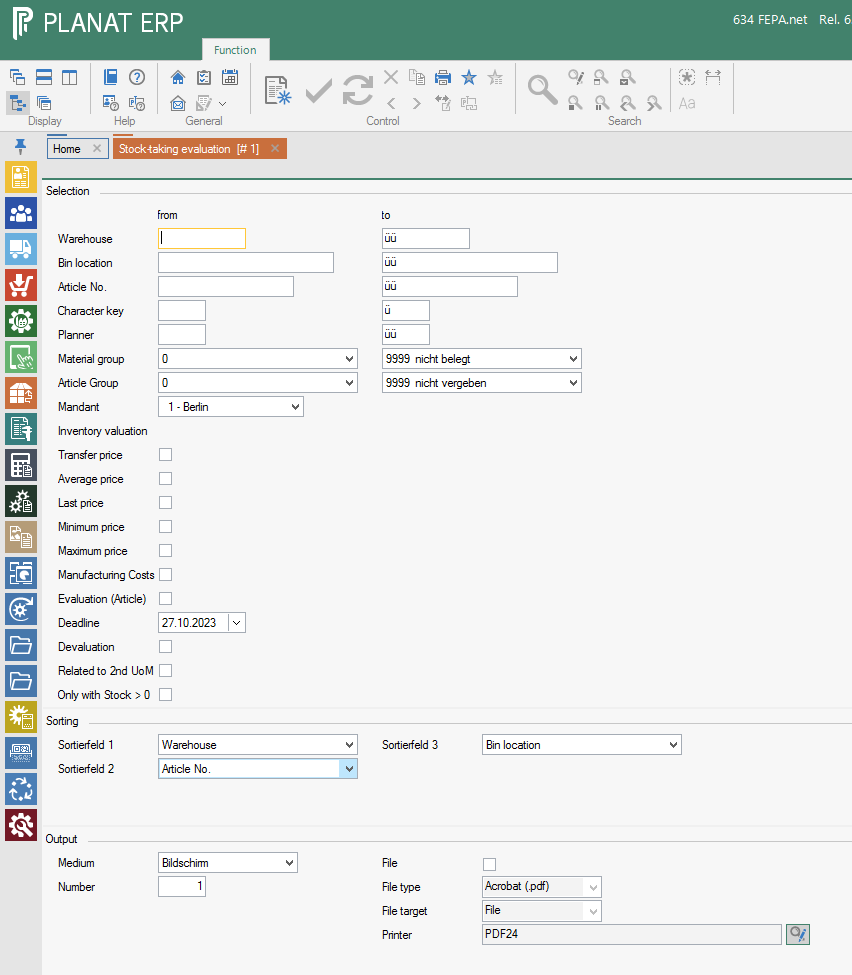
is carried out in the same way as the inventory valuation - ask the person responsible for the inventory for criteria
Reject stocktaking
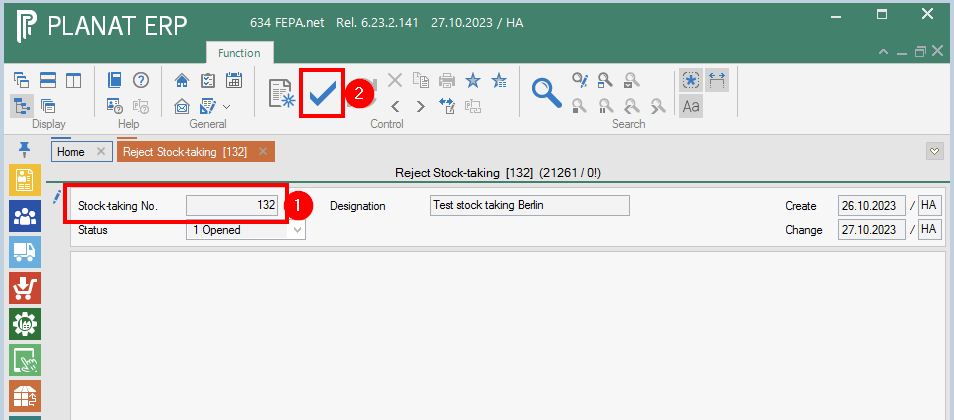
Only an opened stocktaking that has not yet been completed can be discarded.
FEPA function: Materials Management > Stock-taking > Reject Stock-taking (without processing)
- Enter the inventory no. , enter
- press the save button in the toolbar.
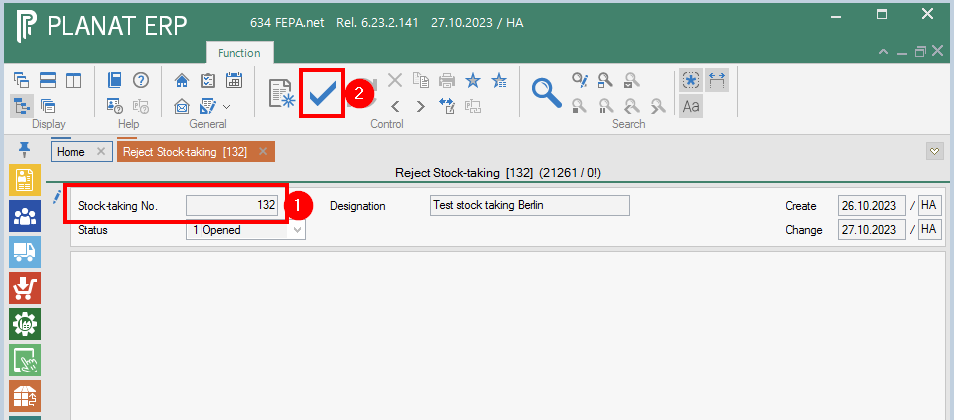
By pressing the OK button, the stocktaking identification is reset for all items that were assigned to this stocktaking. These items can now be reassigned to another stocktaking. Entries that have already been made for this stocktaking are no longer available and are discarded.