
Goods receipt
General
The function Edit Goods Receipt is used to enter the goods delivered by the supplier on the corresponding order item.
In the course of entering the goods receipt, the status of the order item is set to partially or completely fulfilled and at the same time the goods receipt (actual receipt) is posted in materials management.
Dispositions (planned receipts) in materials management are also partially or completely reduced.
In addition, the price of the last receipt in the article master is updated with the order price in the MMA tab in the corresponding client.
If the article is set to QM-inspectable with the QM tick in the client tab of the article master, a QM document is created in FEPA and a data record for the Babtec interface when the goods receipt is processed. The goods then go to the Q warehouse until a decision is made.
Edit goods receipt
There are 2 ways to enter. One is via the supplier number, the second is via the transaction/order number.
You can enter all items of the delivery note with a goods receipt. If corrections have to be made to an item of a goods receipt, only the entire goods receipt has to be cancelled. Afterwards, the goods receipt must be repeated for all items.
It makes sense to make an individual goods receipt for each delivery note item. Please note the location-specific procedure.
If mandatory fields are not filled in, the goods receipt cannot be saved and processed.
FEPA function : Purchasing > Deliveries > Goods Receipt > Edit Goods Receipt
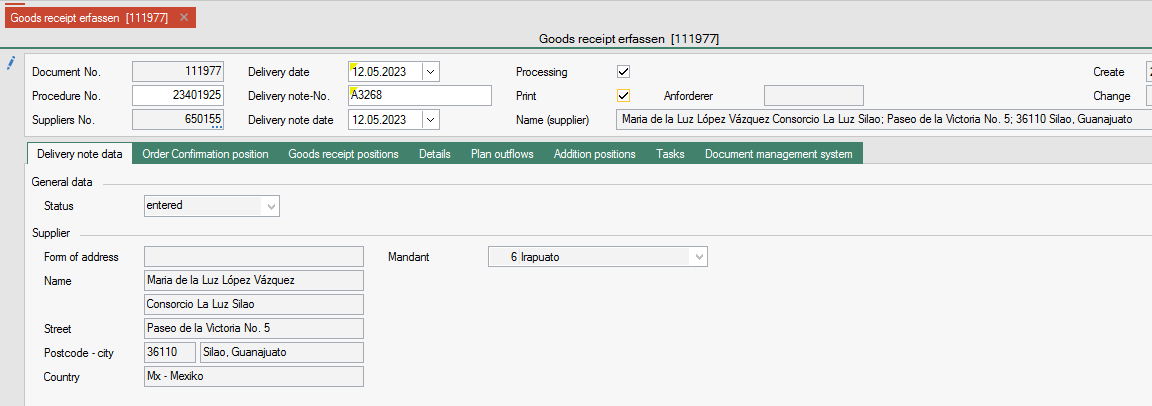
- Press Enter twice in the field Document No., FEPA assigns the document number.
- Enter the transaction number, the supplier number is automatically taken from the transaction.
- Today's date is automatically selected as the delivery date, if a goods receipt is subsequently made, the delivery date can be changed to the day of the original goods receipt. This is a mandatory field.
- Enter the delivery note number of the delivery note, this is a mandatory field.
- Select and confirm the date of the delivery note
- Visually check supplier - does the supplier match the one on the delivery note
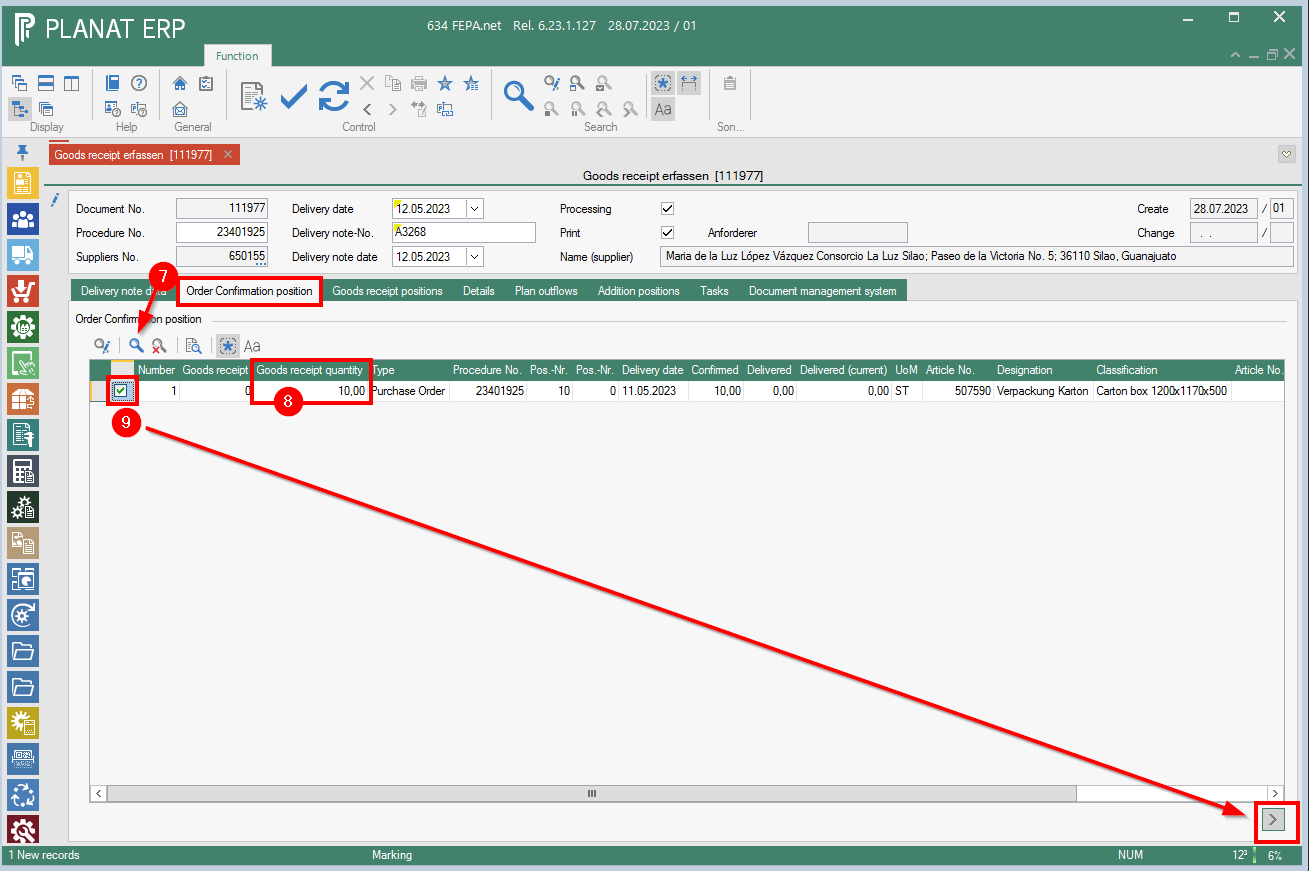
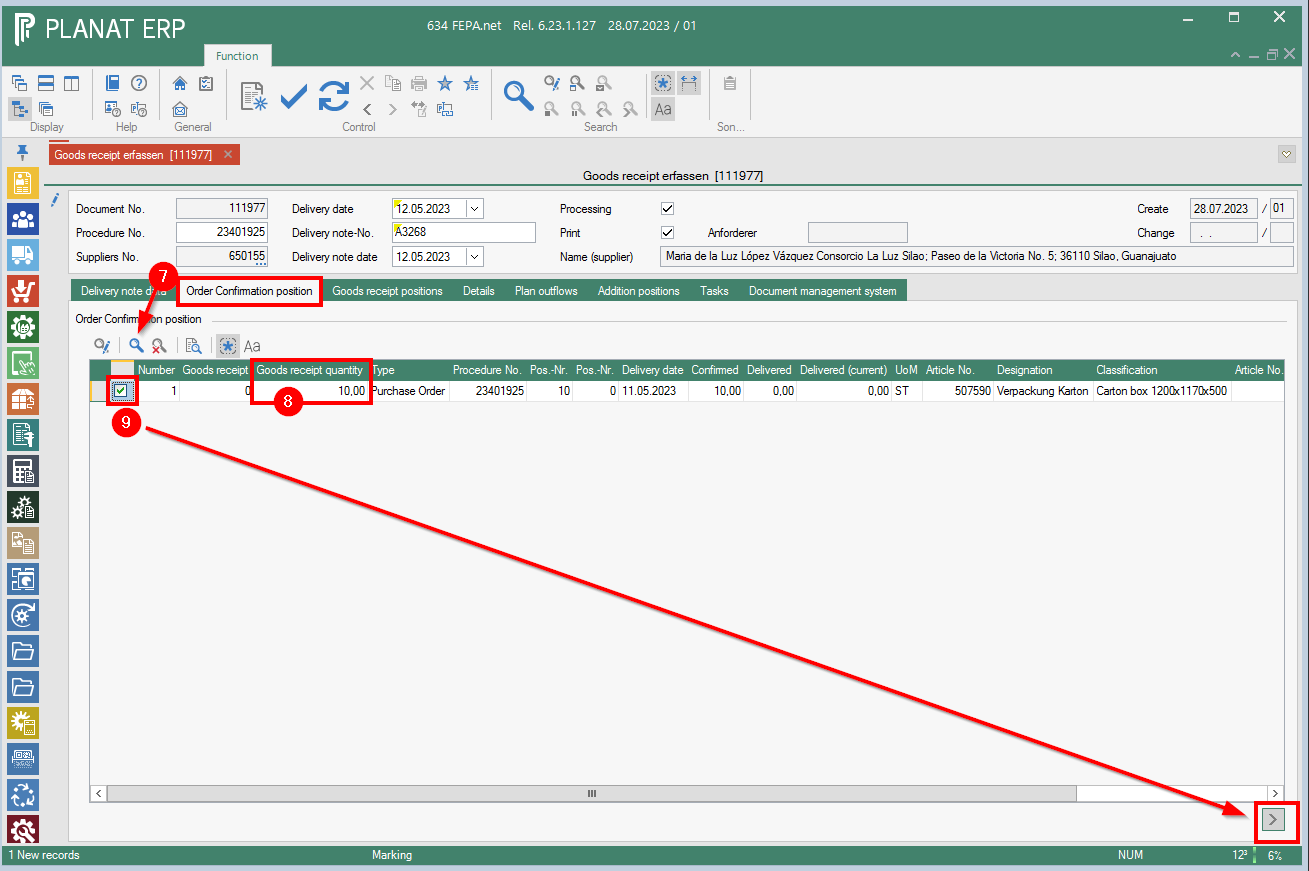
- Click on the Order Confirmation Items tab and press the magnifying glass, FEPA searches and displays the open items for the operation (or for the supplier if you have not entered an operation but the supplier)
- Select the goods receipt item and enter the delivered quantity in the quantity field.
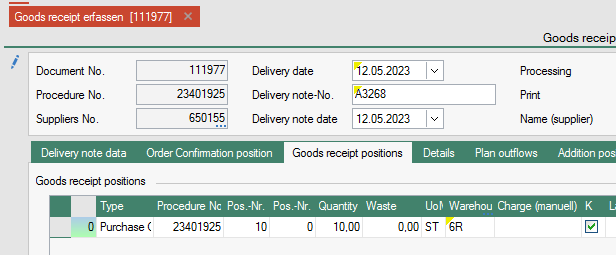
- Tick the "Mark" box at the front for the appropriate goods receipt item and click the arrow in the bottom right corner. The goods receipt item is now transferred to the Goods Receipt Items tab.
- The goods receipt item is now transferred to the Goods Receipt Items tab. The number of planned outgoings is displayed at the front.
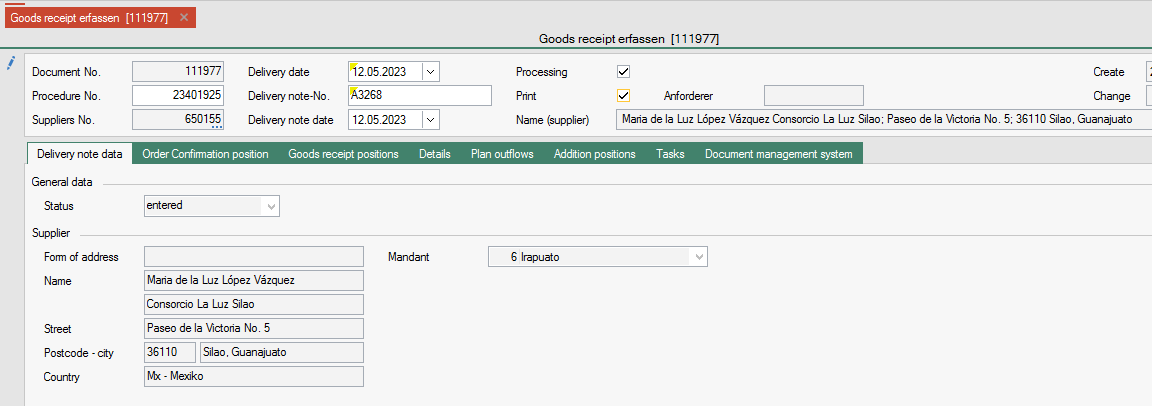
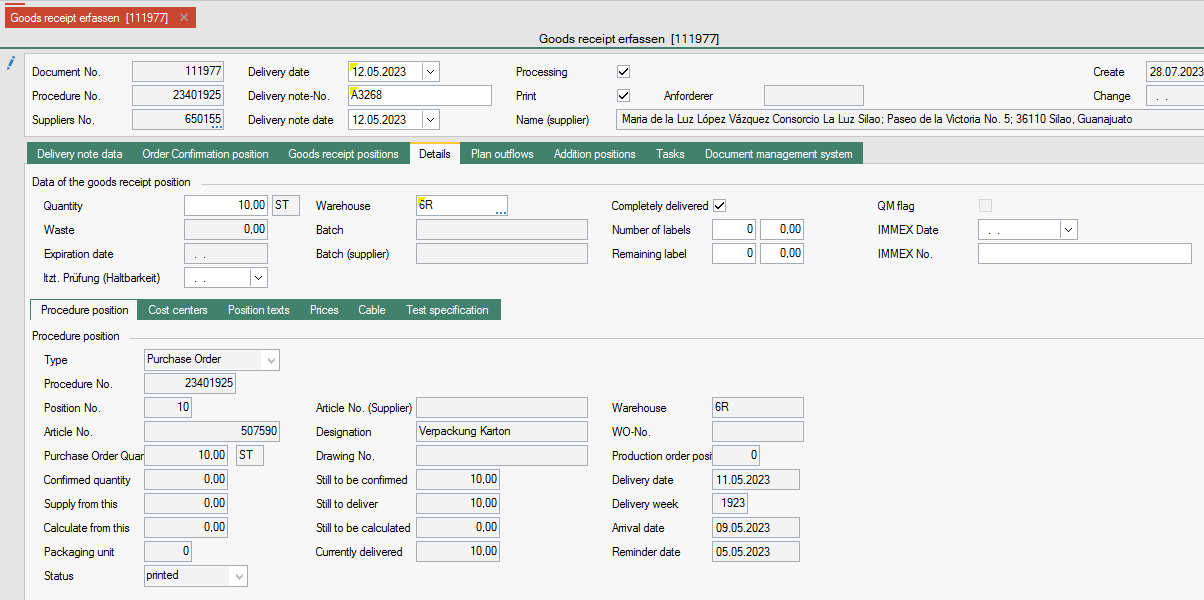
The Details tab shows the details of the position you are currently in.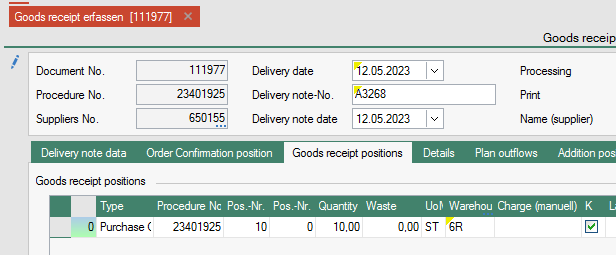
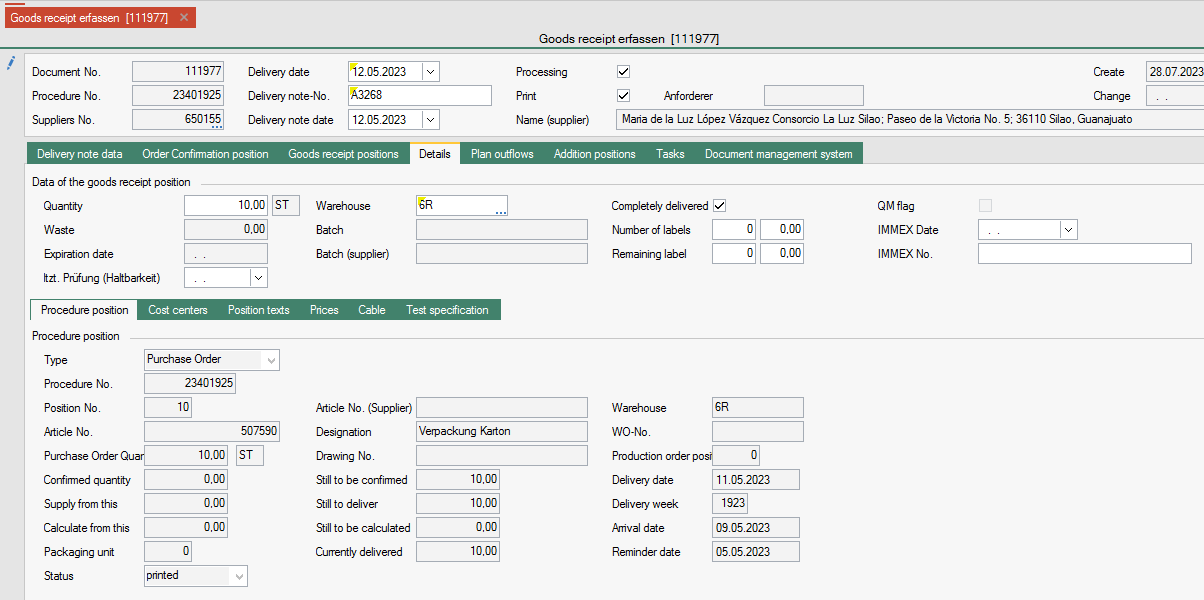
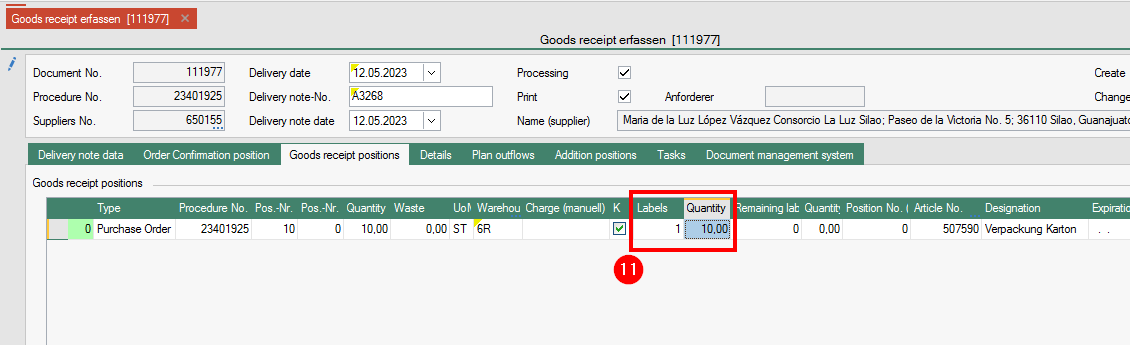
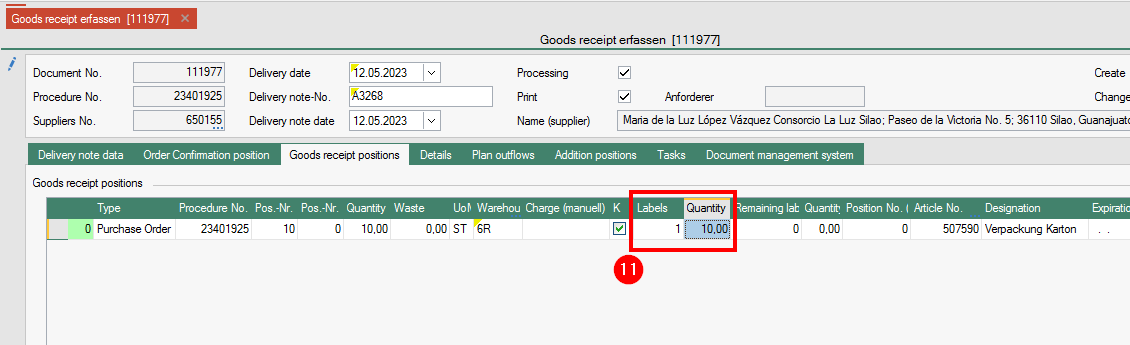
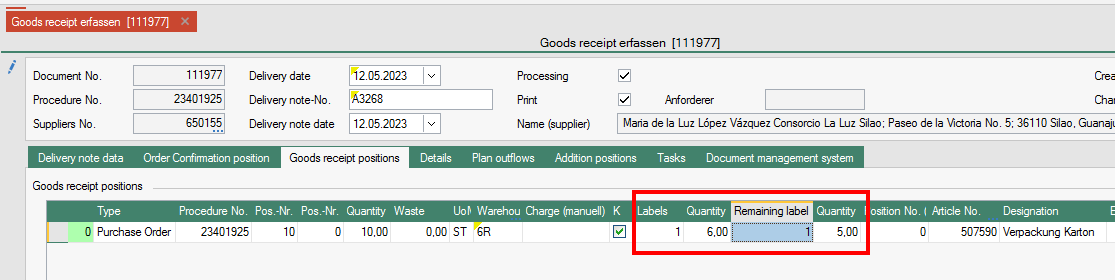
- A goods receipt label can be printed for each container/carton received. The number of labels is entered in the Labels column. The quantity per label is entered in the Quantity column. The quantity can also be left blank to be entered manually. (e.g. if the quantity per container varies).
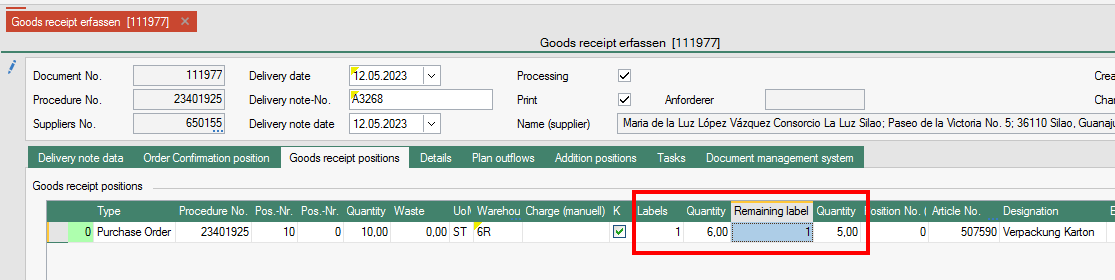
- If you only have a container that differs from the quantity, you can also print out a label via the columns Remaining label and Quantity.
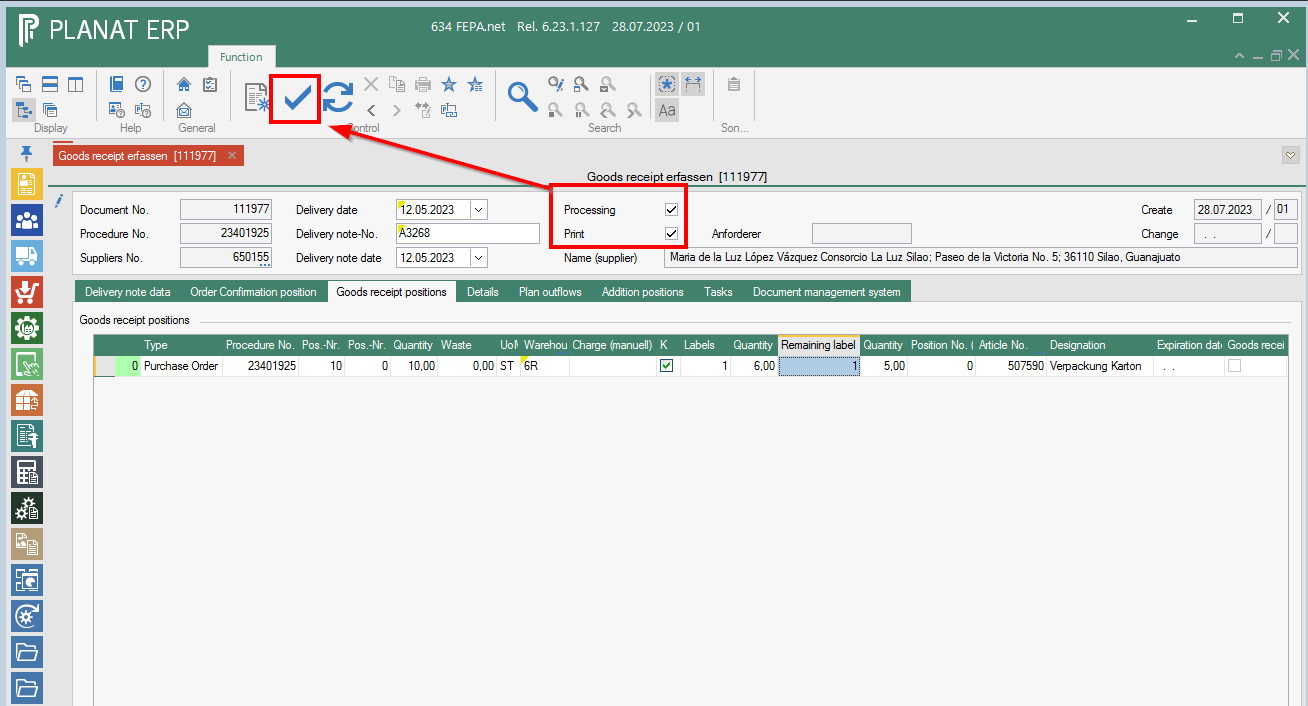
- The ticks for processing and printing are set automatically. For processing, only the tick in the tool bar must be clicked.
Then the printing takes place.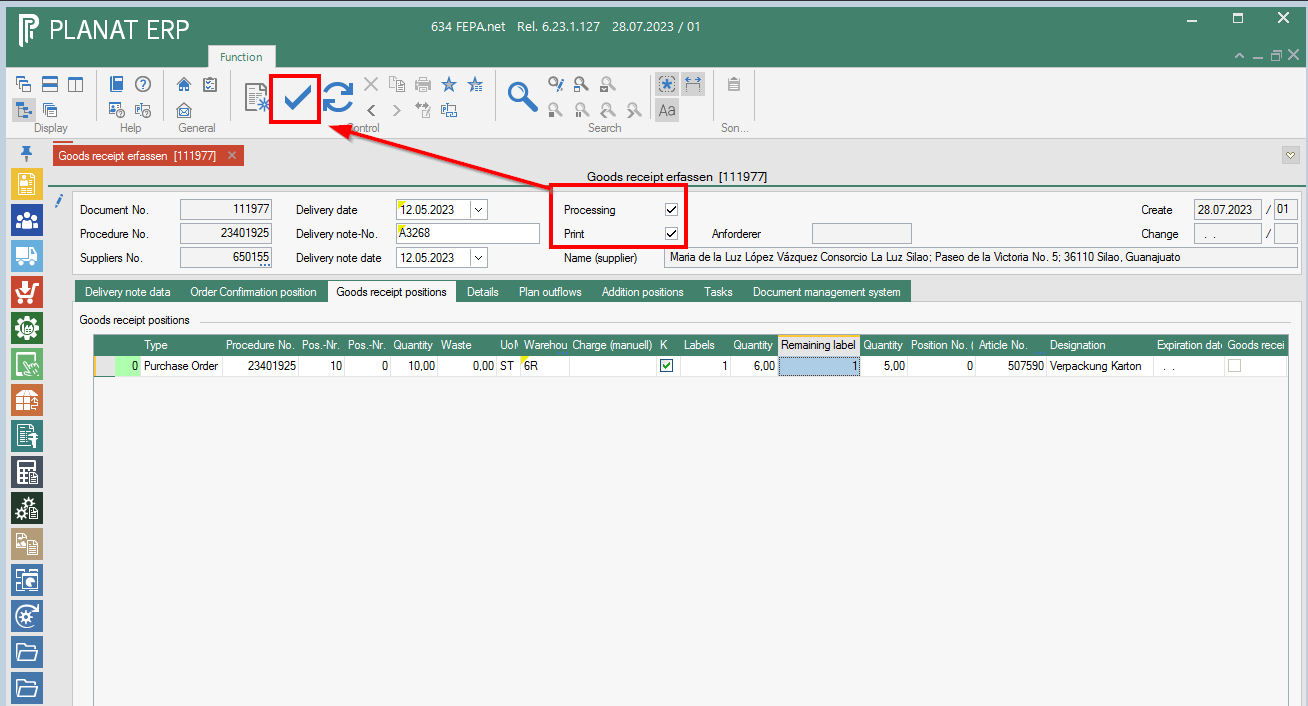
Special features
Internal EDI (WE_Check_LS)
When saving and processing the goods receipt, the system checks whether the transaction is an EDI order. If the transaction is an EDI order it is checked:
- Does the delivery note number correspond to the transaction of VDA49013, i.e. numeric, maximum 8 characters long?
- Does the delivery note exist in FEPA?
- Does the delivery note belong to a sales order where the order number is the same as the entered transaction number.
If a problem is detected, an information message is displayed:
Bild
The delivery note number must be corrected, otherwise no processing takes place.
Goods Receipts for Intercompany Transactions
When saving and processing the goods receipt, the system checks whether the transaction is an intercompany order. If the transaction is an intercompany order, it is checked:
- Does the delivery note exist in FEPA?
- Does the delivery note belong to a sales order where the order number is the same as the transaction number entered.
If a problem is detected, an information message is displayed:
Bild
The delivery note number must be corrected, otherwise no processing will take place.
Goods Receipts for the Polish Location
Moving Average Price Plug-In (LocalWagedAverrageValuation )
This script calculates the moving average price (also 'FIFO price') based on the exchange rates of the national banks given by the local tax administration/government (in Poland).
The average price is calculated here according to the specifications of the colleagues.
Goods receipts for external process orders
(Plugin - ShowInfoOnInflow) This is switched off for client 3-Krefeld.
If there is a production order for an item in the goods receipt (= award order), then information and a list of the linked WOs and operations (because there can be more than one) is displayed after processing the goods receipt.
bild
Before processing / saving, a check is carried out for FIFO. When the goods receipt is posted, it is checked whether the same goods are already in the destination warehouse. This is to avoid mixing the batches. The message is as follows:
bild
Cancel goods receipt
Attention! If the goods receipt item is subject to QM confirmation, the QM confirmation must first be confirmed and completed. Only then can the goods receipt be cancelled.
FEPA Function: Purchasing > Deliveries > Goods Receipt > Cancel Goods Receipt
- Enter the document number of the goods receipt or find and select it via the search.
- Confirm with the tick in the toolbar. The goods receipt is cancelled
Bild