Delivery notes
Create delivery notes
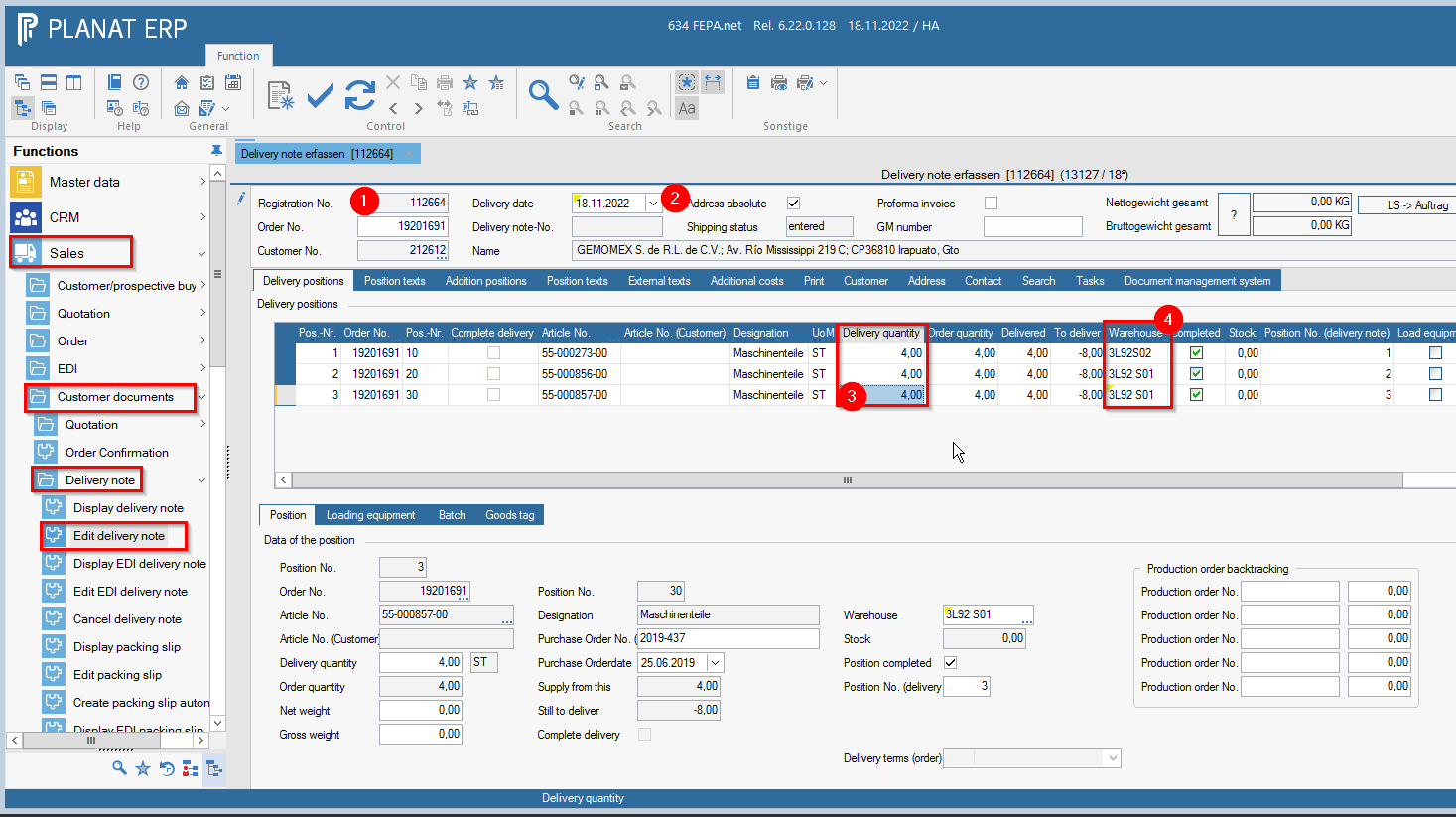
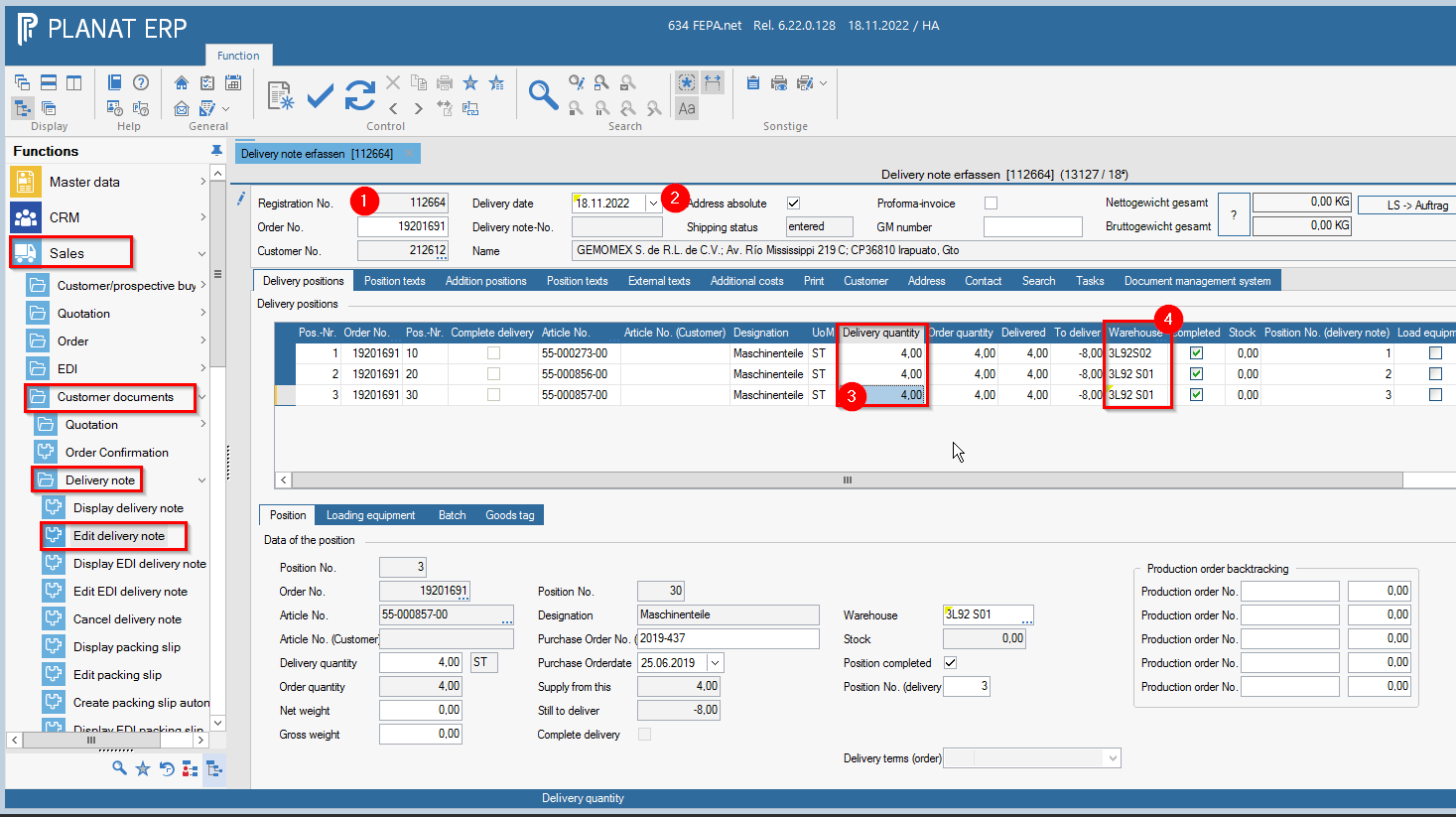
FEPA function: Sales > Customer documents > Delivery note > Edit delivery note
The basis is usually a packing order. However, you can also enter a delivery note without a packing order, in which case you start as in the packing order.
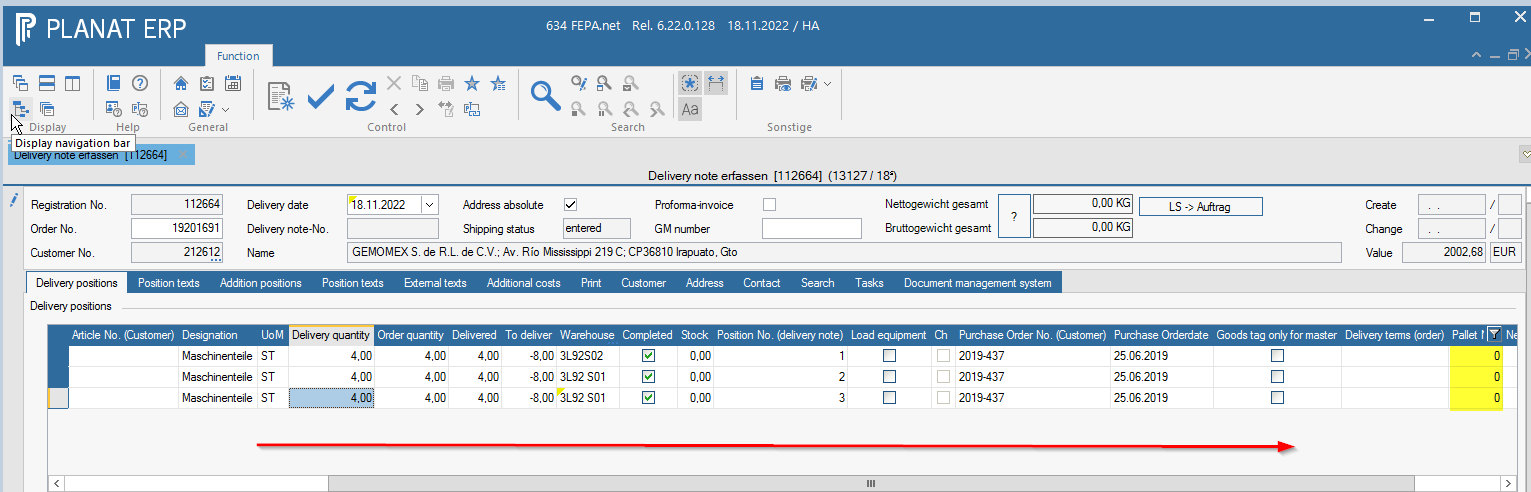
Folder Delivery positions / Position
- Enter the entry number of the packing order
- Change the delivery date to the date of the current day, or enter the date according to the procedure valid at the location.
- Check delivery quantities again, if there are deviations from the packing order, these can be changed in the delivery quantities field.
- Check warehouse, if necessary change to the dispatch warehouse.
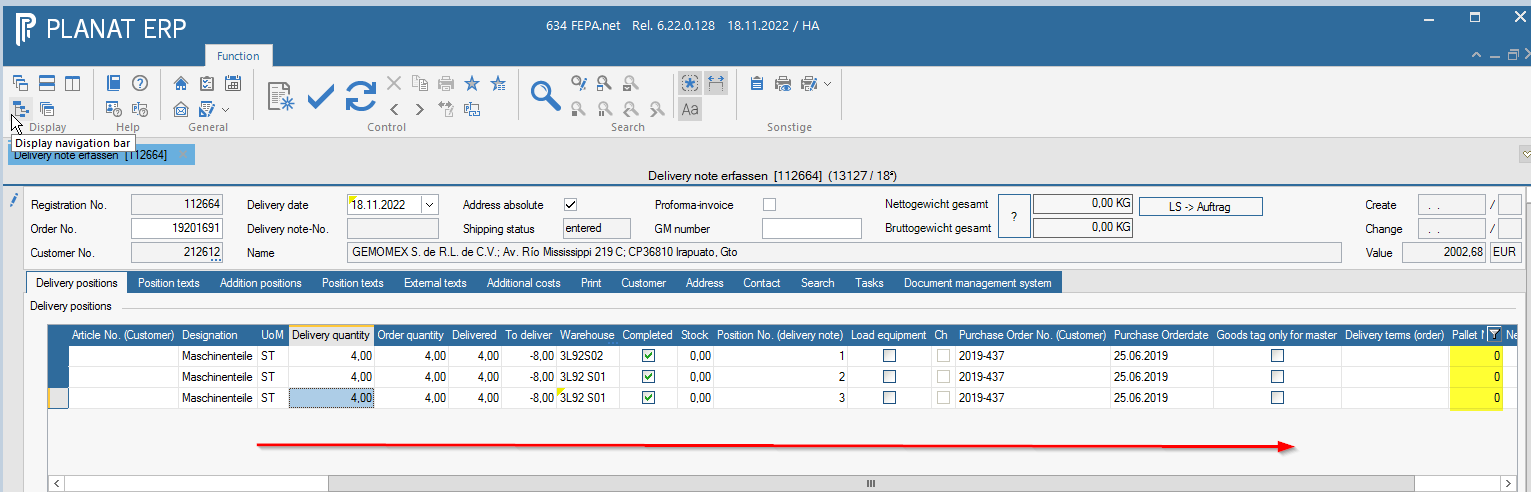
- If there are several pallets, they can be numbered at the pallet number.
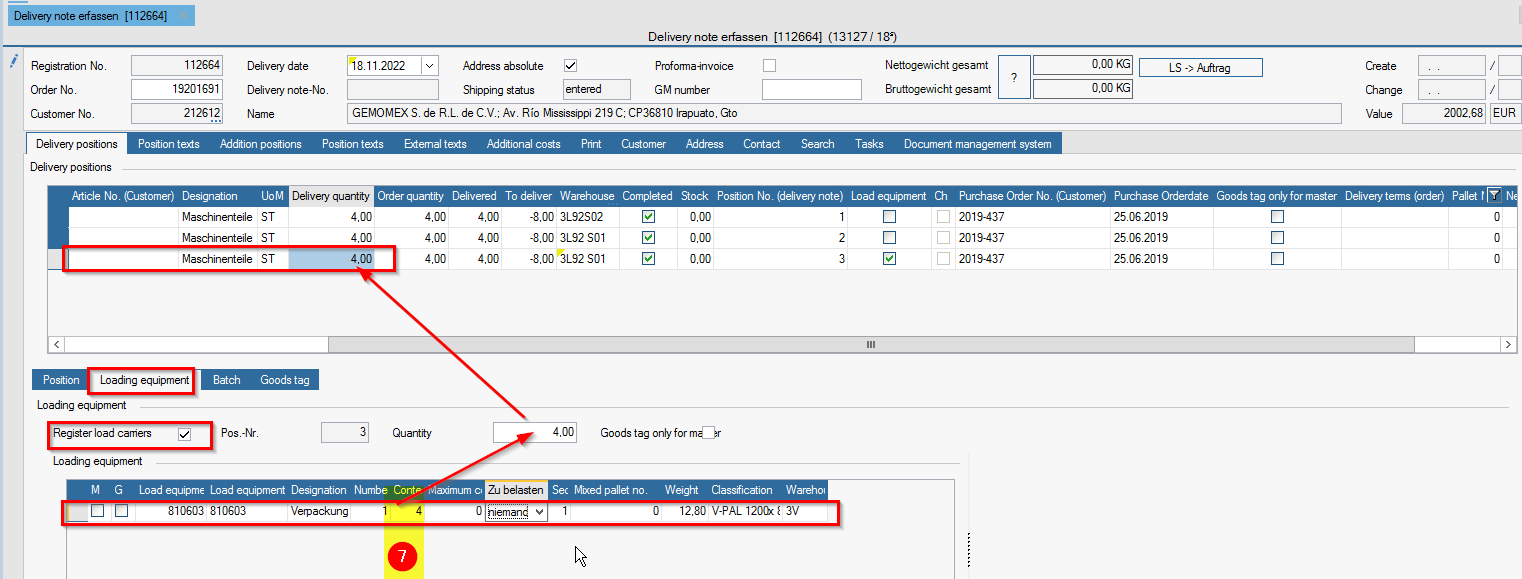
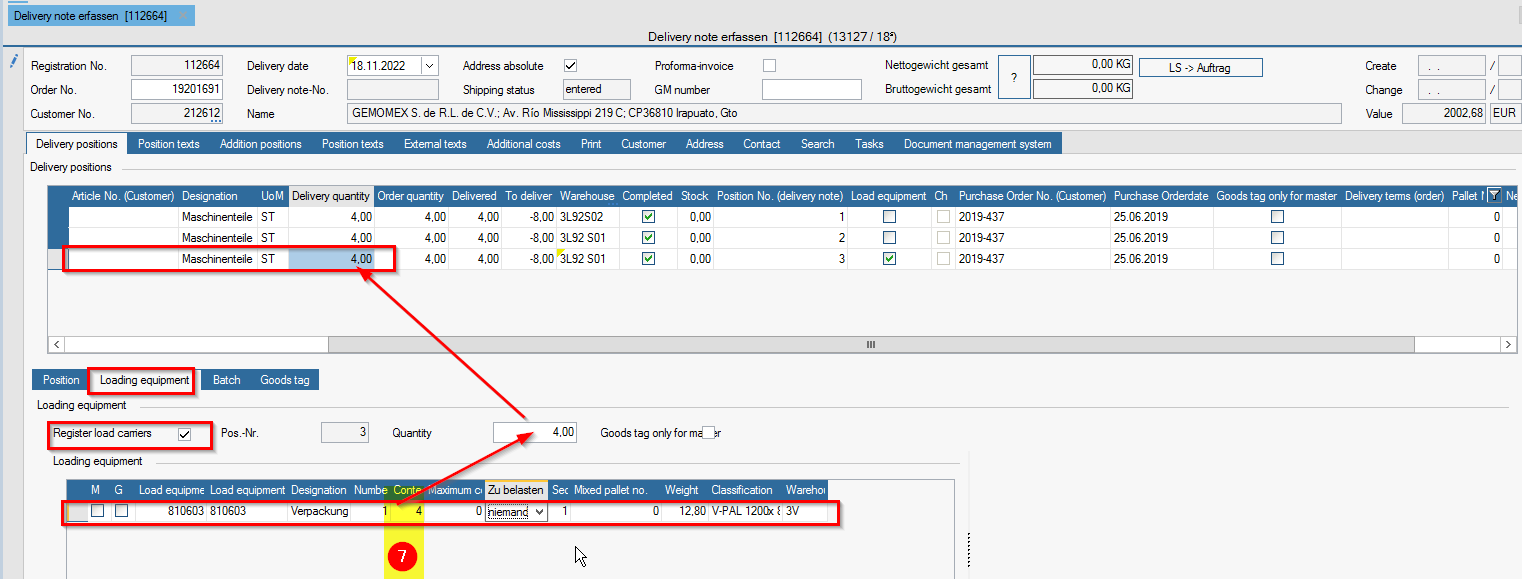
Folder Delivery positions / Loading equipment
- In the spare parts business, tick the last item for loading equipment and create some, otherwise none will appear on the forwarding order - if no dummy pallet is used, the quantity (number of packaging) will be booked away from the stock, so check the stock here too and in the case of disposable packaging to debit = no one
- It is compulsory to enter the number of pieces for contents, otherwise this position will receive the value 0
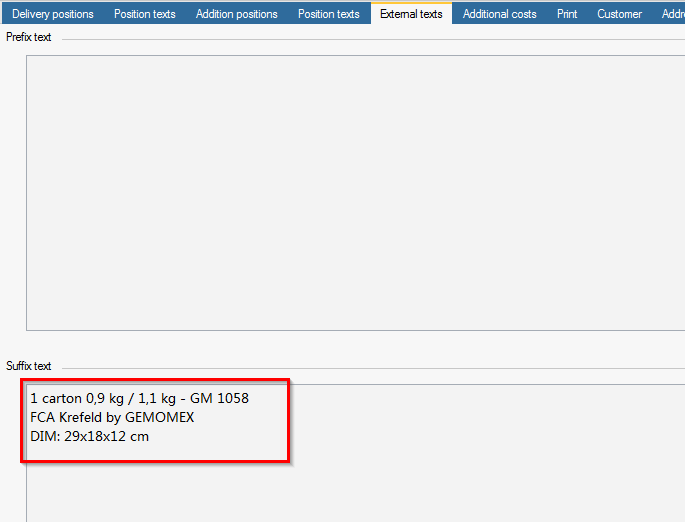
Folder External texts
- If desired, enter the number of pallets, pallet dimensions, weights etc. on the external texts tab in the prefix / suffix text; these will then appear on the delivery note.
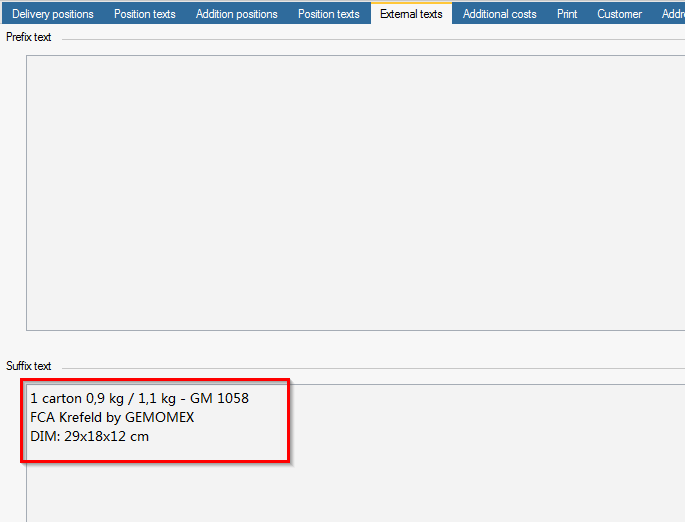
- If nothing is entered, delete the external texts prefix text the week etc. that were in the packing slip for the packing department.
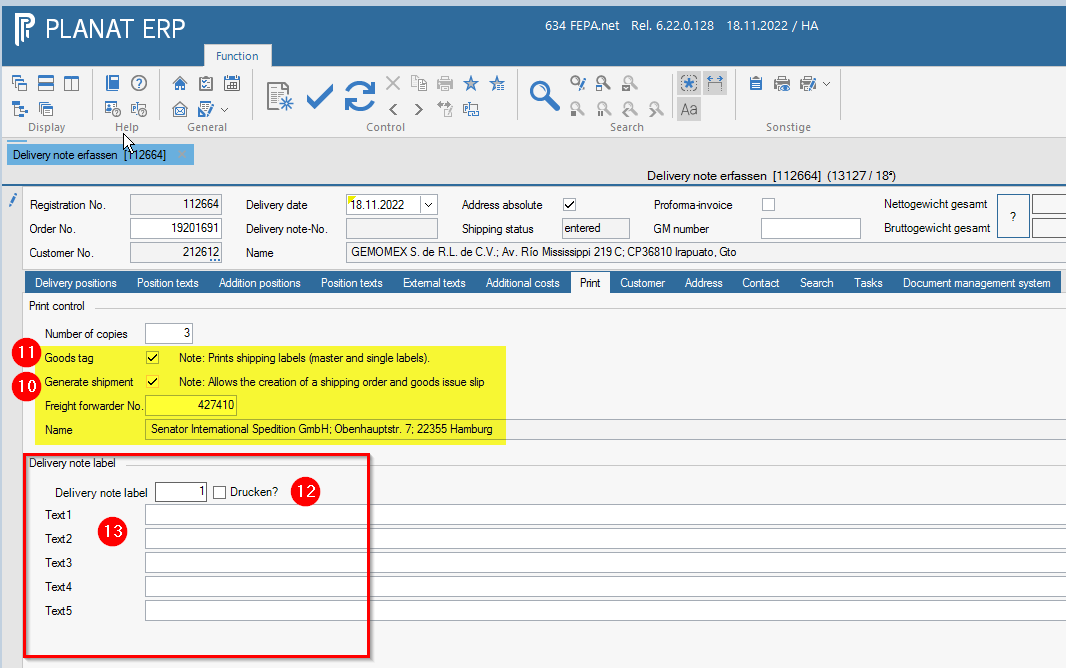
Folder Print
- On the Print tab, tick Shipping documents if it is to be shipped by forwarding agent (the forwarding agent no. should be entered in the field below), if it is to be shipped by DPD or Post, then remove the tick.
- If goods tags are required, also tick the box for goods tags.
- If you want to mark the carton, tick the box for the delivery note label and enter the number of pallets.
- Below this, 4 text fields appear where you can enter the desired marking
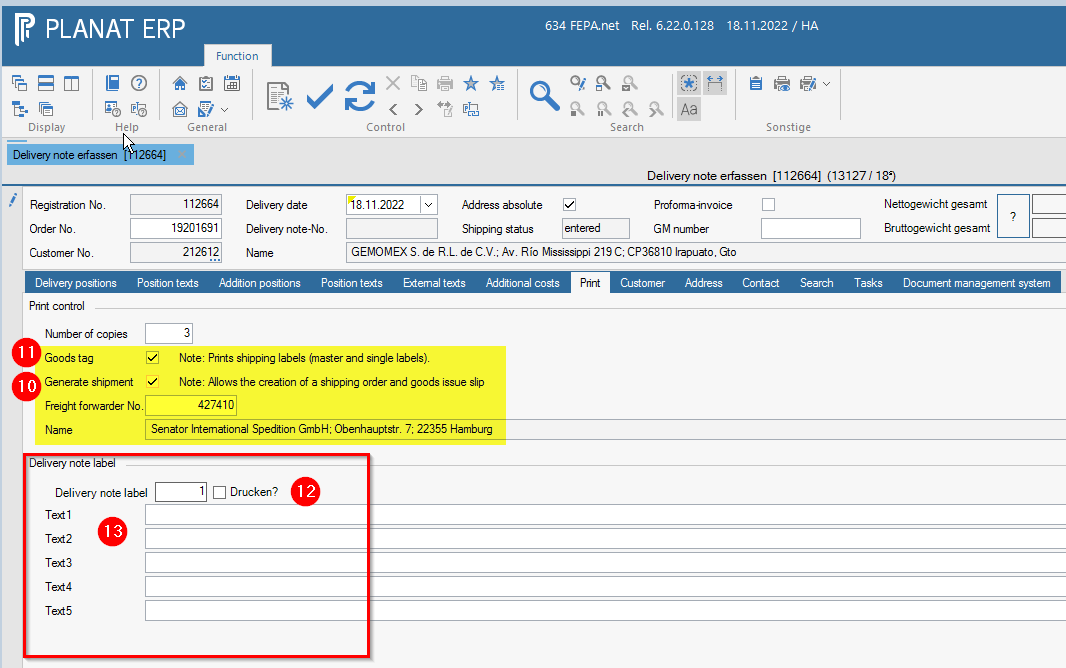
- If everything is OK, click on the printer button and the delivery note is processed and printed (and the goods tags, if selected).


Create EDI delivery note
FEPA function: Sales > Customer documents > Delivery note > Edit EDI delivery note
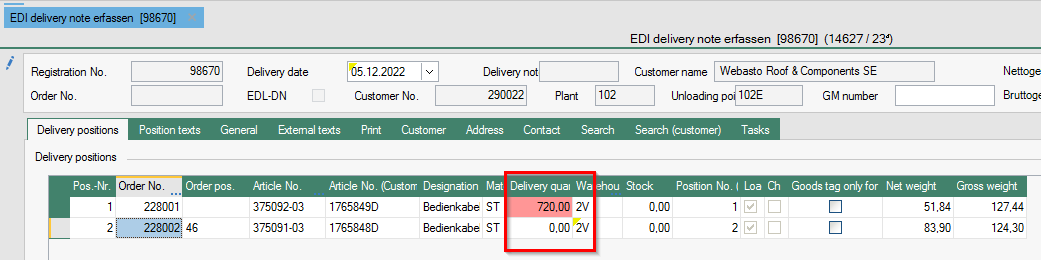
- enter the registration number of the packing order
- change delivery date to date of current day
- check the delivery quantities again, if there are deviations from the packing, they can be changed in the field delivery quantities
- check the warehouse of departure and change it if necessary
- if there are no mixed pallets, just click on print and the delivery note + goods tag will be created.
Mixed pallets
- if mixed pallets have resulted, please proceed as follows:
A mixed pallet consists of at least 2 articles (this does not mean the empty container, but the article that is packed).
6.1 Click on the position that is affected by the mixed pallet.
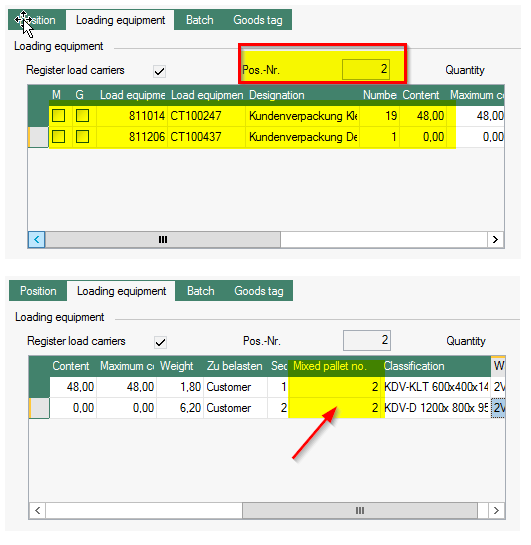
6.2 Dissolve all existing loading units (right click to remove row).
6.3. then right click, append line and enter the pallet and 1 for quantity
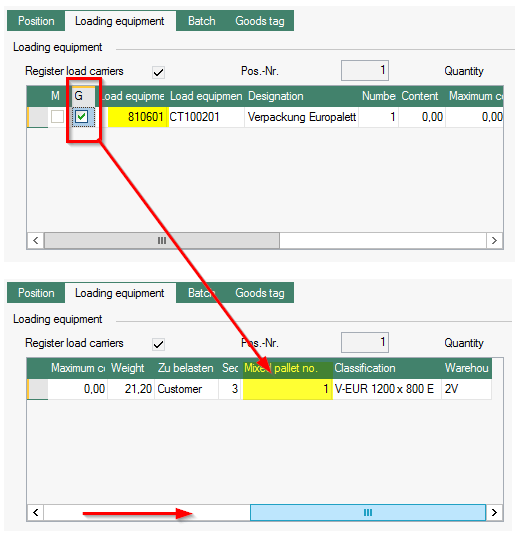
6.4. then check G (this will assign a mixed pallet number)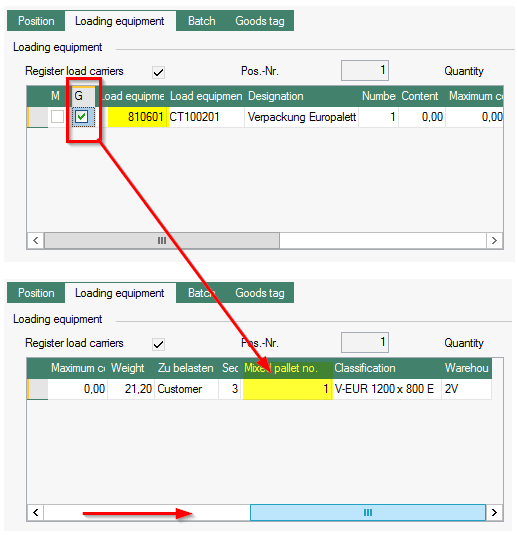
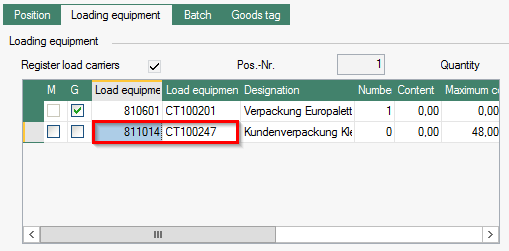
6.5. then append row again and add the KLT or carton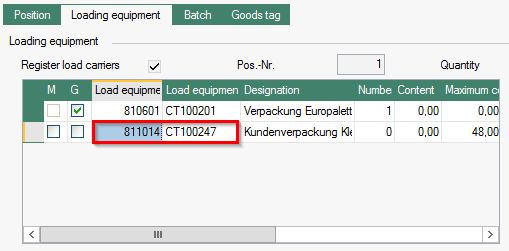
6.6 Make sure that the LT. no. (customer) (LT = loading equipment number) is stored, otherwise an error will occur during printing (if no loading equipment article no. is used, but the customer requests this, this may lead to complaints and charges from the customer).
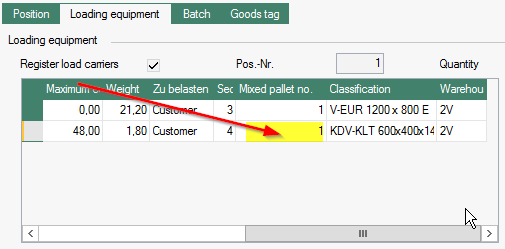
6.7 Indicate the number of cartons on the pallet for each article and the number of pieces per carton for the contents. 6.8. enter the mixed pallet number at the back if it has not yet been assigned.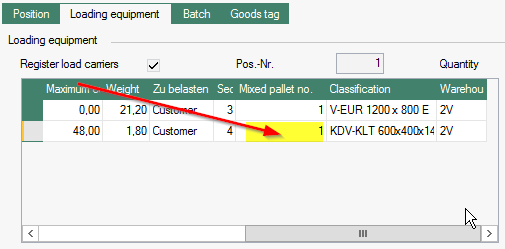
6.9 If there are still lids on the mixing pallet, proceed as for cartons/KLT.
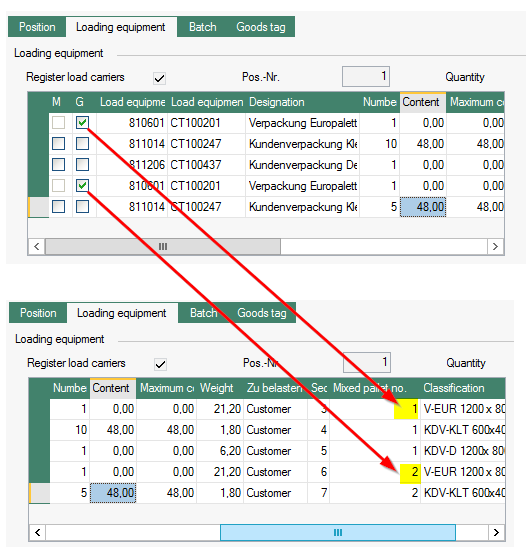
You can create as many mixed pallets as you like for each article, but you must make sure that the respective cartons with the corresponding mixing pallet number.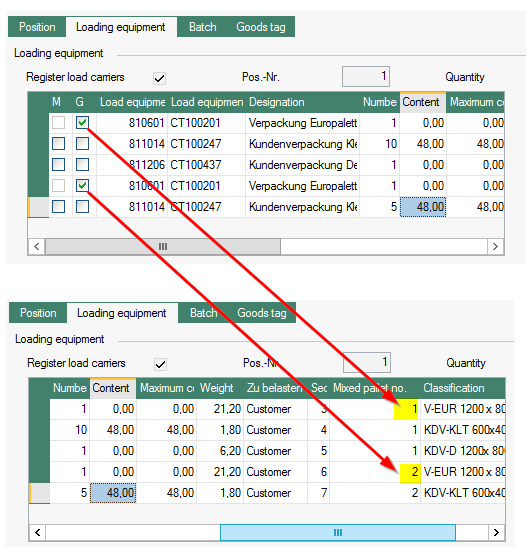
6.10. For self-checking, check again if the total number of pieces in the edited article matches what is to be delivered.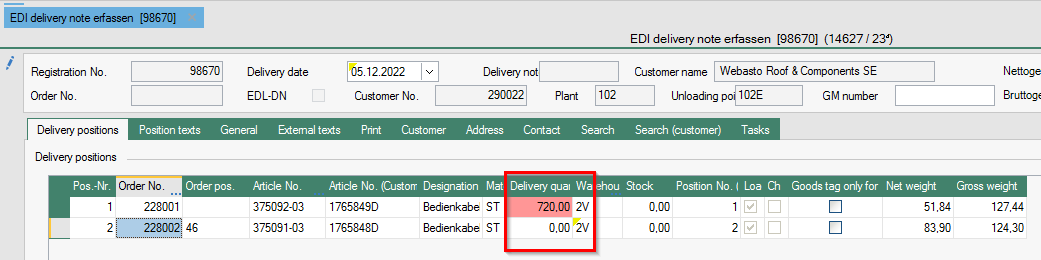
6.11. Then do the add the loading equipment for the 2nd article which is also packed on the same mixing pallet number. 6.12. Note, however, that we only need to specify the KLT/cartons/lids, as we have already stored the pallet as loading equipment for the 1st article.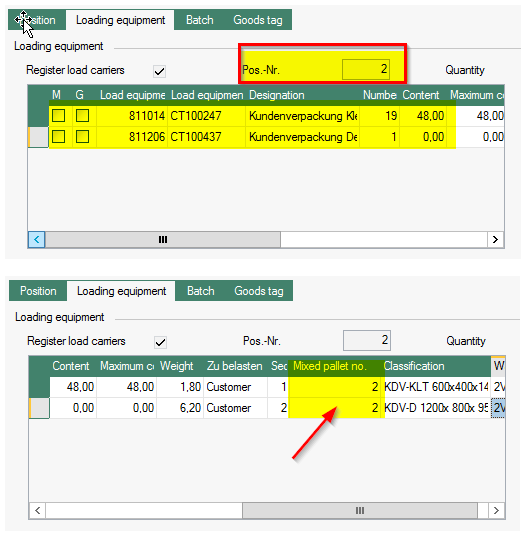
6.13. Enter the pallet on which the goods are placed, compare the total quantity of the delivery note item with the packing slip.
6.14. In the Print tab, check whether the checkmark is set for goods tags and shipping documents ("Shipping documents" should be preset for EDI customers in the customer master, without shipping documents no ASN can be created).
6.15 When everything is done, click on print again and the delivery note is created (and the labels).