You will not lose any user data by clearing the cache.
Restarting Teams after clearing the cache may take longer than usual because the Teams cache files need to be rebuilt.
## 1. Quit Teams If Teams is still running, right-click the Teams icon in the taskbar, then select **Quit** \[1\]. [](https://bookstack.gemo-group.com/uploads/images/gallery/2023-05/bh1l6OcDVHM2MhlV-image.png) ## 2. open path to cash Open the **Run** dialog box by pressing the Windows logo key +R. In the **Run** dialog box, type *%appdata%\\Microsoft\\Teams* \[2\], and then click **OK**. [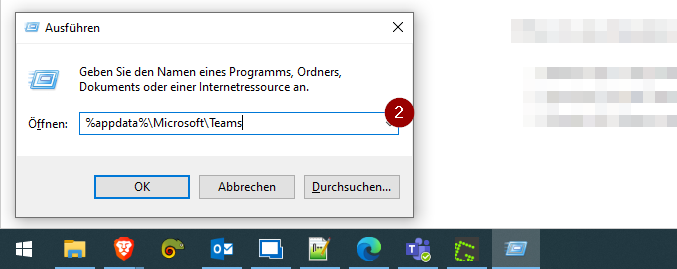](https://bookstack.gemo-group.com/uploads/images/gallery/2023-05/ot4GW3yZavkZ2a9M-image.png) ## 3. Delete Cash Delete all files and folders in the *%appdata%\\Microsoft\\Teams* directory \[3\]. [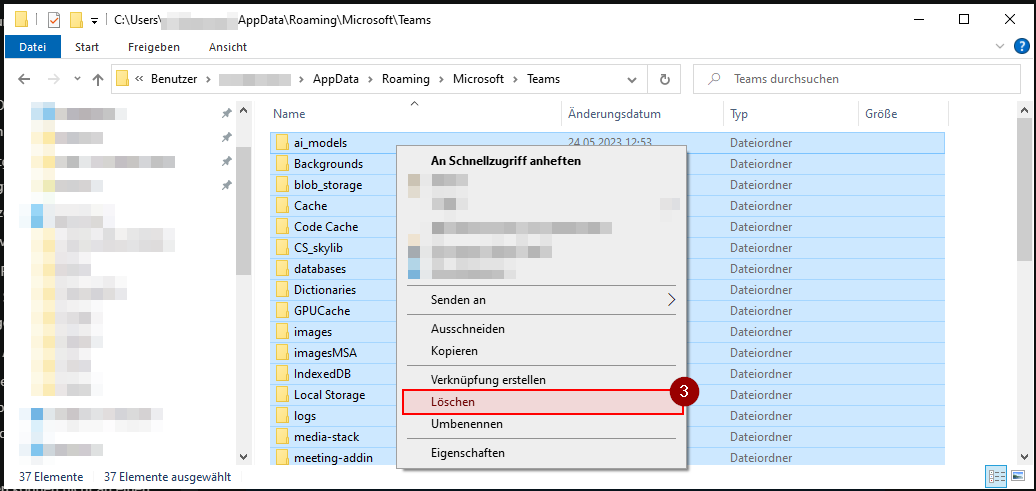](https://bookstack.gemo-group.com/uploads/images/gallery/2023-05/20faGQwpd5d2Gt8G-image.png) ## 4. Start Teams Now you can restart Teams.