General
In FEPA, a standard printer and other printers can be assigned to a user. This is not done via the Windows user, but via the name of the computer (host name). This is done by IT. If there are no stored settings for the user/PC, FEPA uses the Windows default printer of the RDP session.
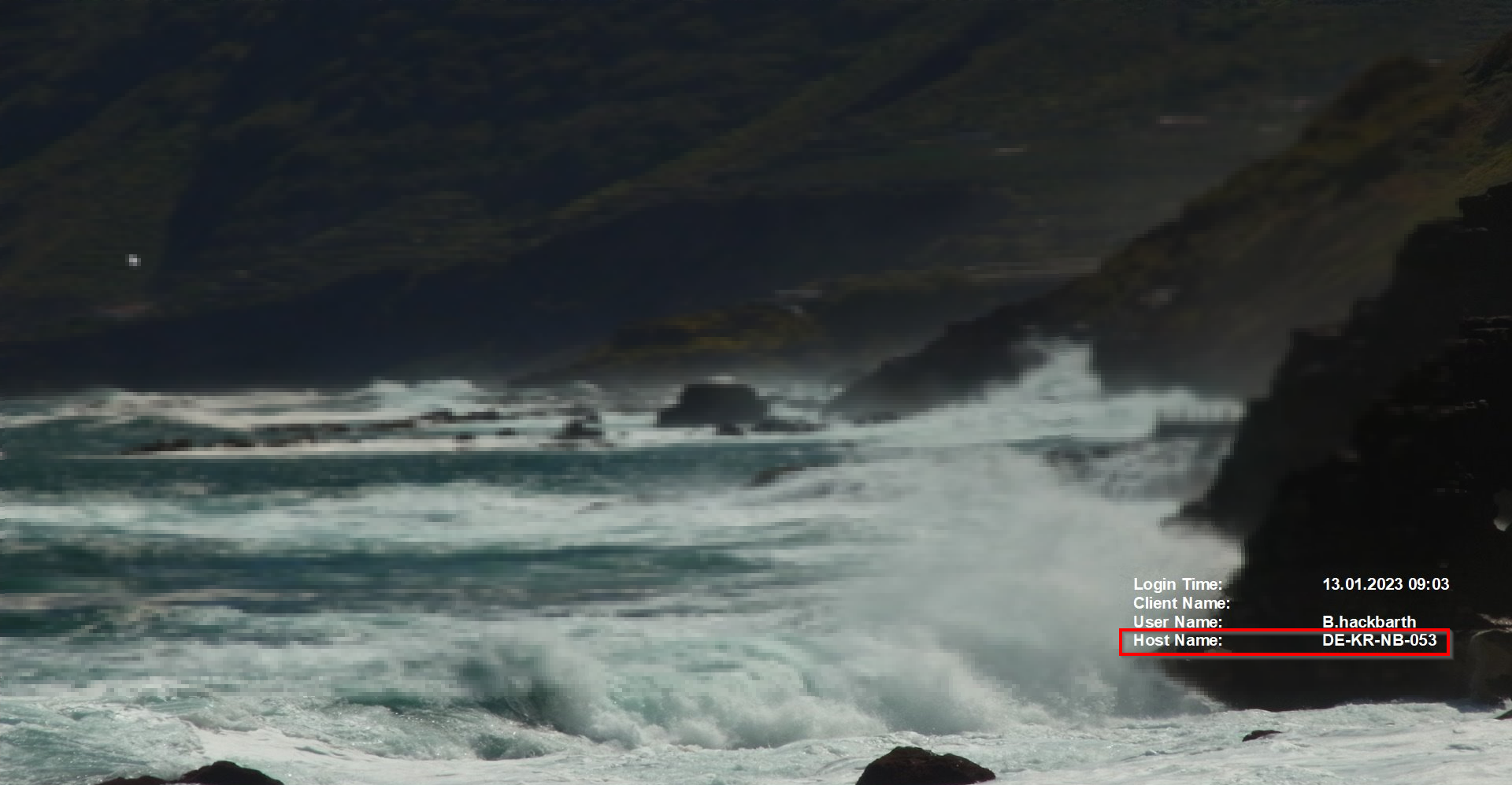
If forms are to be printed on certain printers, e.g. on letterhead paper, this must be set up by IT. To do this, send an email to the ticket system (it-support@gemo.de) stating the PC name/host name, the printer name and the desired forms. You will find the PC name/host name at the bottom right of your desktop.
Where can I find my computer name?
Display your desktop on the computer (not in the RDP session), at the bottom right you will find the display as shown in the picture. The "Host Name" is the name of your computer.
How do I set my Windows default printer?
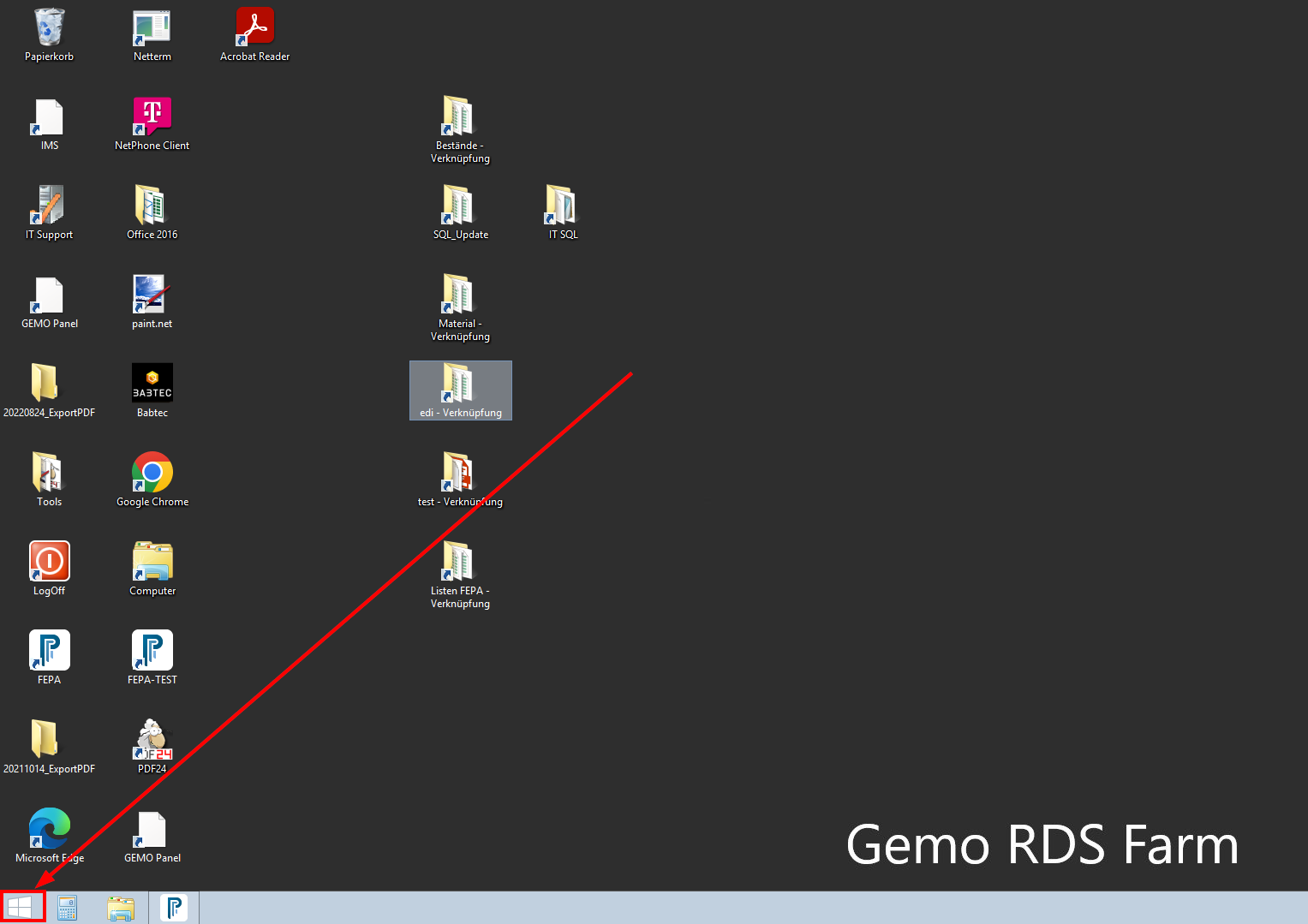
Click on "Windows Start" with the mouse.
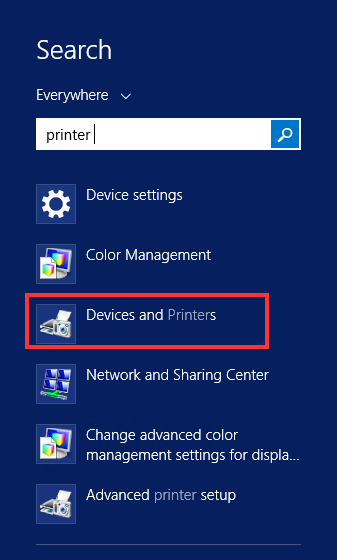
Click on the "magnifying glass" at the top right of the picture.

Enter the text "printer", then you will see a number of options to choose from, here click on "Devices and Printers".
Then the list opens and you have to search for the appropriate printer.
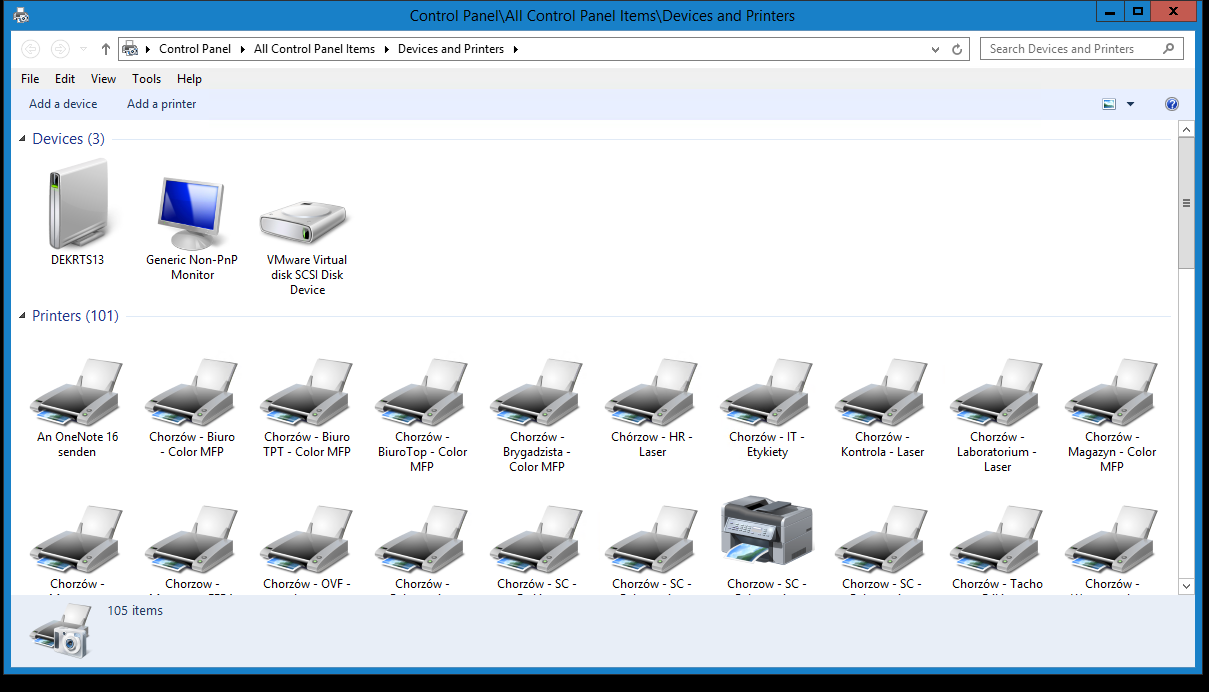
Right-click on the desired printer and click on "Set as default printer" in the context menu.
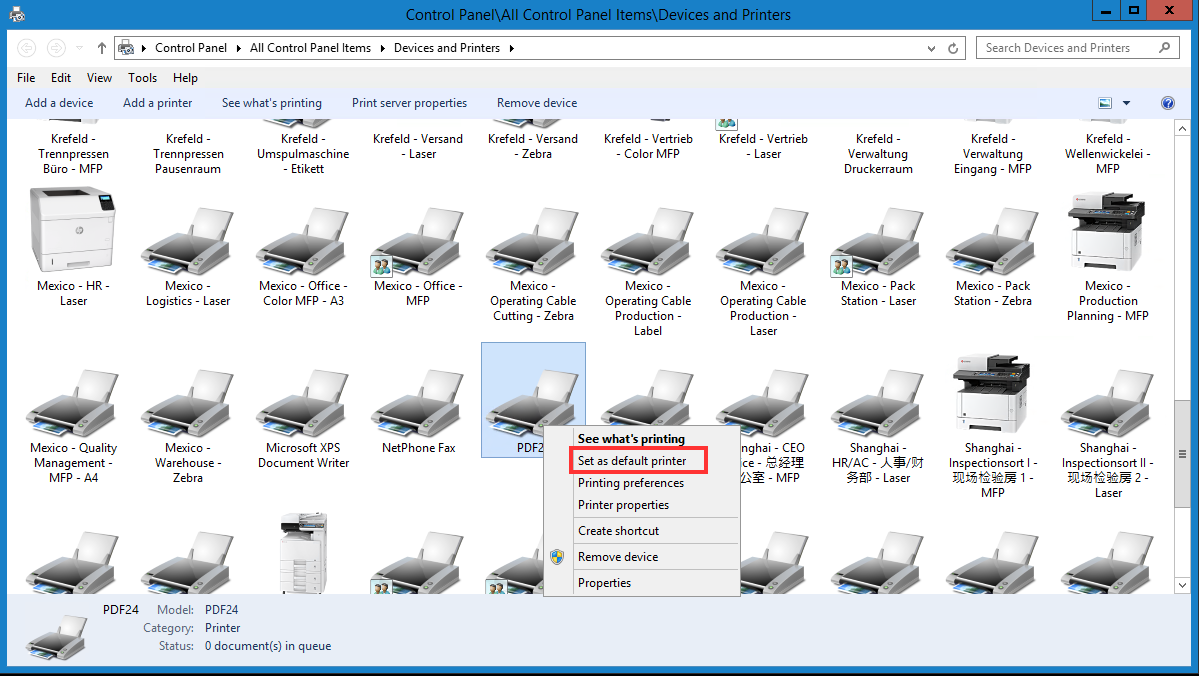
The printer is now marked with a green tick. The window can be closed.
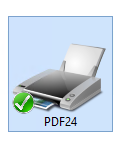
The printouts should now be printed on this device.
In the past, this setting was often changed in Windows on the terminal servers. It would be safer to at least store the default printer in FEPA for the computer name.
If the printer cannot be found in the list, a ticket must be opened (email to it-support@gemo.de) with the information which printer is missing.