New entries can be added at any time to an inventory that has not yet been completed. The name of the inventory should contain at least the own FEPA mandant or the warehouse prefix for a better overview of the inventories. See `stock-taking- Info`.
The article/warehouse combinations to be included in the current stocktaking can be selected according to the following criteria \- Warehouse no. \- Article no. \- Classification \- Character key \- Article group \- Material group \- Date of last inflow \- Date of last stocktaking \- Stock (quantity) \- Storage location (if used) (from - to) can be selected (the search library can be extended, please open a ticket for this if required). Procedure: 1. enter, (number will be assigned automatically, alternatively you can enter your own number), Enter 2. Naming - assign a name for the stocktaking, Enter 3. Expand search - click magnifying glass with pen 4. Enter search criteria, click magnifying glass 5. Check result! Only storage location/article combinations for your own location may be included. Individual lines can be deleted. (Warehouse no. must start with your own client!) - If this is not the case, close without saving and start again. [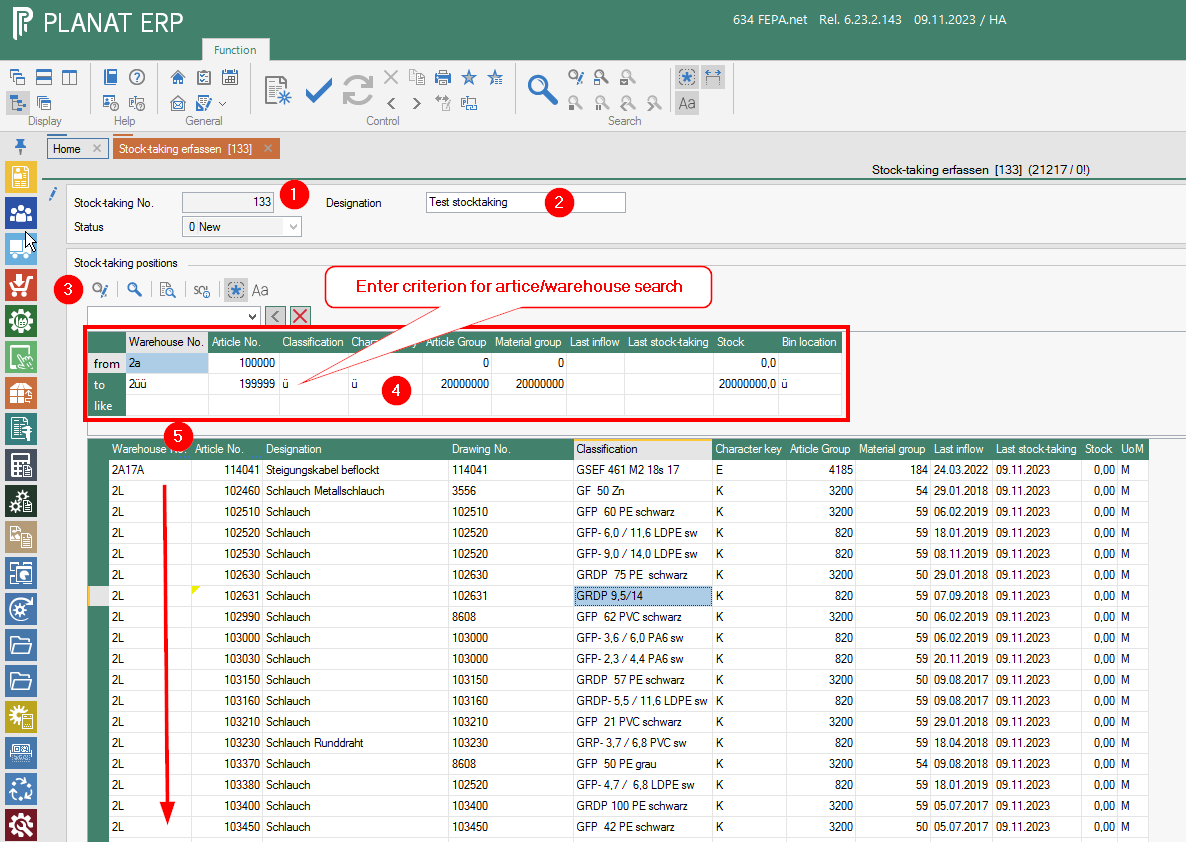](https://bookstack.gemo-group.com/uploads/images/gallery/2023-11/UQyXBPBXRhy0fdth-image.png) 6. Search result is as desired, save stocktaking by ticking the box in the tool bar. Fepa opens the stocktaking for the selected articles. 7. To subsequently record an item, open the stocktaking here and enter the warehouse and the item via the search or append a line and record both values.It is not necessary to print the stocktaking count list here!
### Scanner #### General| No. | Description |
| 1 | Power Button |
| 2 | Switch to orange |
| 3 | OK (like Enter) |
Please use your login for the stocktaking. You will need your user (2 characters) and your password.
[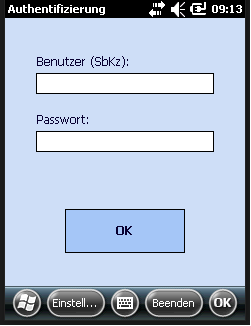](https://bookstack.gemo-group.com/uploads/images/gallery/2023-11/xxVmi4RUg3IXT6wk-image.png) After successful login we see main screen (also in German only). In the main menu, click on the "Inventur" (stocktaking) button. [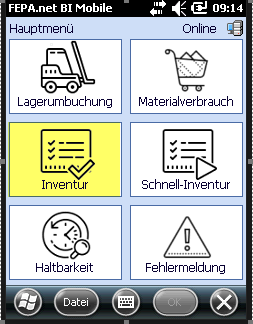](https://bookstack.gemo-group.com/uploads/images/gallery/2023-11/20uAniyEGoHV8l5L-image.png)| **Benennung** | **Bedeutung** |
| Stocktaking-no. | Number of the stocktaking in FEPA |
| Item no. | Number of the material or of the product |
| Batch | **Nummer der Charge, wenn das Material für die Chargenverwaltung erforderlich ist.** |
| Warehous loc. | Warehouse Location / stock number / storage location. |
| Quantity | Amount of items counted at the scanned location. |
| New | Display is cleared. |
| Save | Input is saved. |
| PL | Change the language (DE = German, CN = Chinese, EN = English, ES = Spanish, PL = Polish) |
| Close | Goes back to the main menu. |
TAKE CARE OF: - Stocktaking number will stay! - Watch the unit of mesaurement especially for granules, oil, glue! - Booking safes after hitting „OK“-button on scanner keyboard or „Save“-Button on the mask. - Booking will take place immedialy!
### Inventory count list scanner FEPA function: `Materials management > Stockt-aking > issue stock-taking counting list (scanner) ` 1. Enter the stocktaking number in the mask, select the grouping and 2. load the recorded data using the refresh button. [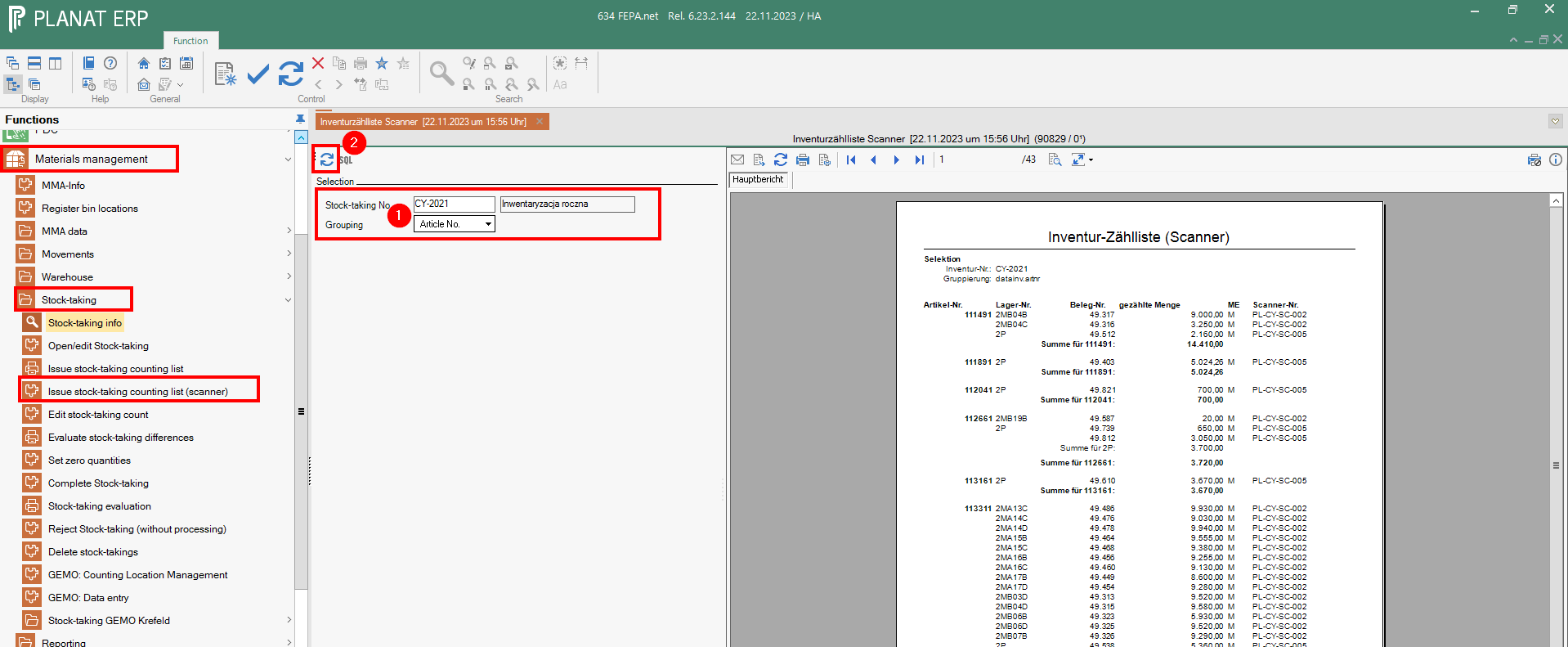](https://bookstack.gemo-group.com/uploads/images/gallery/2023-11/ZdDrNXHZBBZcyXhU-image.png) The data can now be checked visually. The list can be printed or exported. To correct values, please follow the link and read the section in the inventory instructions under [Corrections ](https://bookstack.gemo-group.com/link/87#bkmrk-%C2%A0) Once all items have been counted and recorded using the scanners, continue as described in the inventory instructions under [evaluate stocktaking differences.](https://bookstack.gemo-group.com/link/87#bkmrk-evaluate-stocktaking)