Purchasing
Explanations on the subject of purchasing
Purchasing-Info
General
Here you can view comprehensive information on the entire purchasing area.
FEPA Function: Purchasing > Purchasing Info
For the fields suppliers no., article no., inquiry/order no. and project no. a field search is possible. To do this, press the key combination [Ctrl]+[F] for search in the field or click on the magnifying glass in the status bar at the bottom of the window.
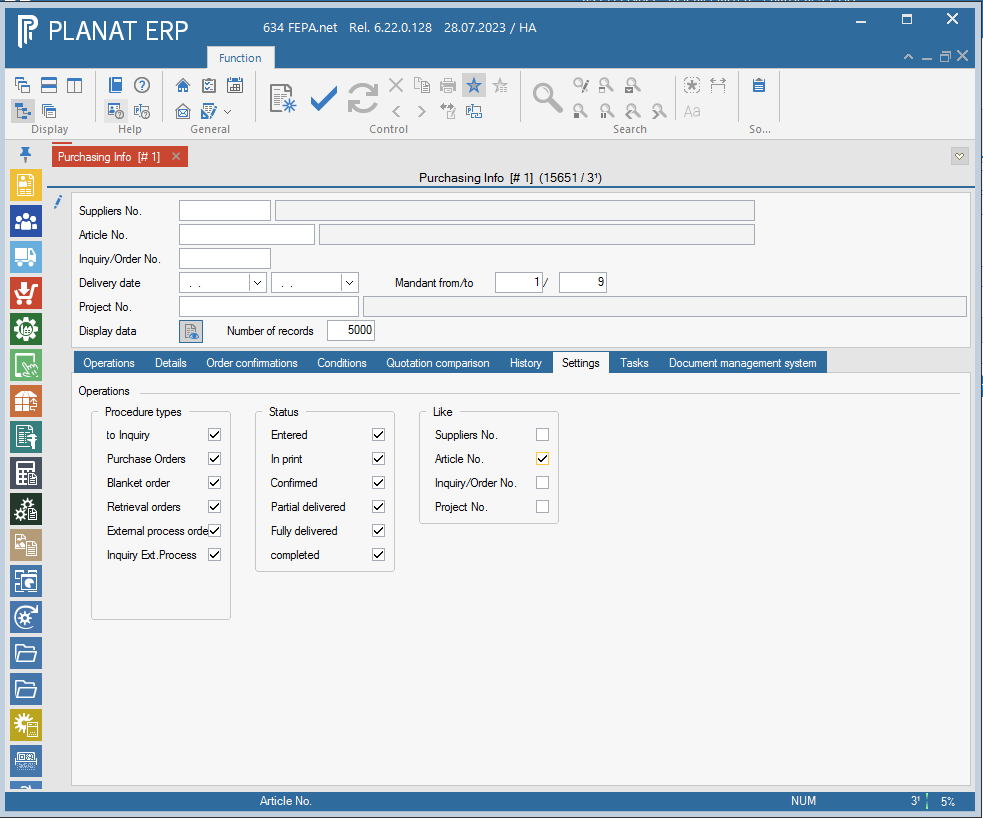
Settings
In the tab Settings you can define your display for the type of transactions and their status.
The Like setting means that you can enter % characters after the number in the field ticked here, as in the search/selection, and everything matching this character string is displayed in the result.
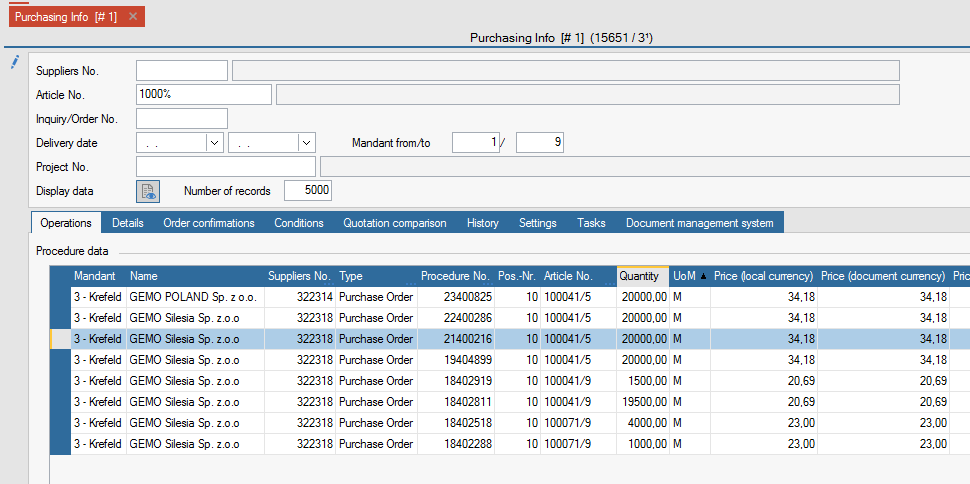
For example:
All operations for item numbers that begin with the character string "1000":
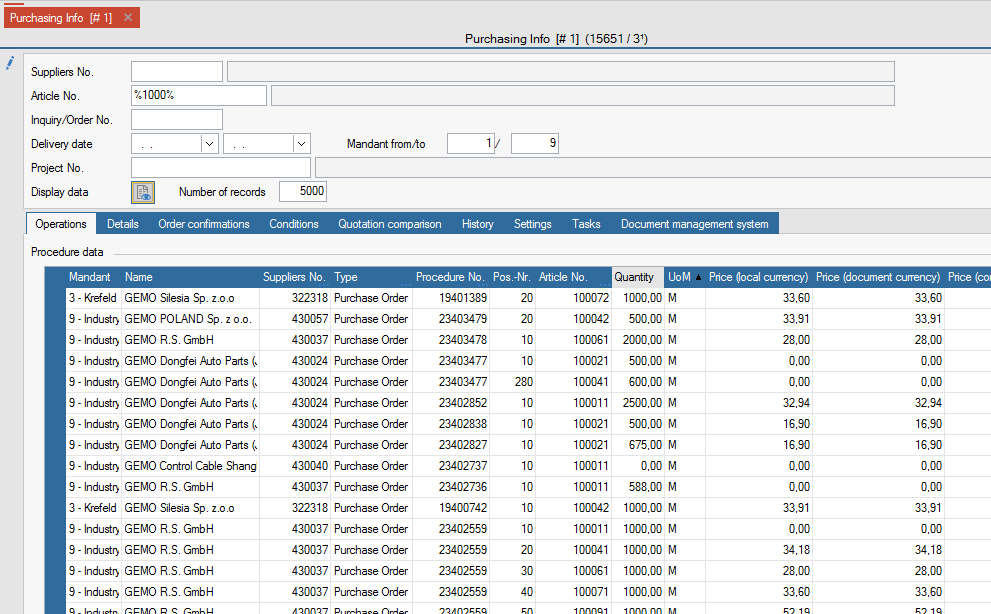
Note: When searching for a purely numeric number, a % character must also precede the number! Numbers are padded with leading blanks when saving if it is an alphanumeric field.
Goods receipt
General
The function Edit Goods Receipt is used to enter the goods delivered by the supplier on the corresponding order item.
In the course of entering the goods receipt, the status of the order item is set to partially or completely fulfilled and at the same time the goods receipt (actual receipt) is posted in materials management.
Dispositions (planned receipts) in materials management are also partially or completely reduced.
In addition, the price of the last receipt in the article master is updated with the order price in the MMA tab in the corresponding client.
If the article is set to QM-inspectable with the QM tick in the client tab of the article master, a QM document is created in FEPA and a data record for the Babtec interface when the goods receipt is processed. The goods then go to the Q warehouse until a decision is made.
Edit goods receipt
There are 2 ways to enter. One is via the supplier number, the second is via the transaction/order number.
You can enter all items of the delivery note with a goods receipt. If corrections have to be made to an item of a goods receipt, only the entire goods receipt has to be cancelled. Afterwards, the goods receipt must be repeated for all items.
It makes sense to make an individual goods receipt for each delivery note item. Please note the location-specific procedure.
If mandatory fields are not filled in, the goods receipt cannot be saved and processed.
FEPA function : Purchasing > Deliveries > Goods Receipt > Edit Goods Receipt
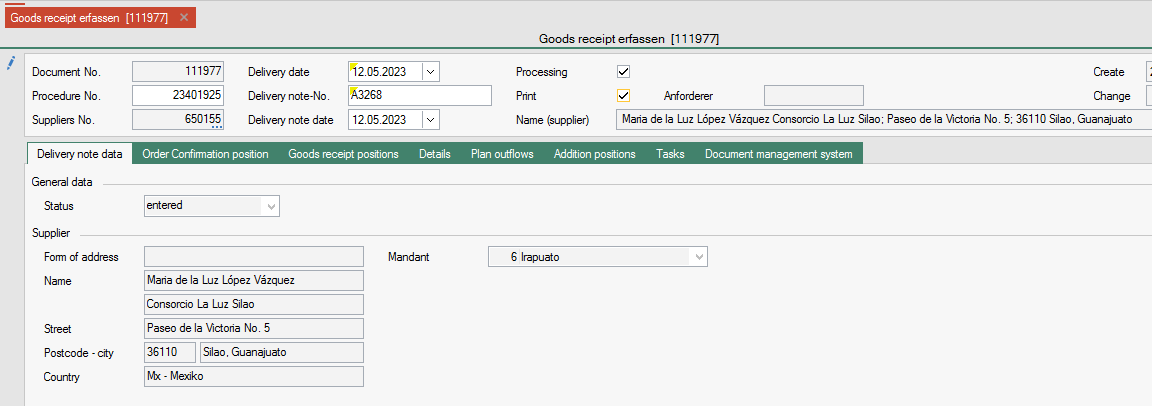
- Press Enter twice in the field Document No., FEPA assigns the document number.
- Enter the transaction number, the supplier number is automatically taken from the transaction.
- Today's date is automatically selected as the delivery date, if a goods receipt is subsequently made, the delivery date can be changed to the day of the original goods receipt. This is a mandatory field.
- Enter the delivery note number of the delivery note, this is a mandatory field.
- Select and confirm the date of the delivery note
- Visually check supplier - does the supplier match the one on the delivery note

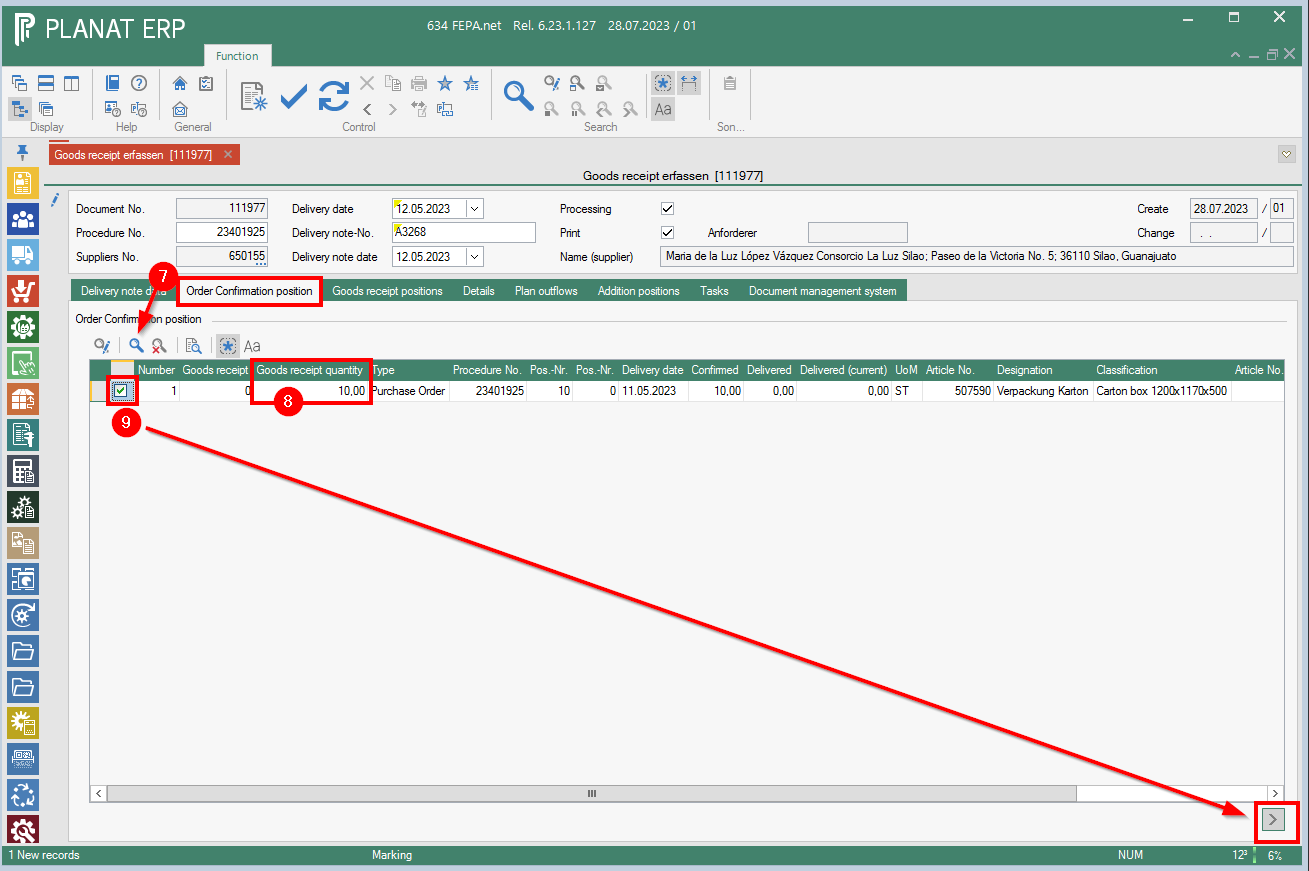
- Click on the Order Confirmation Items tab and press the magnifying glass, FEPA searches and displays the open items for the operation (or for the supplier if you have not entered an operation but the supplier)
- Select the goods receipt item and enter the delivered quantity in the quantity field.
- Tick the "Mark" box at the front for the appropriate goods receipt item and click the arrow in the bottom right corner. The goods receipt item is now transferred to the Goods Receipt Items tab.

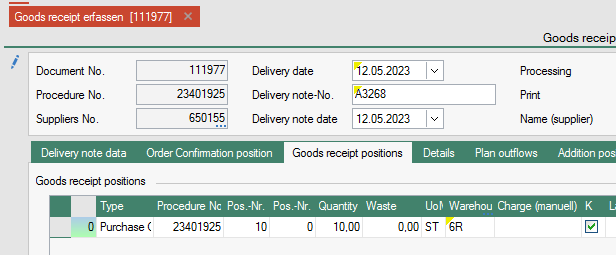
- The goods receipt item is now transferred to the Goods Receipt Items tab. The number of planned outgoings is displayed at the front.
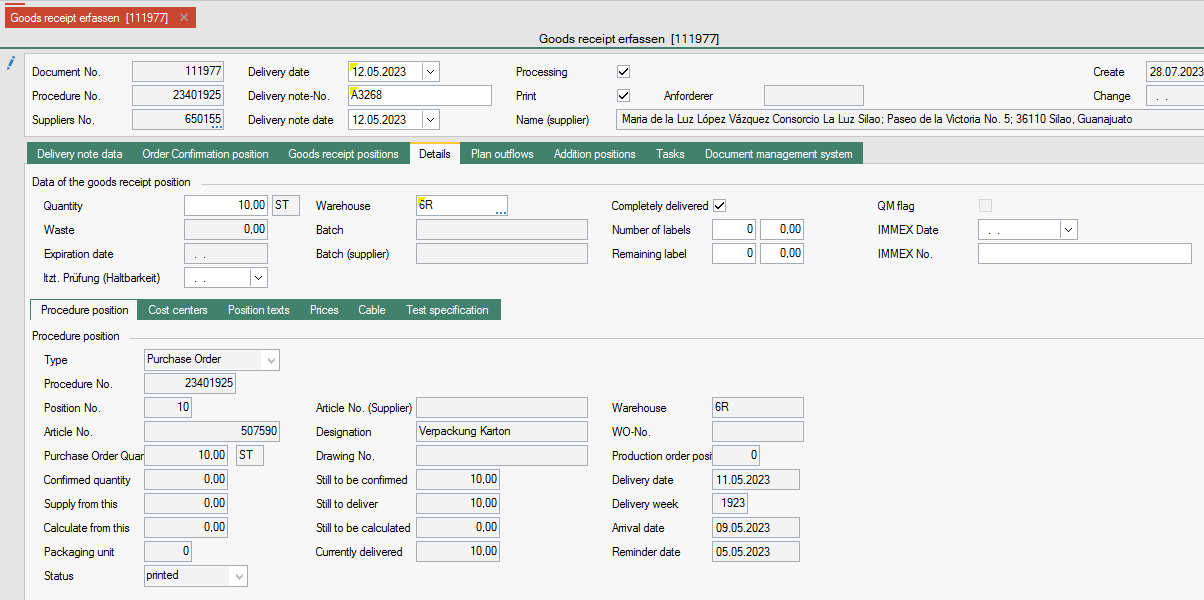
The Details tab shows the details of the position you are currently in.

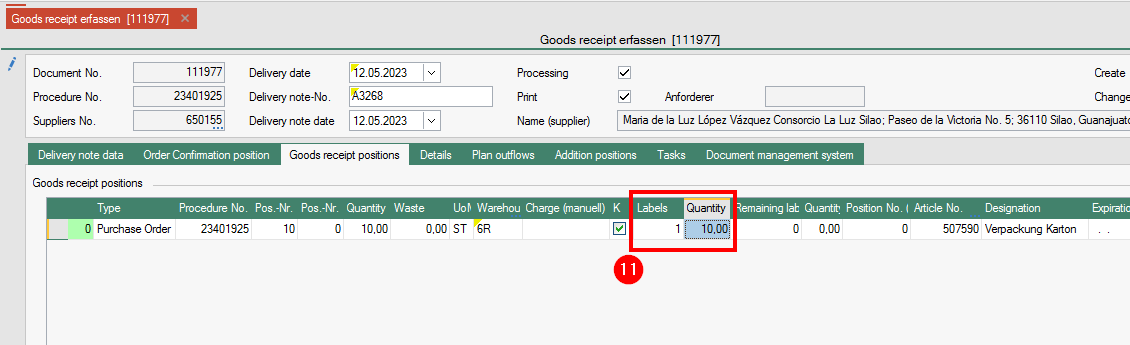
- A goods receipt label can be printed for each container/carton received. The number of labels is entered in the Labels column. The quantity per label is entered in the Quantity column. The quantity can also be left blank to be entered manually. (e.g. if the quantity per container varies).

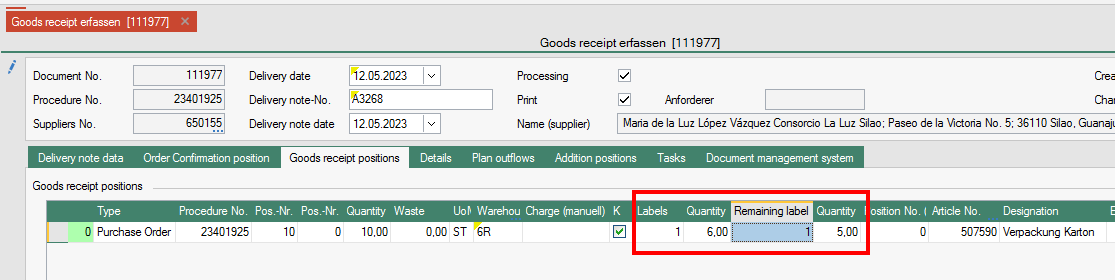
- If you only have a container that differs from the quantity, you can also print out a label via the columns Remaining label and Quantity.

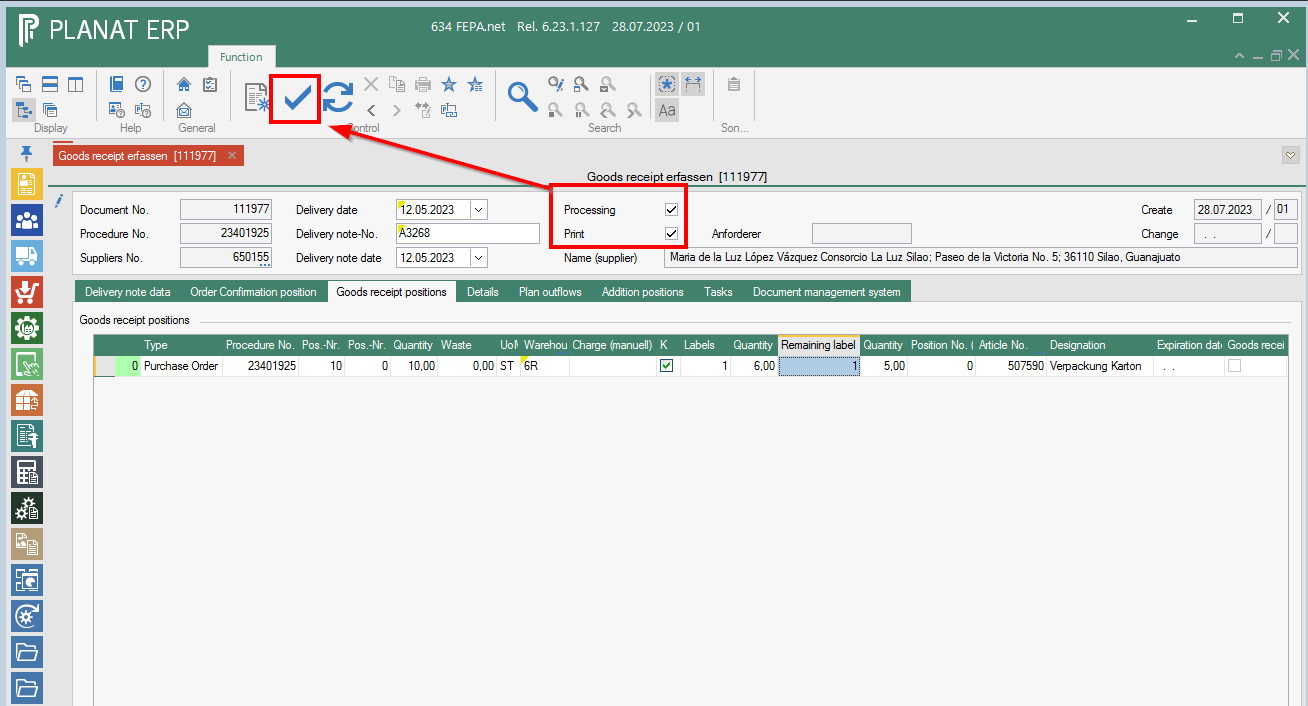
- The ticks for processing and printing are set automatically. For processing, only the tick in the tool bar must be clicked.
Then the printing takes place.
Special features
Internal EDI (WE_Check_LS)
When saving and processing the goods receipt, the system checks whether the transaction is an EDI order. If the transaction is an EDI order it is checked:
- Does the delivery note number correspond to the transaction of VDA49013, i.e. numeric, maximum 8 characters long?
- Does the delivery note exist in FEPA?
- Does the delivery note belong to a sales order where the order number is the same as the entered transaction number.
If a problem is detected, an information message is displayed:
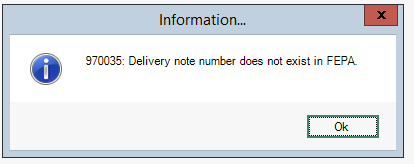
The delivery note number must be corrected, otherwise no processing takes place.
Goods Receipts for Intercompany Transactions
When saving and processing the goods receipt, the system checks whether the transaction is an intercompany order. If the transaction is an intercompany order, it is checked:
- Does the delivery note exist in FEPA?
- Does the delivery note belong to a sales order where the order number is the same as the transaction number entered.
If a problem is detected, an information message is displayed:
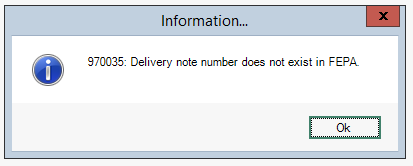
The delivery note number must be corrected, otherwise no processing will take place.
Goods Receipts for the Polish Location
Moving Average Price Plug-In (LocalWagedAverrageValuation )
This script calculates the moving average price (also 'FIFO price') based on the exchange rates of the national banks given by the local tax administration/government (in Poland).
The average price is calculated here according to the specifications of the colleagues.
Goods receipts for external process orders
(Plugin - ShowInfoOnInflow) This is switched off for client 3-Krefeld.
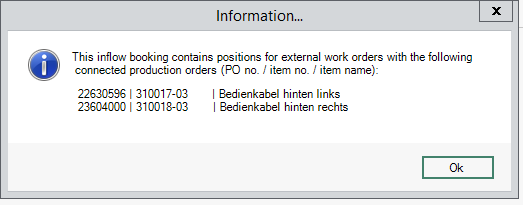
If there is a production order for an item in the goods receipt (= award order), then information and a list of the linked WOs and operations (because there can be more than one) is displayed after processing the goods receipt.
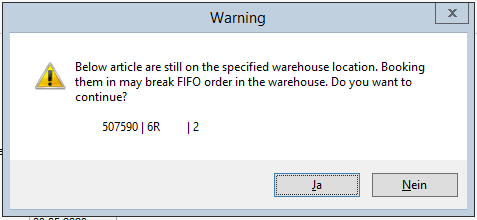
Before processing / saving, a check is carried out for FIFO. When the goods receipt is posted, it is checked whether the same goods are already in the destination warehouse. This is to avoid mixing the batches. The message is as follows:
Cancel goods receipt
Attention! If the goods receipt item is subject to QM confirmation, the QM confirmation must first be confirmed and completed. Only then can the goods receipt be cancelled.
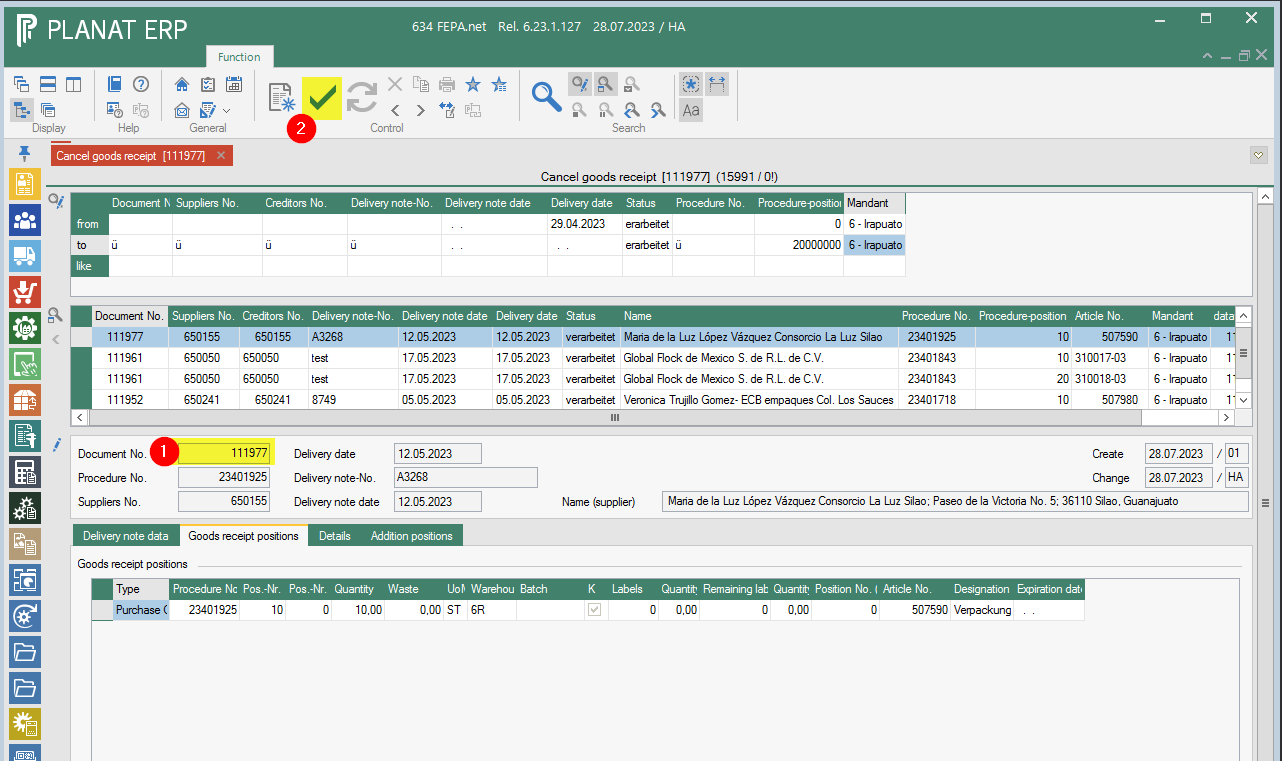
FEPA Function: Purchasing > Deliveries > Goods Receipt > Cancel Goods Receipt
- Enter the document number of the goods receipt or find and select it via the search.
- Confirm with the tick in the toolbar. The goods receipt is cancelled

Invoice
General
The Edit Invoice Receipt function is used to enter the invoices sent by the supplier on the corresponding order item. It is possible to transfer the entered data to the financial accounting system via an interface.
The invoice receipt check also serves to compare the delivered quantities with the invoiced quantities, as well as to check the invoiced prices.
On the part of Planat, there is no fixed linking of goods receipts with the invoices entered here.
For the entry of invoices, the specifications valid at the location must be observed.
Edit invoice receipt
FEPA function: Purchasing > Deliveries > Invoice receipt > Edit invoice receipt
Header data
- Press Enter, document no. is assigned (if necessary, the client is queried).
- If the invoice is for only one order, the transaction number can be entered. Otherwise continue with the entry of the supplier no.
- Select the date of receipt of the invoice
- Select the invoice date
- Enter gross invoice amount
- Enter the invoice number of the supplier
- Check or select posting period

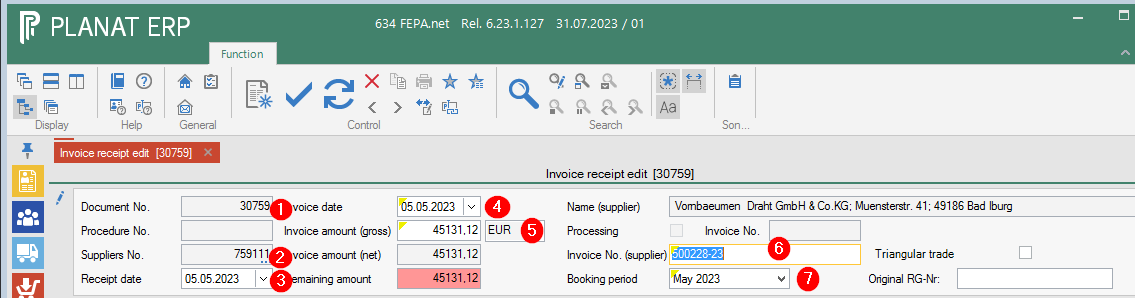
As long as the balance is not 0, the entered invoice cannot be processed.
Invoice data tab
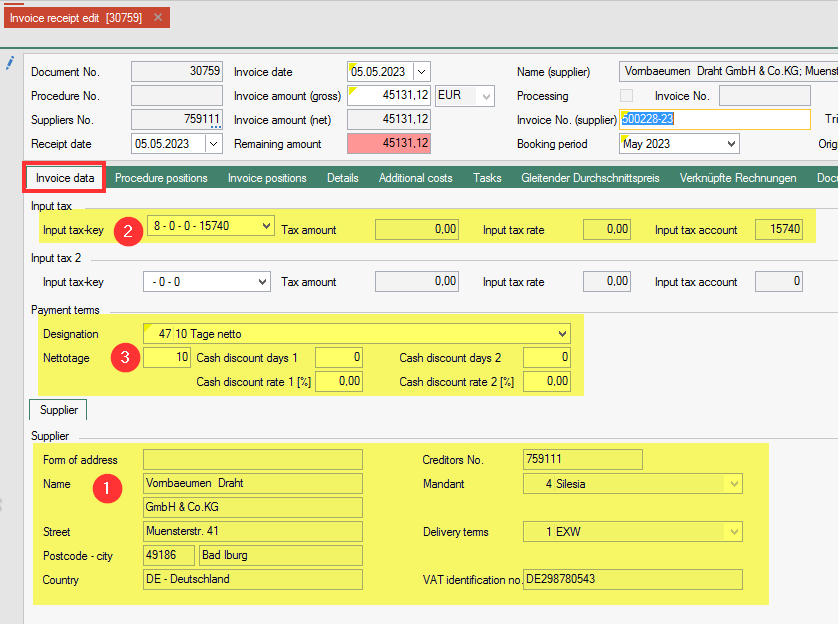
- After entering the header data, the supplier is displayed here. Compare address and VAT ID. Must match
- If it is a domestic transaction, the tax rate and the tax amount are displayed here.
- Check or change the terms of payment are possible here. Compare with the invoice.

Procedure positions tab
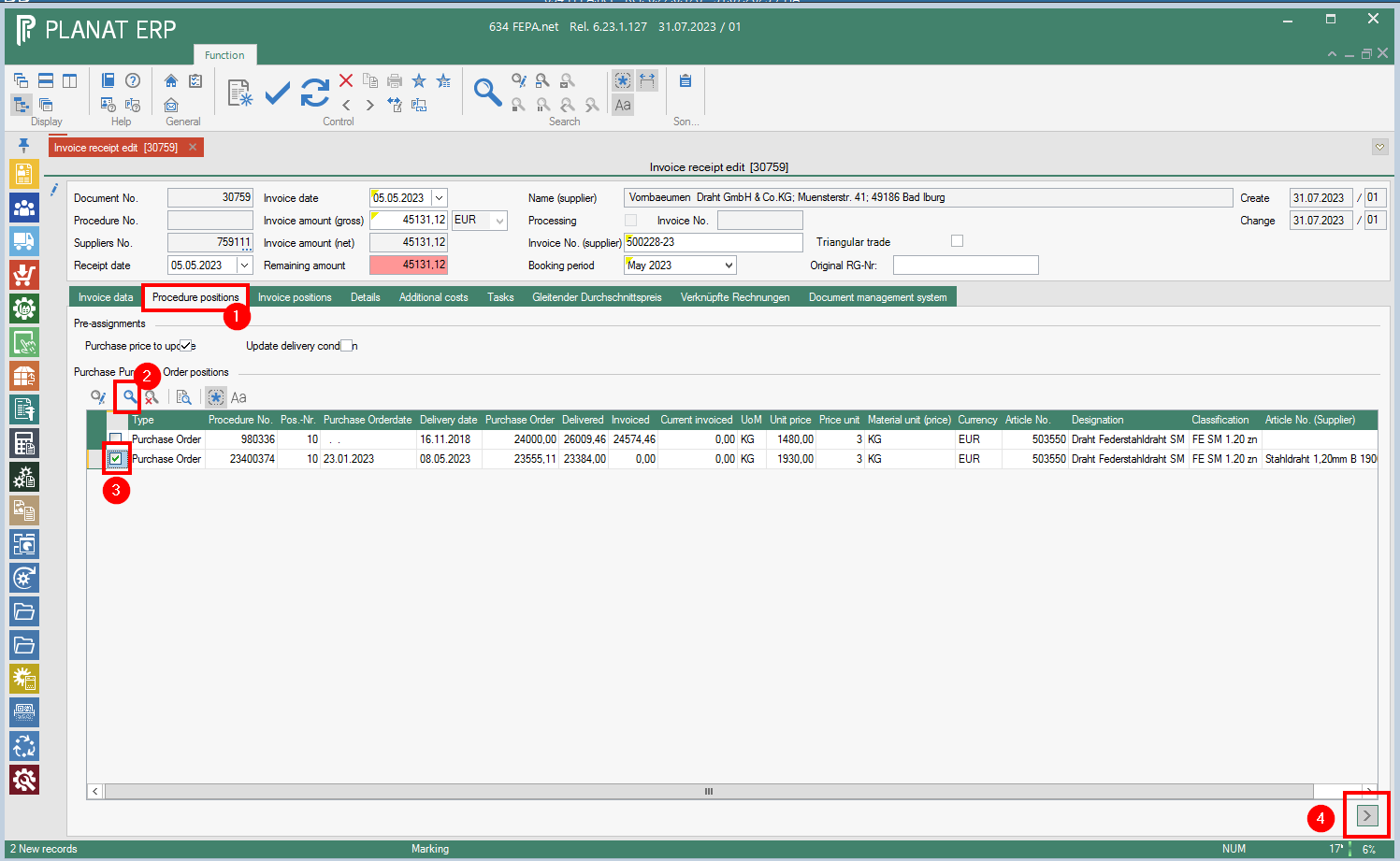
- Click on the tab Procedure positions
- Press the magnifying glass, then only the open positions for the supplier are loaded.
- From the displayed order items, I select the item(s) listed in the invoice by clicking in the checkboxes at the very front (green tick) (order no. = procedure no., item, article, quantity ...).
- By clicking on the arrow > in the bottom right-hand corner of the screen, the items are transferred to the Invoice positions tab.

The entry automatically jumps to the invoice positions tab. If any are still missing, you can go back to the Procedure positions tab and also select the missing ones and transfer them to the invoice positions.
Invoice positions & details tab
Invoice positions
In the tab Invoice positions, the positions are displayed in table form. At the bottom, the item texts from the purchase order are displayed for the position in which the cursor is placed.
Field contents can be edited. This can be seen in more detail in the tab Details. According to the content of the invoice, e.g. quantity and price can be adjusted to the invoice.

Details tab
The data from the Invoice positions tab is displayed here in the form of a mask. The values can also be edited in the invoice item data.
According to the information on the invoice, only the quantity, price, discounts, etc. are checked here according to the invoice content and adjusted if necessary.
If the quantity corresponds to the ordered quantity, the check mark "Item completed" is automatically set. It can also be set manually. This completes the order item after processing.
The tick for updating the purchase price in the item master is set automatically.
The tick for updating the delivery condition can be set manually if required. The price is then updated when processing the invoice entry.
Cost centres
If cost centres are required for an article, they must be entered in the Cost centres tab. The tab can be found in the Details tab under the data on the invoice position. Here you can select one of the cost centres and the percentage (Portion) for it. A maximum of 3 cost centres are possible. Cost centres already entered in the transaction or the master data are taken over here.
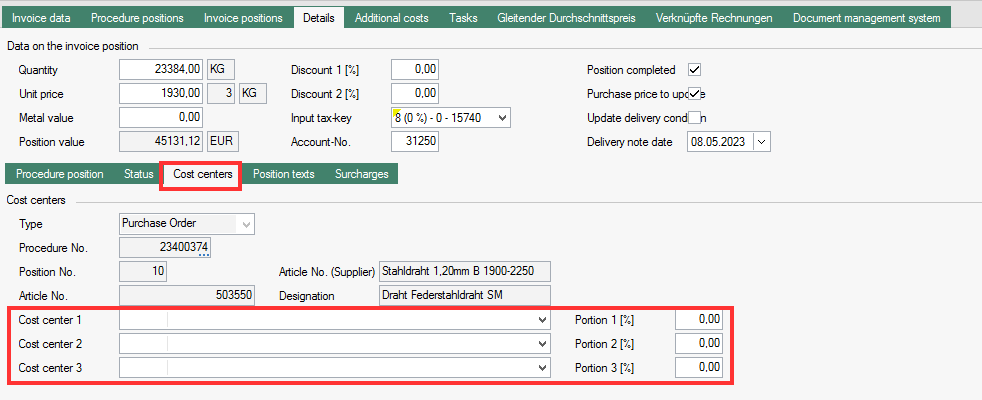
A cost centre is required for some material groups. This is checked when the invoice is saved and information is displayed that the cost centre must still be entered. Without a cost centre, processing is not possible.
Surcharges
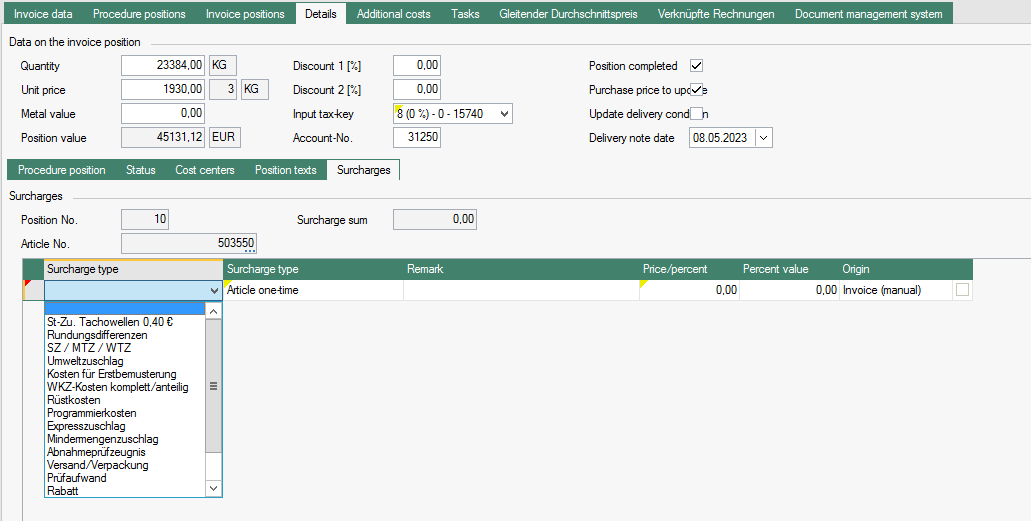
Surcharges are an add-on in FEPA. In the Surcharges tab, surcharges can be entered for the invoice. The costs are then added to the item value of the invoice item. How they are to be used must be agreed with the purchasing management. They are not automatically allocated to the purchase price. By means of a GEMO own program, the surcharge is allocated to the Last Receipt price and replaced in the master data item when processing the invoice entry.
- Add line
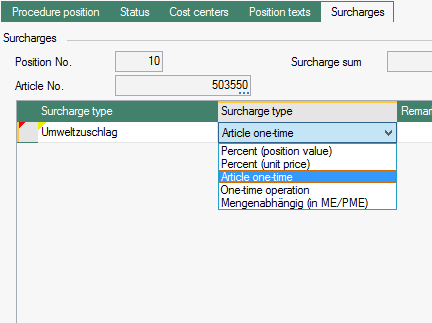
- Select type of surcharge (Ask the CPO to enter the surcharge types in other languages.)

- Select type of surcharge

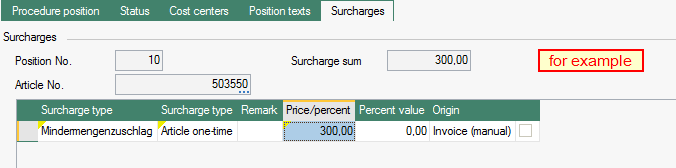
- Enter a remark, maximum 30 characters possible
- Enter price or percentage

-
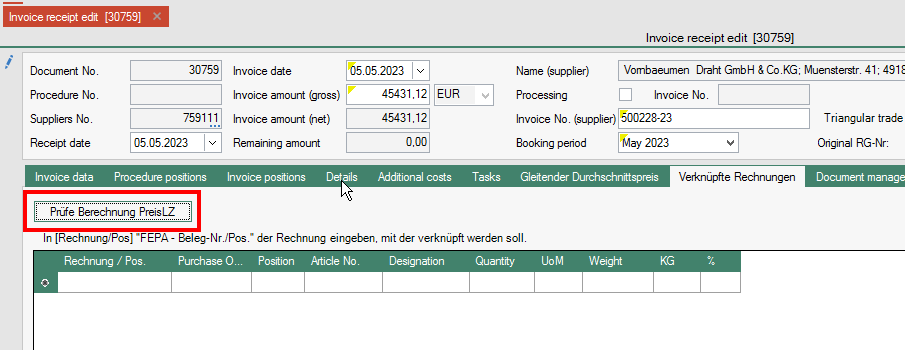
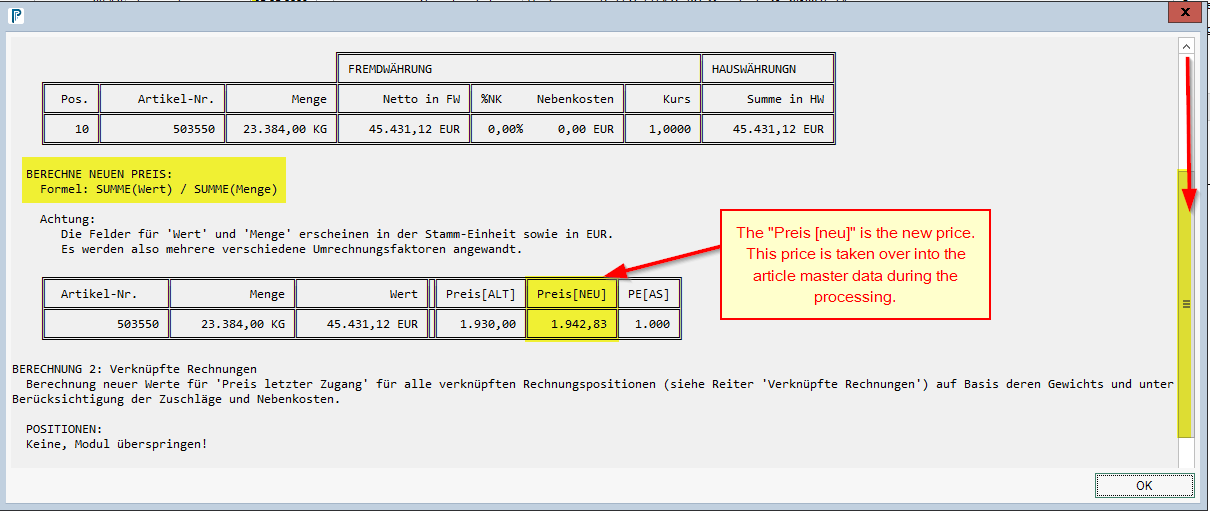
The surcharge is added to the "purchase price" and transferred to the price of the last receipt. To check the calculation, click on the tab Linked invoices and click on the button
[Prüfe Berechnung PreisLZ]
- A window opens showing how the price is recalculated. (scroll in the window) Press the [OK] button to close the window.

-
To check this, you can look in the item master data to see whether the price has been adopted.
Additional costs tab
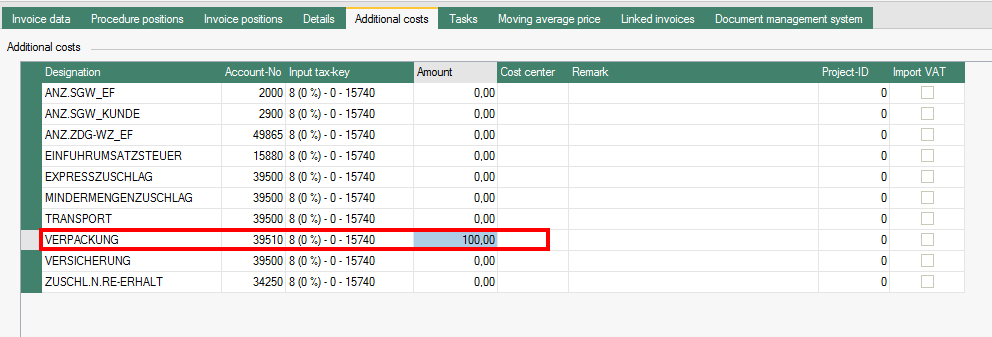
In the tab Additional Costs, additional costs listed in the invoice (e.g. freight or packaging) can be entered.
The value is to be entered in the column "Amount" behind the appropriate description. The exact use of the possible types must be agreed with the purchasing management.
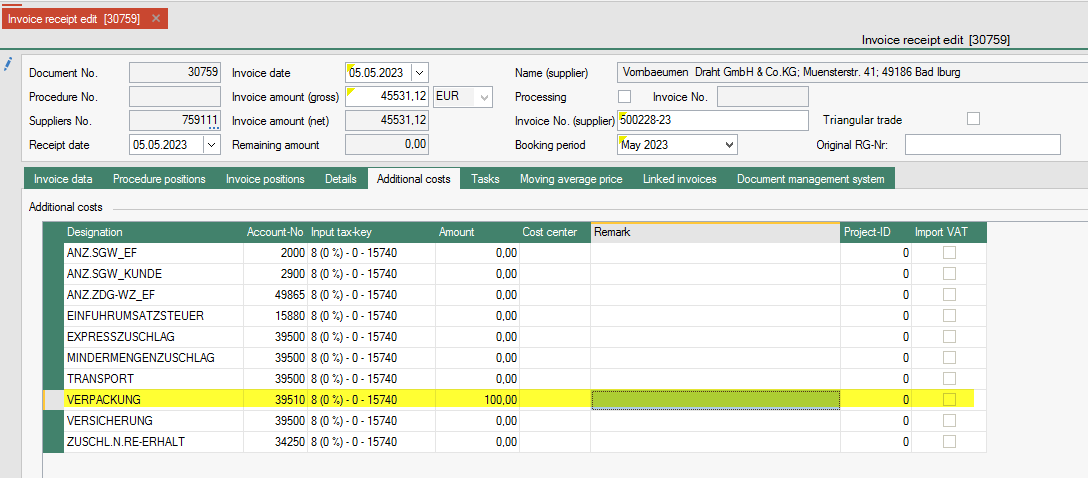
Without further entries, the entered costs are not transferred to the price of the last receipt in the master data item!
For a transfer of the additional costs to the last price receipt, please go to Allocation of surcharges and/or additional costs to the purchase price.
The list of possible additional costs can be extended by the FEPA administration.
Process
As long as the field Remaining amount in the header of the invoice receipt is highlighted in red, the processing of the entered invoice cannot be carried out. The Processing field cannot be ticked.

The entry can only be processed when the field Remaining amount is no longer highlighted in red. To do this, the Processing box must be ticked.

Then the tick must be clicked in the toolbar. The entry is processed and can no longer be edited.
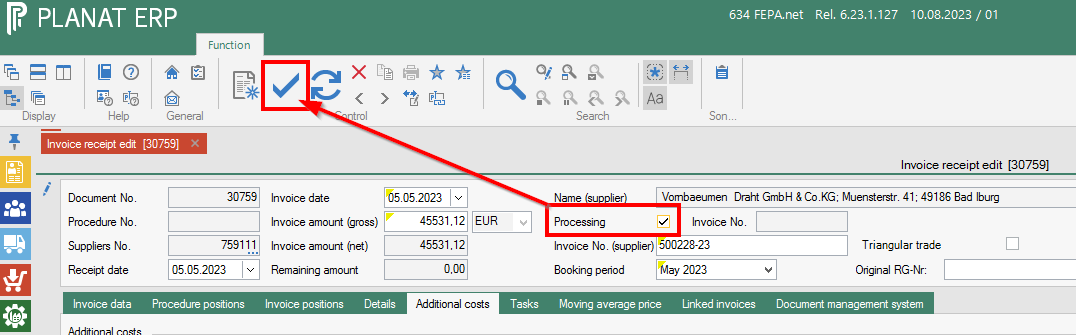
Saving is also possible without processing. The entry can be completed later. The voucher is accessed via the voucher number.
GEMO's own extensions
Invoice-Goods Receipt Connections
This add-on allows the user to link items on the A/P invoice to existing items on the A/P delivery. This is part of a solution for the implementation of the local currency average price inventory valuation. Linking to incoming deliveries is required for all clients that have locally activated the moving average price solution.
- Click on the Invoice Positions tab
- if the cursor is in the order item, clicking the button [Pos. lesen] reads the GR items for the transaction

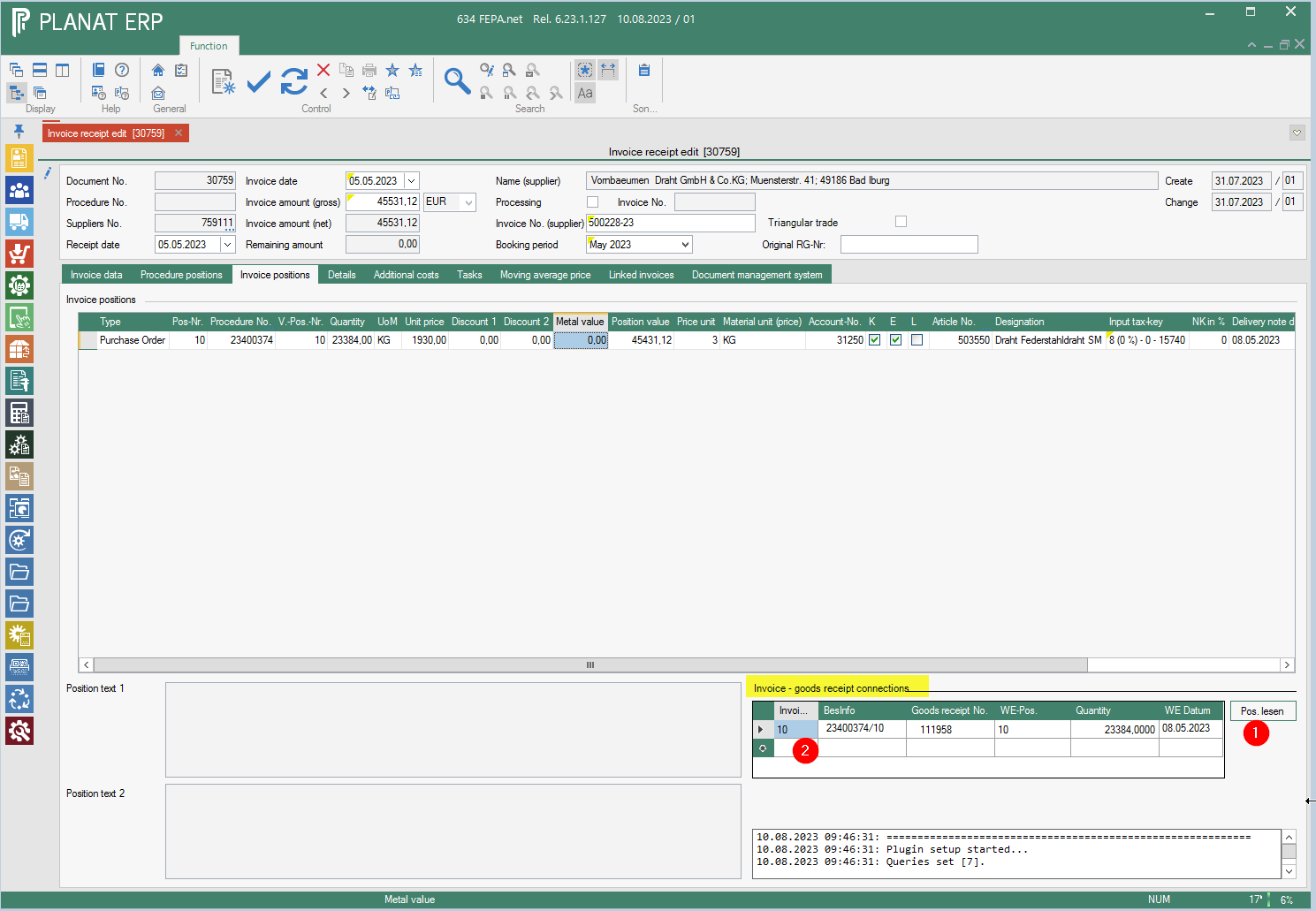
In the text field below the invoice-receipt connections, you can read what the programme has done. If the client does not work with the moving average price, "Solution is not activated for this client." appears here at the end and the GR items are only displayed.
Allocation of surcharges and/or additional costs to the purchase price
UPDATE last price Access in the article master data
There was a request to transfer additional costs to the purchase price for the master data, so that the costs are included in the price for calculations. For this, a weight must be entered for the articles in the article master data.
There are three possibilities.
The invoice contains surcharges. (see under Surcharges)
The invoice contains additional costs
There is a service charge invoice for an already entered invoice.
Additional costs
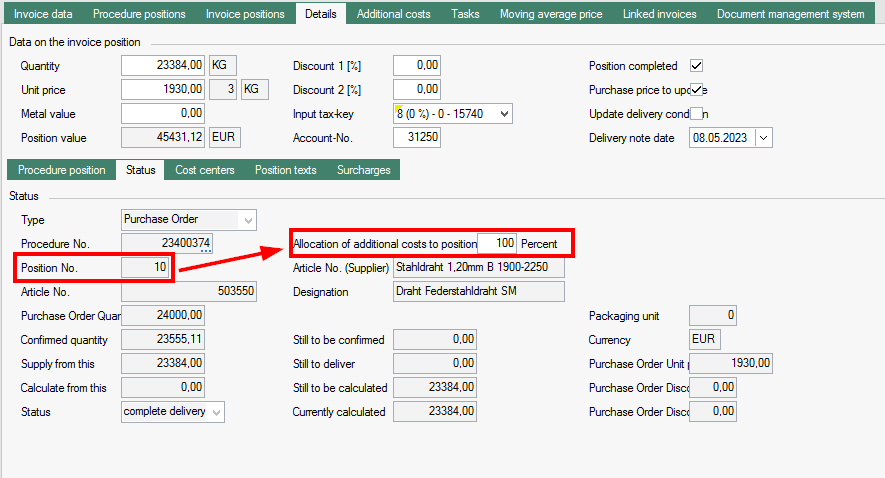
The additional costs can be allocated to the purchase price if required. A field has been added for this on the Details tab under the Transaction Items and Status tab. The allocation is made in % according to the weight recorded on the item. (Default from the purchasing management).
If an entered value is to be apportioned to the item purchase prices, a percentage must be entered in the item(s) after entering the value in the additional costs to determine the percentage of the costs to be apportioned to the item.
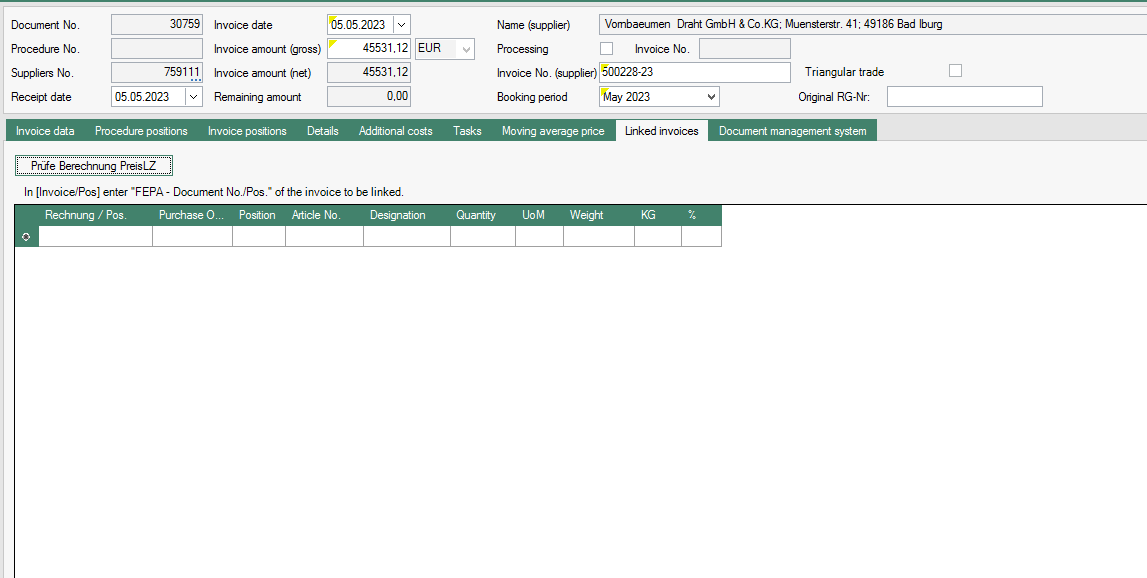
To check if the calculation is correct, click on the Linked Invoices tab and click on the [Prüfe Berechnung PreisLZ] button.
A window opens showing how the price is recalculated (Only in German language). Press the [OK] button to close the window.
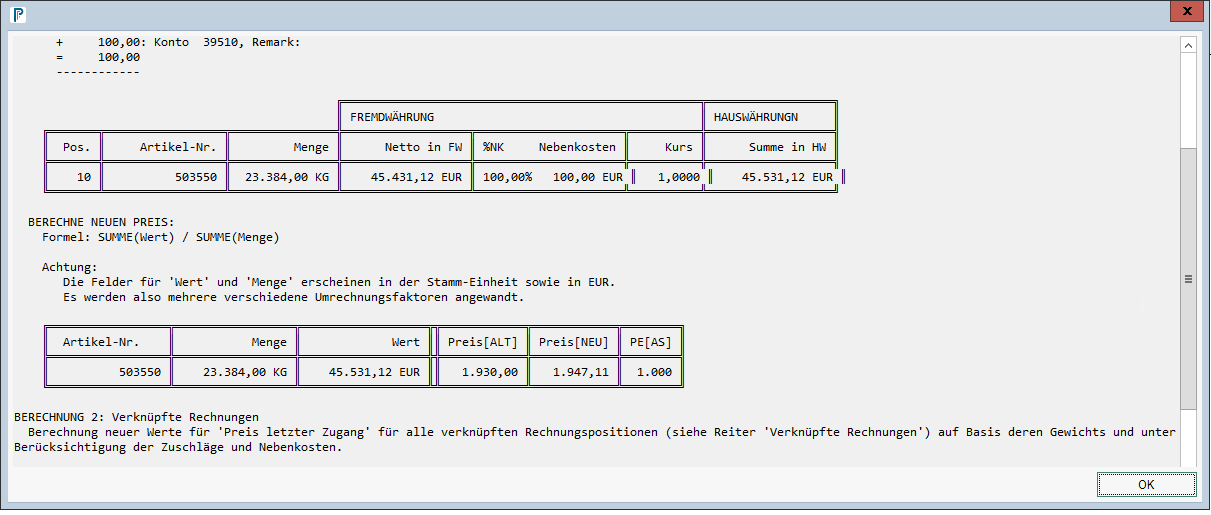
To check, you can look in the item master data to see whether the price has been taken over.
Entering a service charge invoice and linking it to another invoice receipt
First find the document number and item number of the invoice to be linked from the display invoice receipt!
Then continue entering in the invoice receipt:
- Enter invoice header data without transaction number. (see Edit Header Data)
- Enter the values for the appropriate account and description in the Additional Costs tab.

- Go to the Linked Invoices tab and enter the document no. / item, the transaction item to be linked is retrieved.

The percentage rate is always 100%, which is allocated to the last receipt price. - The apportionment is checked by clicking on the button [Prüfe Berechnung PreisLZ].

- If the allocation is correct, the invoice can be processed. The price in the item master data is updated.

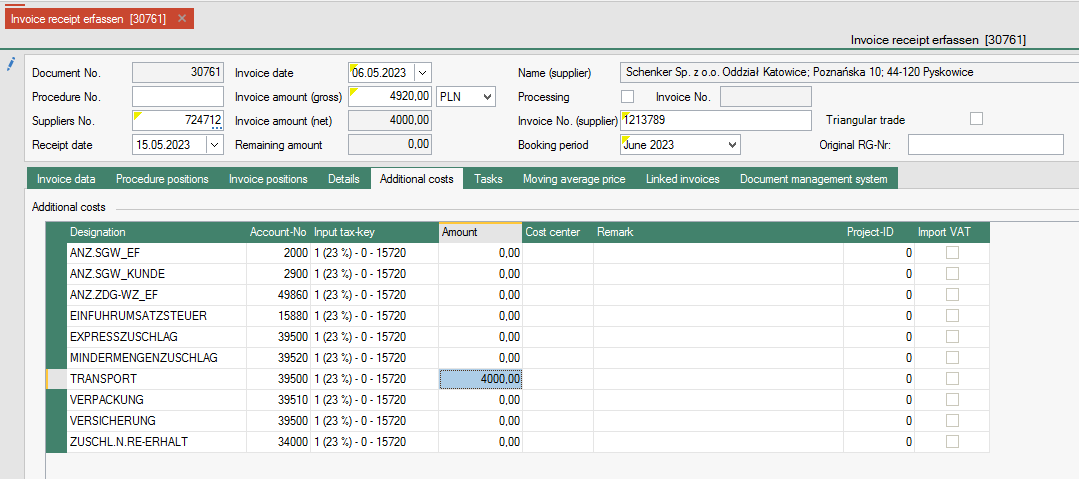

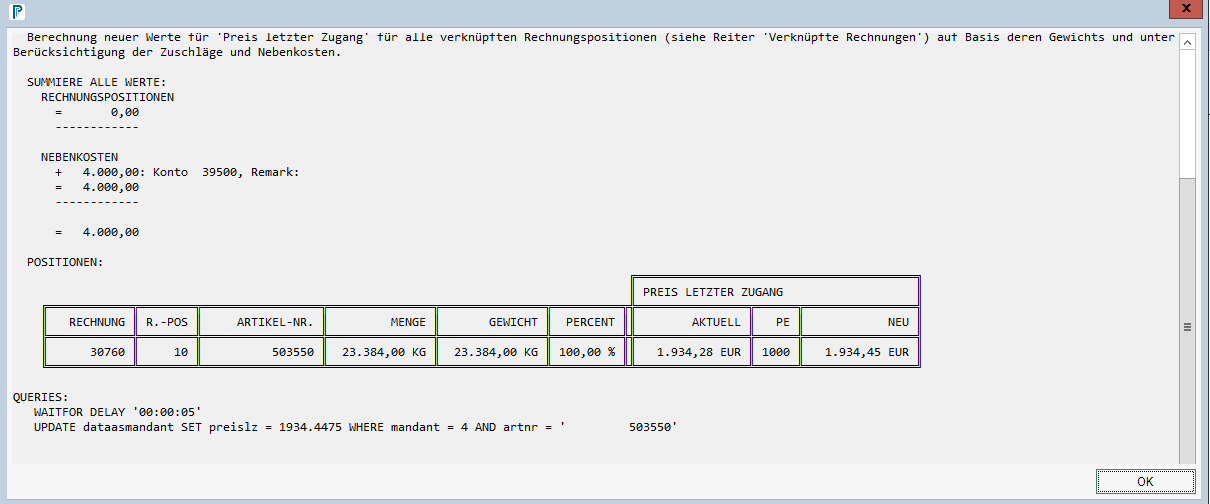
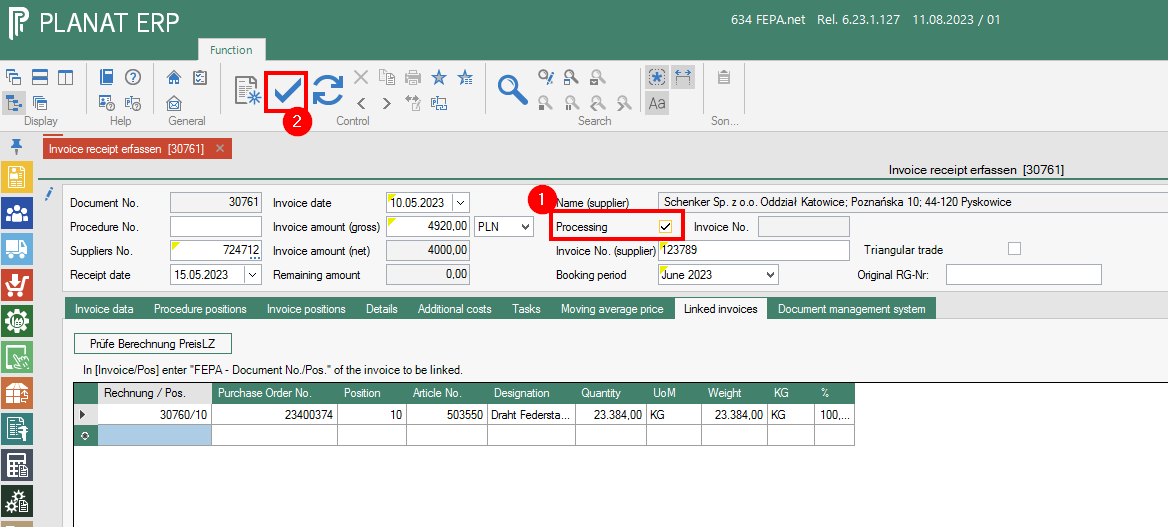
Example calculation:
If no weight is entered for the item to be linked, it is not possible to allocate the weight. In this case, a weight must be entered in the Article master data in the General tab, after which the invoice can be linked again.

There is an input tax amount check that can lead to information.
When the invoice is entered, it is checked whether it is a triangular transaction. If this is the case, tax key 5 is set. Information is displayed.
For Polish locations, a moving average price (also called 'FIFO price') is calculated based on the exchange rates of the national banks given by the local tax administration / government.
Cancellation of an entered invoice
There is no function to cancel an entered purchase invoice in Purchasing.
The invoice must be re-entered in the same way as the one that was "cancelled" but with a negative gross Rg amount. To enter the position "negative", the quantity must be entered as a negative value! Simply put a minus in front of the quantity.
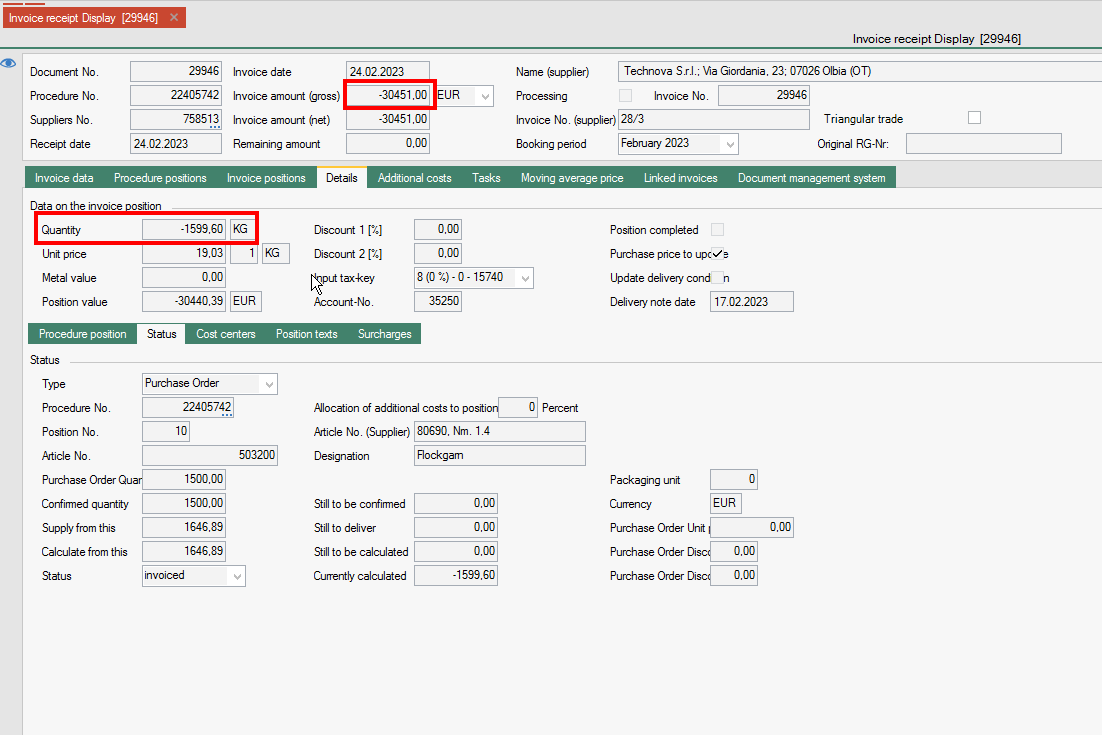
Delivery Condition
General
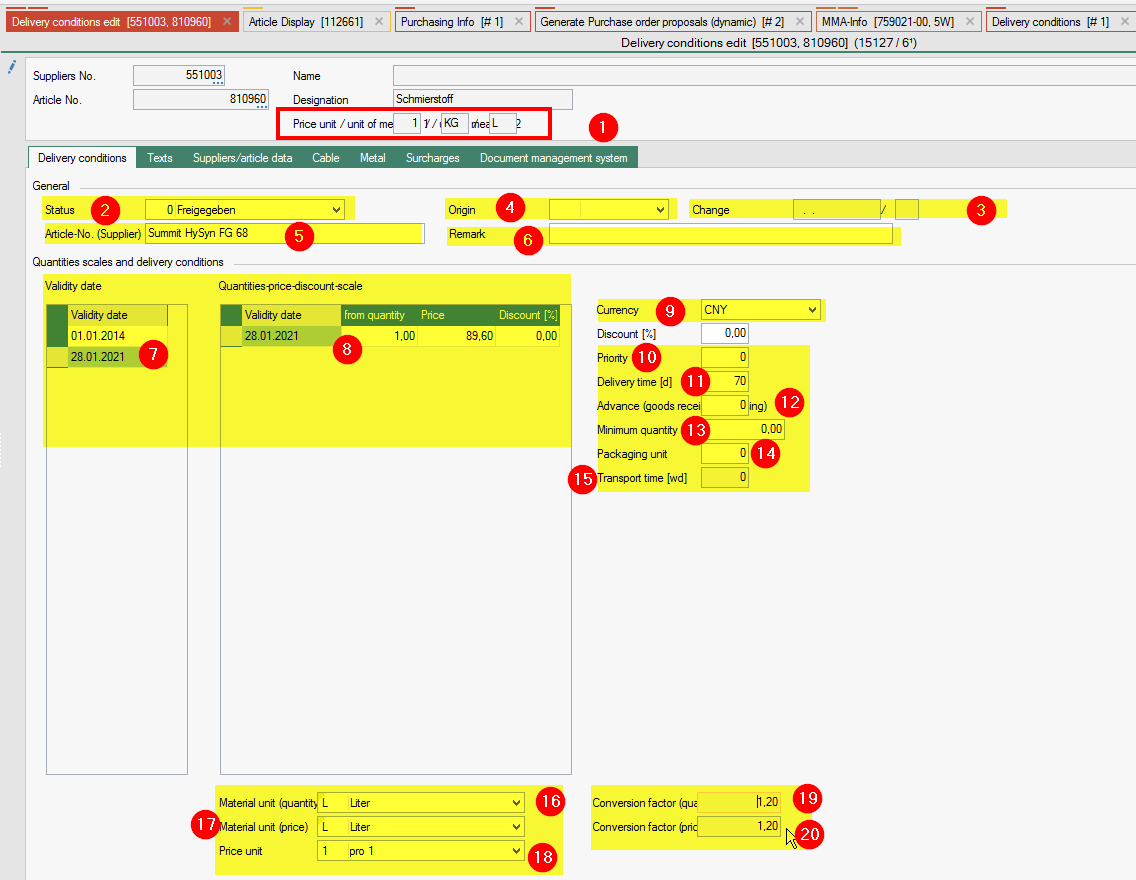
Here it is possible to create any number of quantity, price and discount scales. A validity date must be set for these scales.
Edit delivery condition
FEPA function: Purchsing > Delivery conditions > Edit delivery condition
- In the header we see the unit of measure 1+2 as well as the price unit from the article master.
- Status (drop-down menu): A status can be assigned to a delivery condition (Maybe you talk with the CPO – change the status to English language instead of German)
- Change (date and person in charge): For information purposes, it is displayed which person in charge last changed the status and when.
- Origin (drop-down menu): From the country table (see Utility Programs, Tables, Sales / Purchasing, Countries) a country of origin can be assigned to the delivery condition.
- Supplier article number (30 digits): In this data field you can enter the article number under which the purchased part is listed at the supplier. The value of the supplier's article number can be output on request and order by means of report adjustment.
- Remark (50 digits): A remark can be entered for the delivery condition for information purposes.
- Validy Date: Edit the line and enter a validy date.
- Quantities-price-discount-scale: edit the lines as far as you have scale prices. Enter the “from Quantity”, the price and the discount (%) for each quantity & price from this validity date.
- Currency (drop-down menu): You can select from the currency table to which currency the price of the delivery condition refers. The currency from the supplier master data is suggested for a new entry
- Priority (1 N): The priority determines the importance of the selected supplier for the item being processed; the lower the priority number, the higher the supplier's priority for the item. Analogous to the delivery time information, the priority serves as a visual decision-making aid when there are several suppliers to choose from. When selecting suppliers within the function Enter order items, the suppliers appear sorted in ascending order of priority. As there is no other functionality in the FEPA standard behind the priority, the same priority can be assigned to several suppliers. However, if the function Pre-calculation with graduated prices is used, it should be noted that the price is determined on the basis of the delivery conditions of the preferred supplier (priority = 1). This should therefore only be assigned once per article.
- Delivery time [days] (3 N): This data field specifies the average delivery time of the selected item from the selected supplier. This information is to be understood as additional information for the selection of an optimal supplier if an item is offered by several suppliers.
- Advance (goods receipt processing) in working days: Lead time for the delivery in purchasing in working days. When entering enquiry / order or award order items, the delivery date is pre-set from the delivery date minus the lead time for delivery. The delivery date can still be changed manually in the enquiry / order or award order item. In the case of order confirmation and goods receipt, the delivery date is displayed on the item screen. This entry only overrides the global value Delivery lead time (Utilities / Company data / Programme control / Purchasing) if a value other than 0 is entered
- Minimum quantity: The minimum quantity defines the smallest order quantity that the supplier can deliver.
- Packaging unit: The packaging unit tells the packaging quantity if the supplier can only deliver the item in certain quantities. If an entry greater than zero is entered in the packaging unit, the order quantity should be a single or multiple of the packaging unit.
- Transport time (weekdays): displays the entered transport time from the supplier address
- Material unit (Quantity) (unit of measure) drop-down menu: A unit of measure for this delivery condition can be selected from the unit of measure table (see Utilities, Tables, Master Data, Units of Measure).The unit of measure determines the unit in which the article is ordered from the supplier in terms of quantity. The quantities of the scales are also related to this unit of measure. The unit of measure can be different from the first or second unit of measure in the article master, in which case the data field U-factor (quantity) is additionally released for entering the corresponding conversion factor. If available, the second unit of measure from the article master data is suggested (in this case the conversion factor for the first unit of measure according to the article master also applies), otherwise the first unit of measure according to the article master is suggested.
- Material unit (price) (unit of measure price) drop-down menu: A price unit of measure for this delivery condition can be selected from the unit of measure table. The price unit determines the unit in which the article is ordered from the supplier in terms of price. The price unit can be different from the first or second unit of measure in the article master, in which case the data field U-factor (price) is also released for entering the corresponding conversion factor. If available, the second unit of measure from the article master data is suggested as the price unit of measure (in this case the conversion factor (price) for the first unit of measure according to the article master also applies), otherwise the first unit of measure according to the article master.
- Price unit (drop-down menu): The price unit is defined (see utilities/Tables/Master data/Price units) to which the information in the price scales refers. When entering new conditions, the price unit from the article master is suggested here.
- Conversion factor [Quantity] (3.4 N): In the conversion factor field, the conversion factor of the unit of measure (material unit (quantity)) to the first unit of measure in the item master can be entered if the unit of measure of the delivery conditions was entered differently to the first or second unit of measure of the item master. The conversion factor represents the relationship between unit of measure 1 in the article master and the unit of measure (material unit (quantity)) and must be non-zero. Required here is: How many units of the unit of measure (material unit (quantity)) are required for one unit of the 1st unit of measure in the item master.
- Example 1: 1st unit of measure metre
Unit of measure (quantity): kilogramme
In this case, the number of kilograms that a metre weighs must be entered in the factor. - Example 2: 1st unit of measure metre
Unit of measure (quantity): Roll
If there are 100 metres on a roll, enter 100 in the factor.
- Example 1: 1st unit of measure metre
- conversion factor [Price] (3.4 N): In the conversion factor field, the conversion factor of the unit of measure (material unit (price)) to the first unit of measure in the item master can be entered if the unit of measure of the delivery conditions was entered different to the first or second unit of measure of the item master. The conversion factor represents the relationship between unit of measure 1 in the item master and the unit of measure (material unit (price)) and must be non-zero (see example for unit of measure “material unit (quantity)” and conversion factor quantity).