# Materials Management
# MMA-Info
### Settings
FEPA function: `Materials Management > MMA Info`
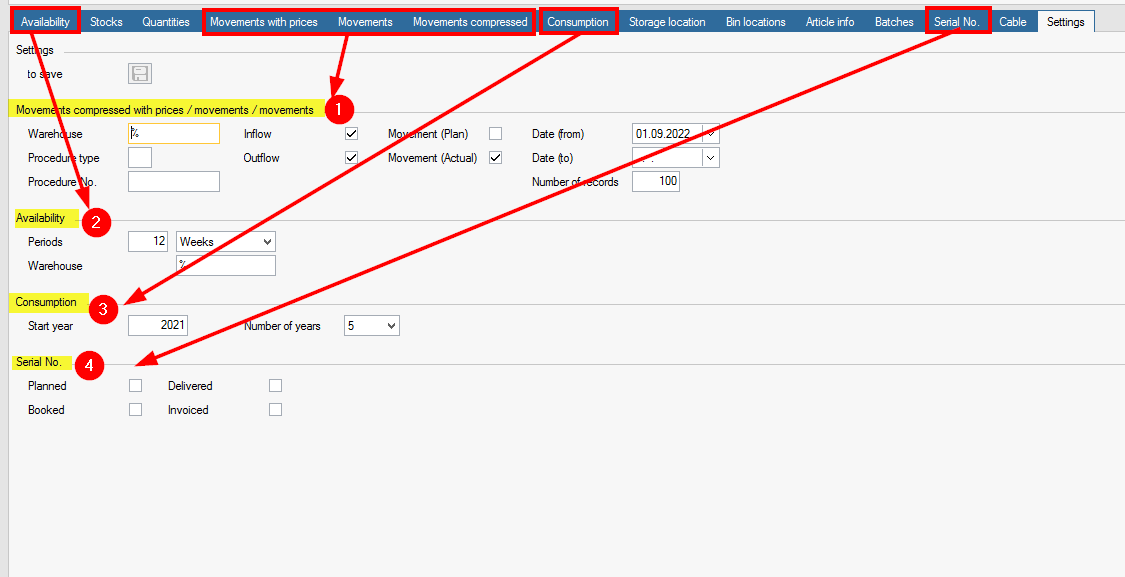
In the settings tab, some settings can be predefined and saved so that you always enter `MMA Info` with these saved settings. The settings can also be adjusted at any time in the current view.
1. Settings for the header area for the tabs Movements with prices, Movements, Movements condensed.
- Warehouse "%" shows all warehouses, "Client abbreviation +%" only all warehouses for the client
- Tick for transaction and movement types displays data or not (no tick)
- Date (from) /date (to) limits the display period
- Number of data records, how many lines are displayed
2. Settings for the header area for the Availability tab
3. Settings for the header area for the tab Consumption
4. Settings for the header area for the Serial No. tab
[](https://bookstack.gemo-group.com/uploads/images/gallery/2023-09/bitChcwNvIisEx0D-image.png)
### Check availability stock
FEPA function:` Materials management > MMA-Info`
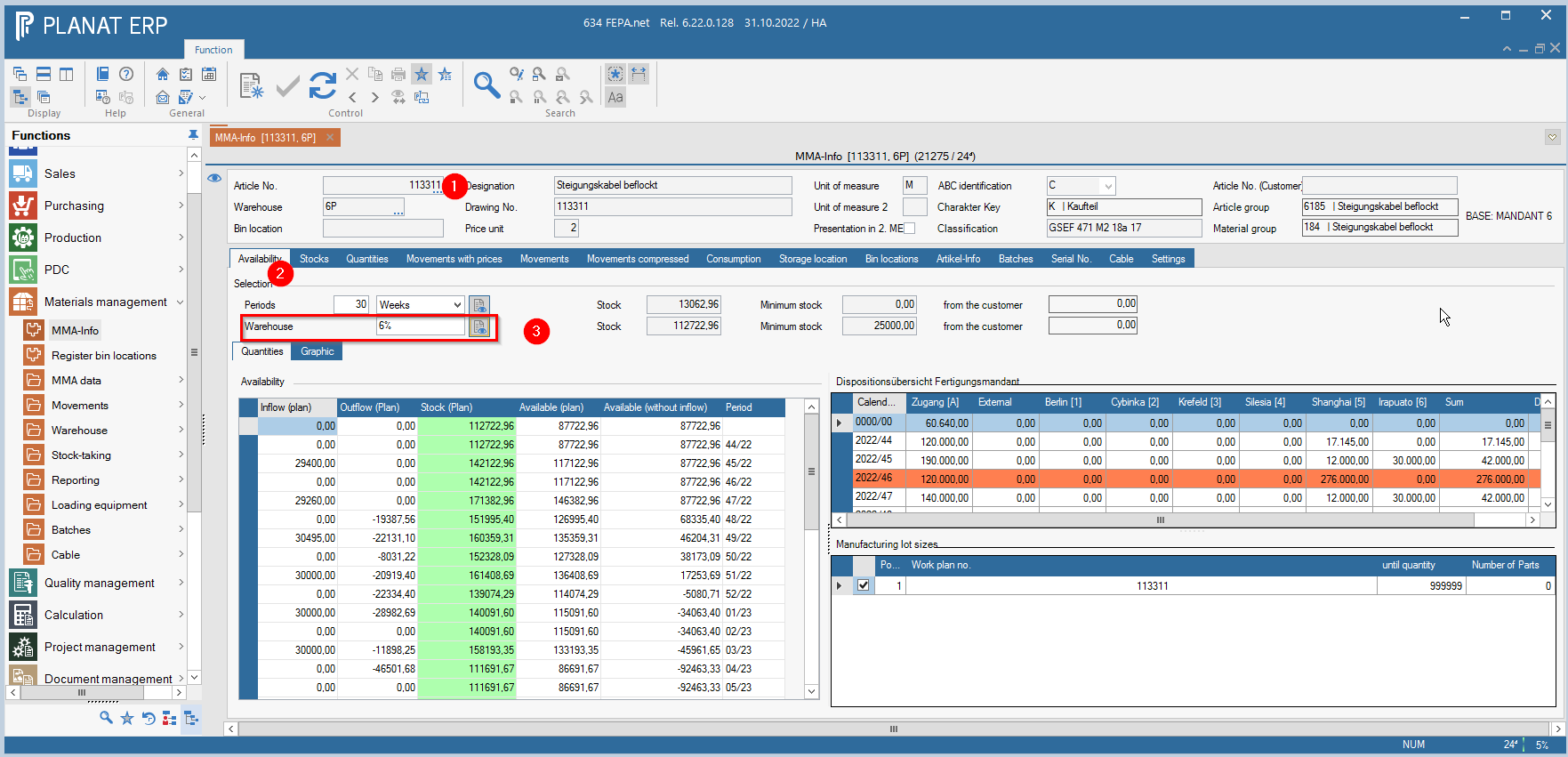
1. enter article no., press enter 2x (until everything is grayed out)
2. select tab *Availability* (if desired, select the button *Graphic*, then a graphic view appears instead of the tabular view)
3. enter the *mandant*+ % for stock to see only the mandant related quantities. Then press the button next to it. (Calculate across warehouses)
[](https://bookstack.gemo-group.com/uploads/images/gallery/2022-10/C2QND6YjnsnRA9ET-image-1667210119589.png)[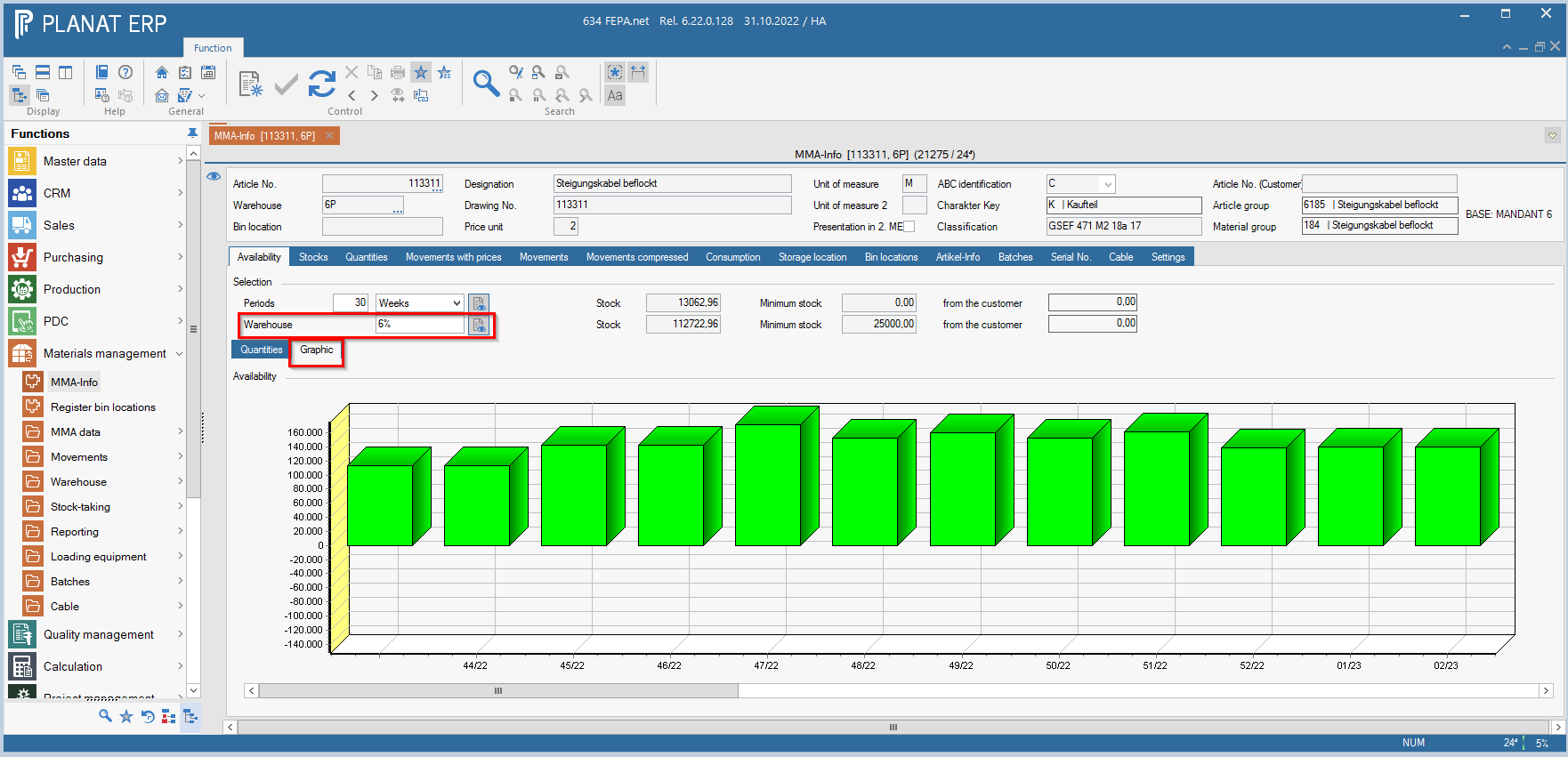](https://bookstack.gemo-group.com/uploads/images/gallery/2022-10/pIXLFs1oapPcmNNQ-image-1667210310162.png)
# Overview of total stock of an article
FEPA function: `Materials Management > MMA-Info`
1. enter article no., press enter 2x (until everything is grayed out)
2. select tab *Storage location*
3. change number of digits to *10* (so it shows all warehouses of all clients in full length)
4. click on the button *Display data* [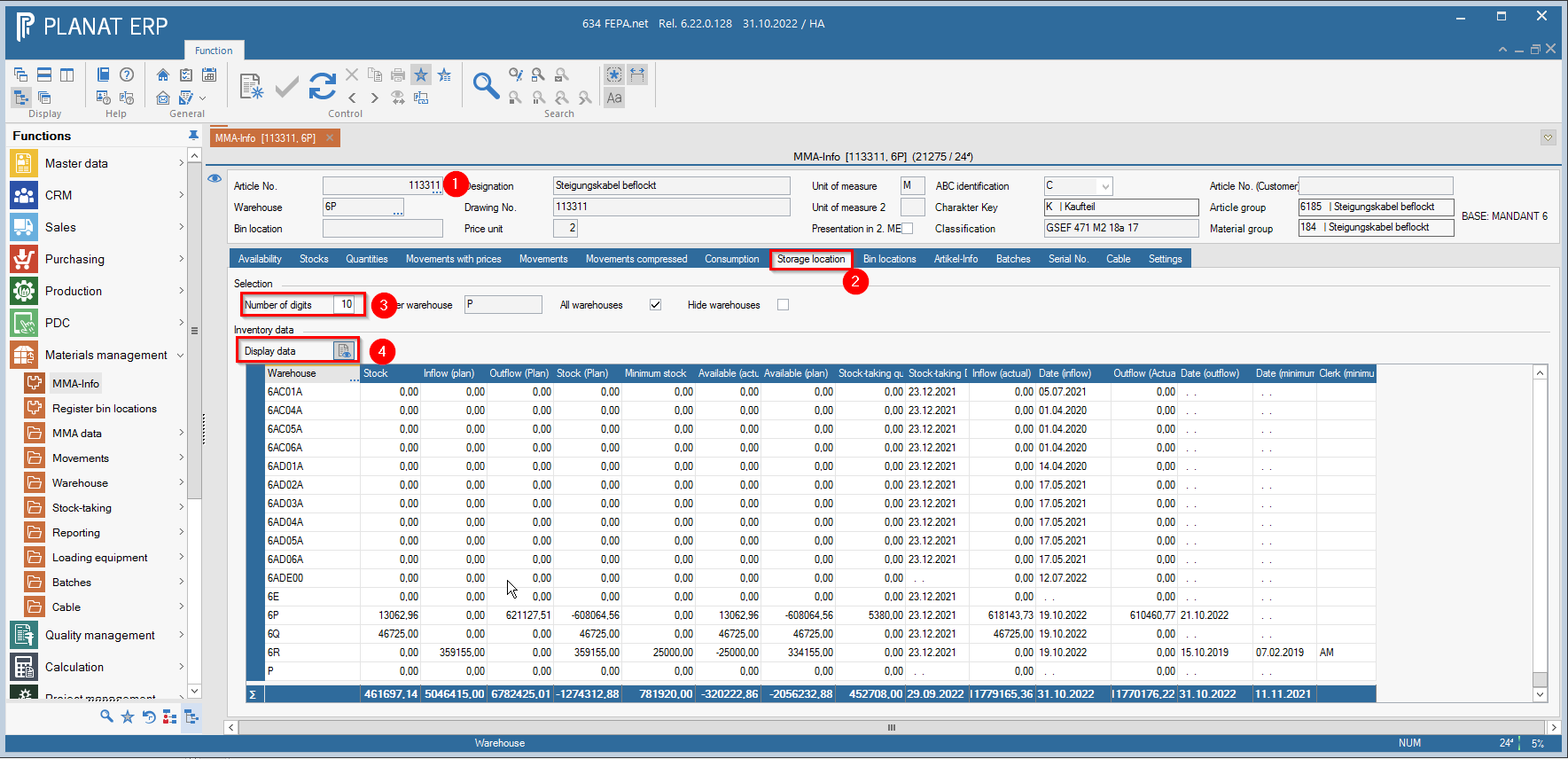](https://bookstack.gemo-group.com/uploads/images/gallery/2022-10/h1AAgaHNoWFz9lmf-image-1667210669992.png)
FEPA cannot be limited here to the warehouses per mandant. All warehouses (worldwide) are displayed.
# Rebook inventory quantities
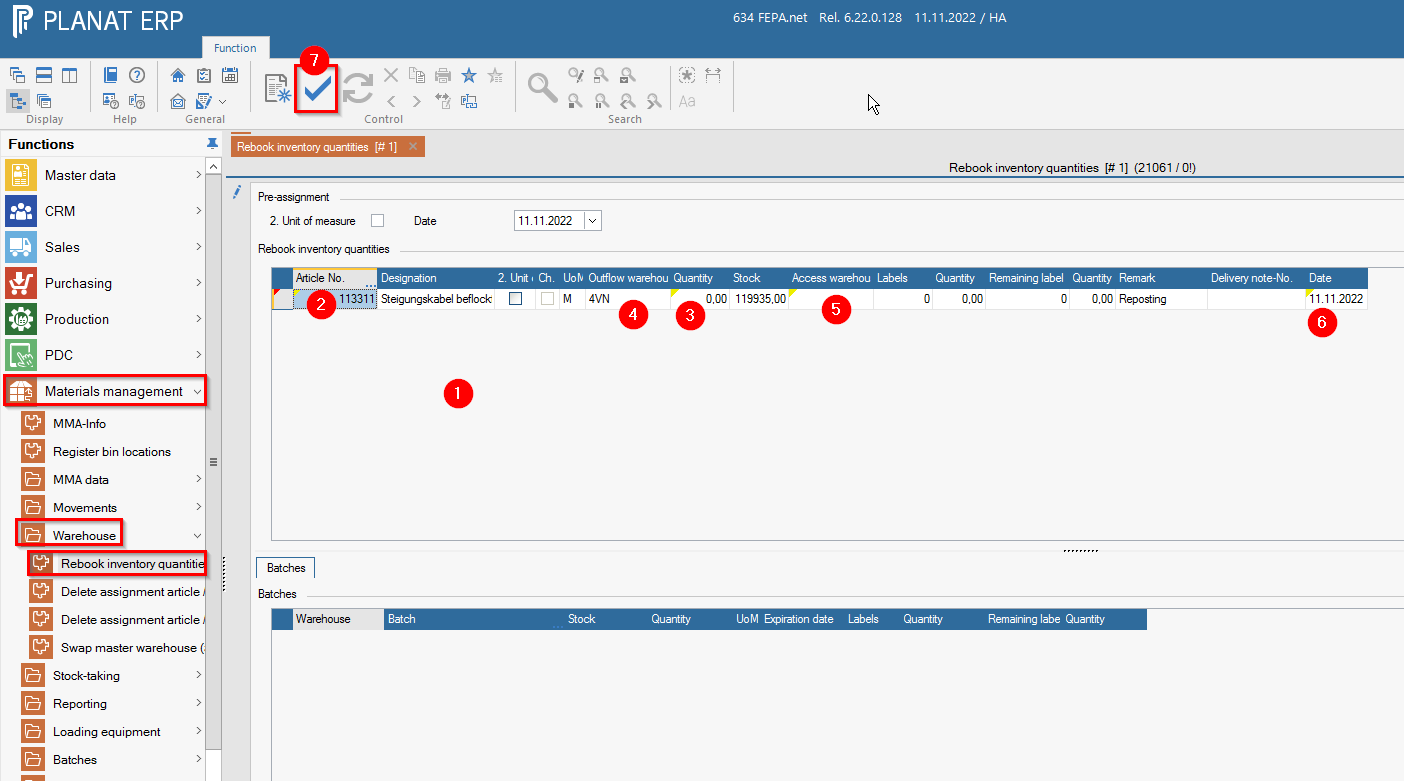
Using the function` rebook inventory quantities`, a rebooking or transfer of an article to another warehouse can be carried out as a manual actual movement.
FEPA function:` Materials Management > Warehouse> Rebook inventory quantities`
1. append line
2. enter *article number*
3. enter the desired quantity to be transferred (if necessary, note the unit of measure!)
4. select the warehouse of departure (*outflow warehouse*, the warehouse from which the goods are to be deducted)
5. enter the warehouse of receipt (*access warehouse*)
6. *date* fits?
7. Confirm with the tick in the tool bar, only then will the booking be made.
8. [](https://bookstack.gemo-group.com/uploads/images/gallery/2022-11/yb0zhNC7GvXNH7KF-image.png)
Note: Information can be entered in the *Remark* column!
# Empties - Account statement ( loading equipment)
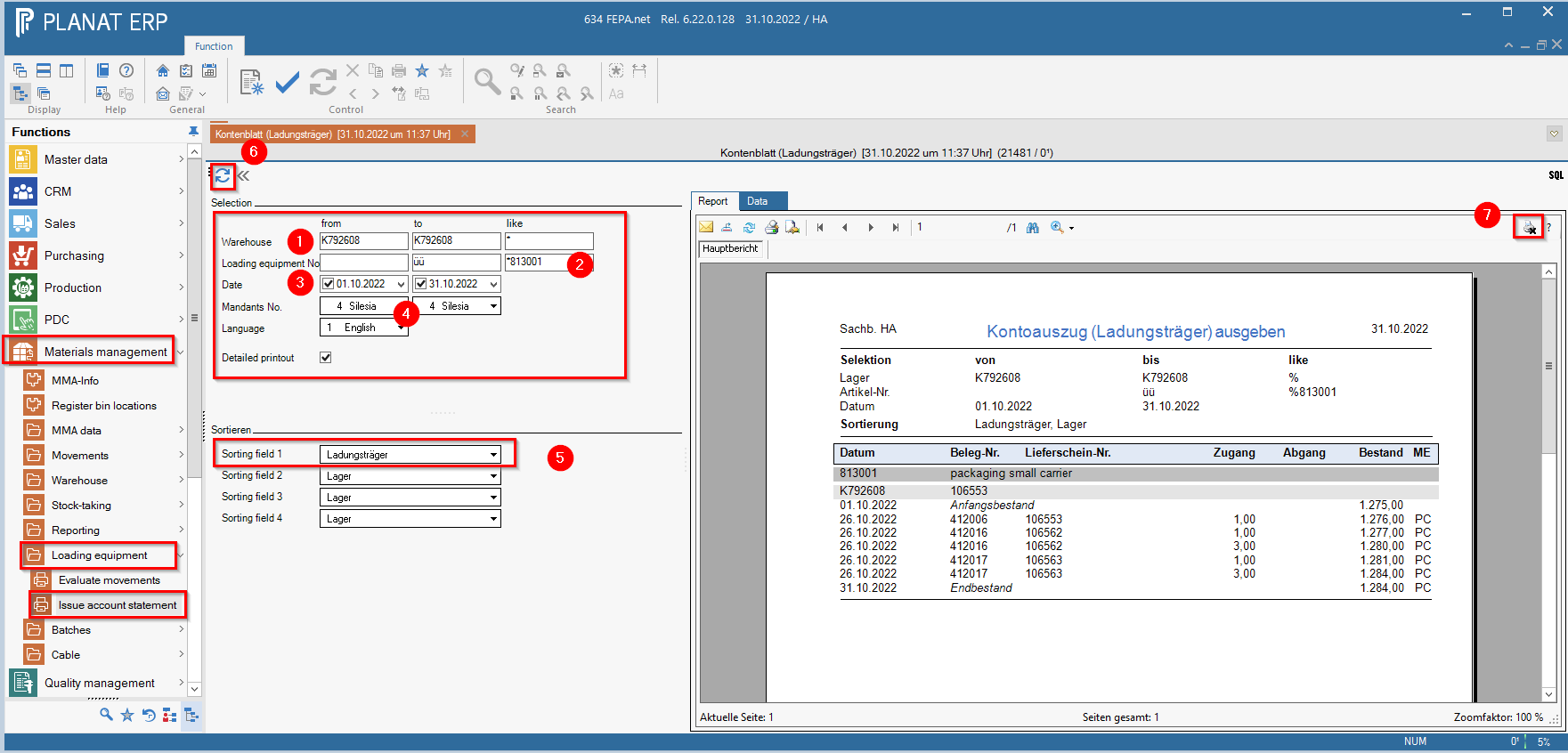
The movements for selected articles at selected warehouses that have occurred in a specified period are output in the form of an account statement. The account statement is used to reconcile the bookings with the business partner.
FEPA function: `Materials management > Loading equipment > Issue account statement`
1. enter warehouse (for a customer warehouse K + customer number e.g. K290023)
2. enter loading equipment (article number 813001 - packaging small carrier e.g.)
3. limit date from - to
4. adjust mandant and language if necessary
5. set sorting field1 to loading equipment (Ladungsträger)
6. press the update button
7. print on the printer symbol - document will be printed
[](https://bookstack.gemo-group.com/uploads/images/gallery/2022-10/bgLtqTCAUrIvRxUU-image-1667214769752.png)
Note: In the *Data* tab there is information about the account sheet, which can be exported to Excel.