Master data
Information on the Master data area in FEPA
Standard texts
General
Standard texts are mainly used in sales orders and purchase orders or in all areas where textual input options are available (also, for example, in the description of operations).
Standard texts make it possible to call up recurring phrases by specifying a standard text number.
"Text numbers" have been defined for certain areas. These are to be requested from the responsible heads.
Standard texts can already be inserted in plain text in the prefix or suffix in the various functions such as Edit Order or Order via the function Text field, Insert Standard Text and the entry of the text number.
Edit standard texts
FEPA function Master data > Standard text > Edit standard text
Search Standard Texts
Open the search.
The text number has a maximum of 10 digits. The 1st line of the text in the search is always displayed as the text.
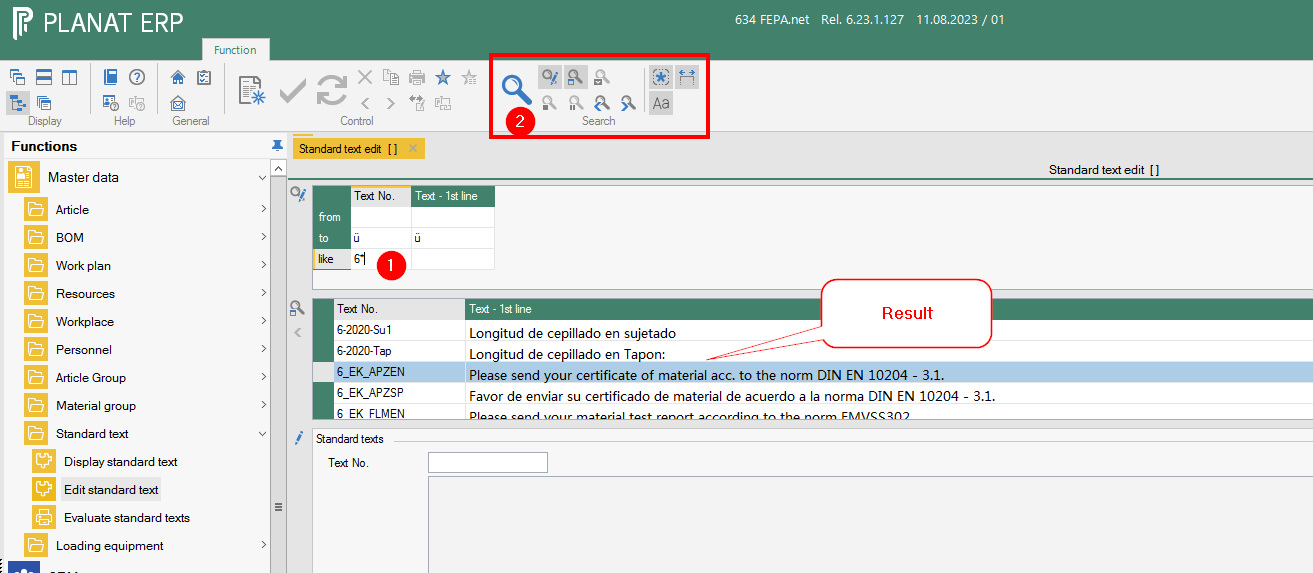
By double-clicking in a text number, text is loaded in the lower area and can be edited.
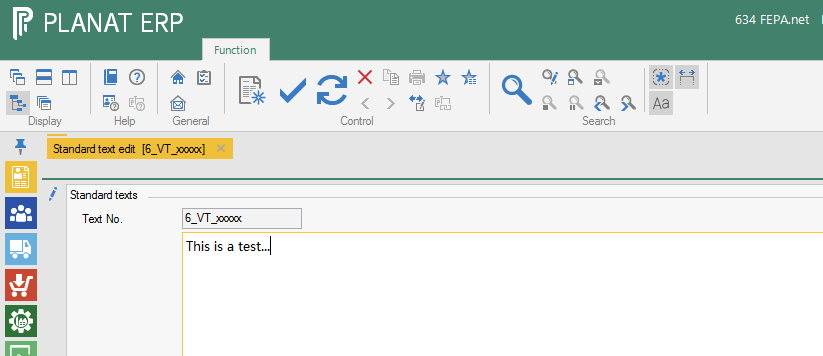
Entering new texts
- Enter a number in the Text No. field and confirm with Enter.
- This releases the text field and a text can be entered.

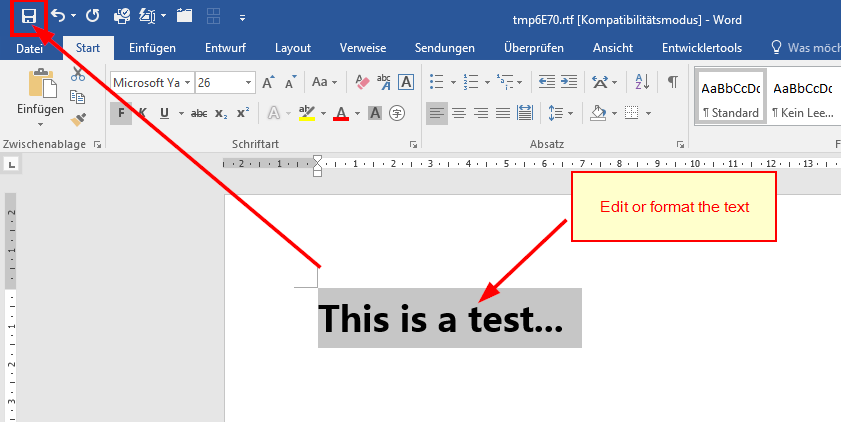
- Double-click in the text field to open Word, where the text can also be entered and formatted.
- Save in Word. Then close Word.

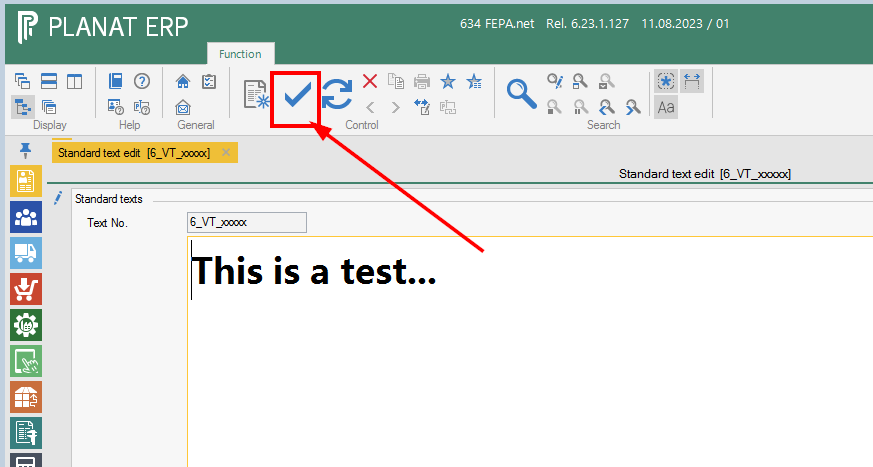
- Save in FEPA

Search and insert standard texts in text fields
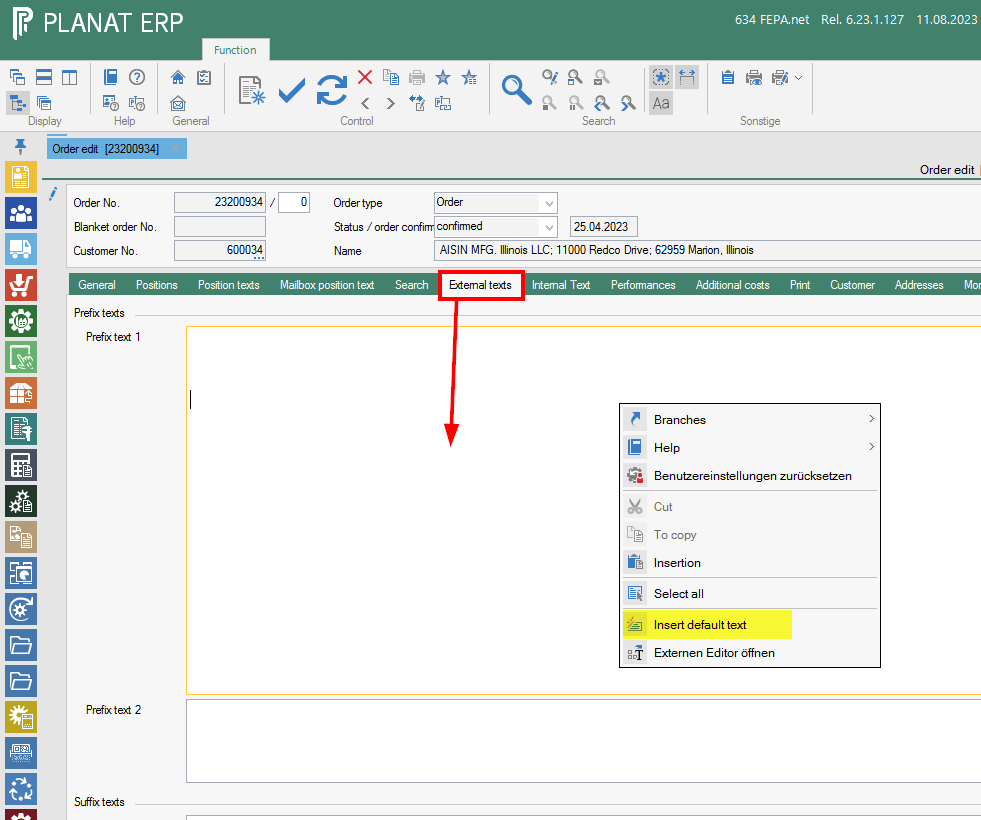
For example, in the sales order:
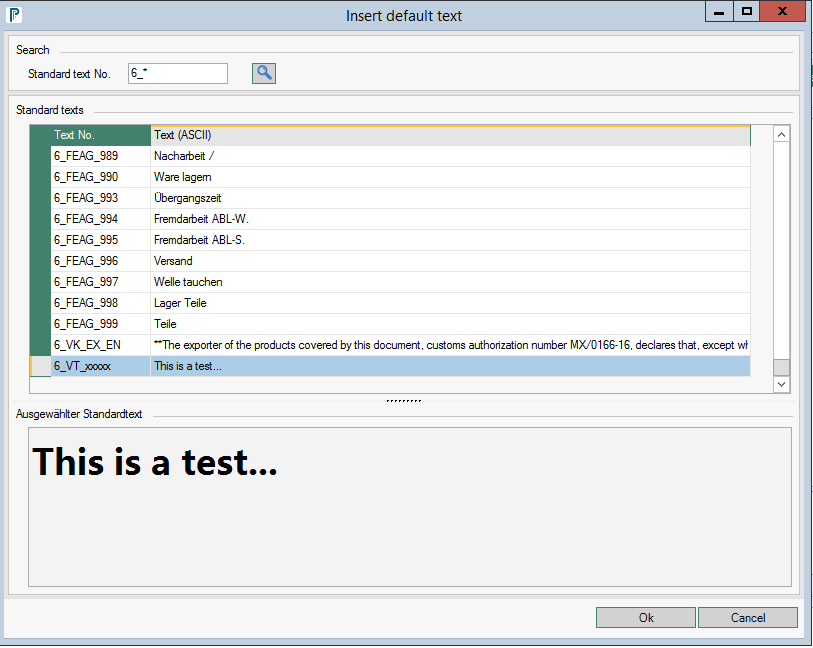
- Click in the text field where you want to add a text and press the right mouse button, click in the context menu Insert default text.

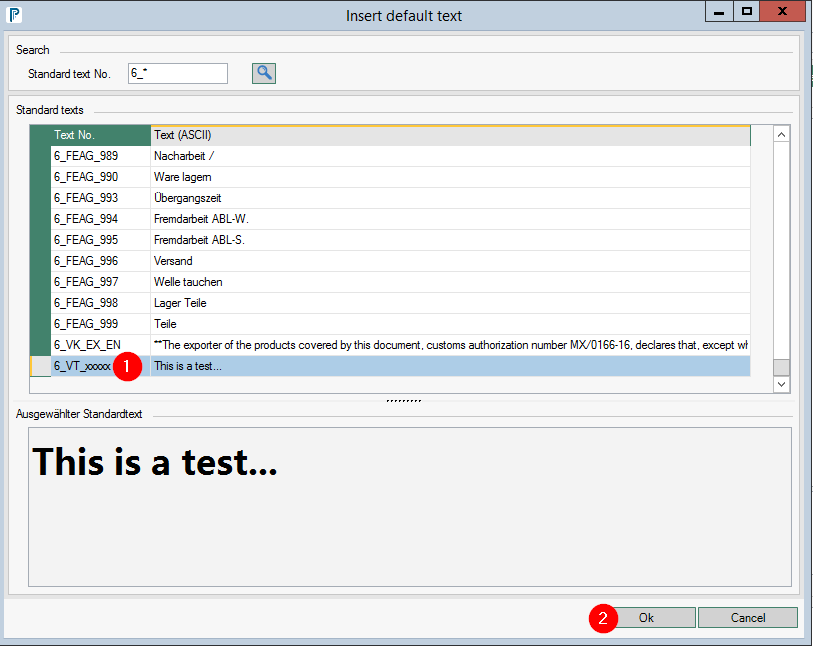
- Search for the standard text number, you can limit the search by using a '*' as a placeholder.

- Click on the text number and press OK

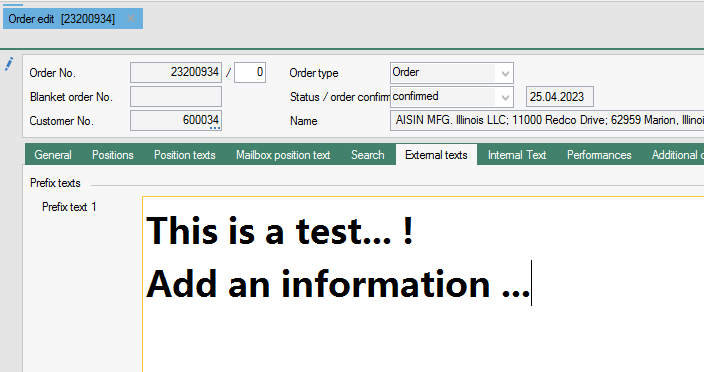
- the text has been inserted and can also be changed if necessary.

Personnel
General
Personnel data (employee data) is required if confirmations are to be made via a manual or optionally via an automatic production data acquisition system (PDA) for employees and employees have to make the notifications or entries in project management.
Edit personnel
Personnel for FEPA are created in the Edit personnel function.
FEPA function: Master data > Personnel > Edit personnel
Personnel data for the AZE (Recording working hours)/project management
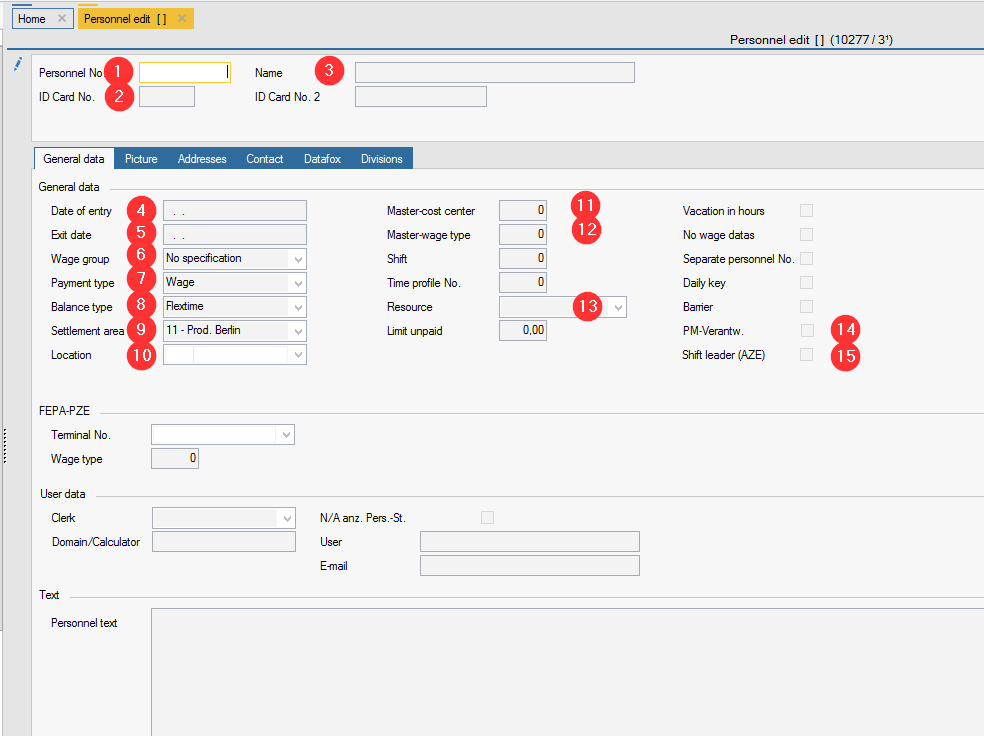
- Personnel no.: If only the AZE is made at the location, it may have a maximum of 6 digits and begins with the client.
begins with the client, the rest is freely selectable, unless there are specifications at the location. - ID card no.: must be 6 digits - for legibility when reporting via AZE for the work processes. The personnel number can be used again.
- Name: Enter the first name of the employee
- Date of entry: a date can be entered
- Exit date: a date can be entered when the employee has left the company. The employee is then no longer displayed in the personnel assignments in the PDC area.
- Wage group: can be that of the client, but does not have to be selected
- Balance type: select wage or salary
- Balance type: select flexitime
- Settlement area: is a mandatory field, select from the list the payroll area that matches the employee/location (11 is the first - it only appears in FEPA if it has also been selected) Krefeld e.g. 30
- Location: Select the location for the Mandant
- Master cost centre: Select the employee's cost centre, if known - starts with the client (note: cost centres are created in the service programmes)
- Master wage type (mandatory field): 1
- Resource, only required for employees who have to make entries in project management. Please contact Engineering to find out which one should be entered)
- PM responsible: Must be ticked for employees who have to make entries in project management
- Shift leader (AZE): enables additional functions in the GEMO AZE for responsible employees
Example - Mexico Shift leader
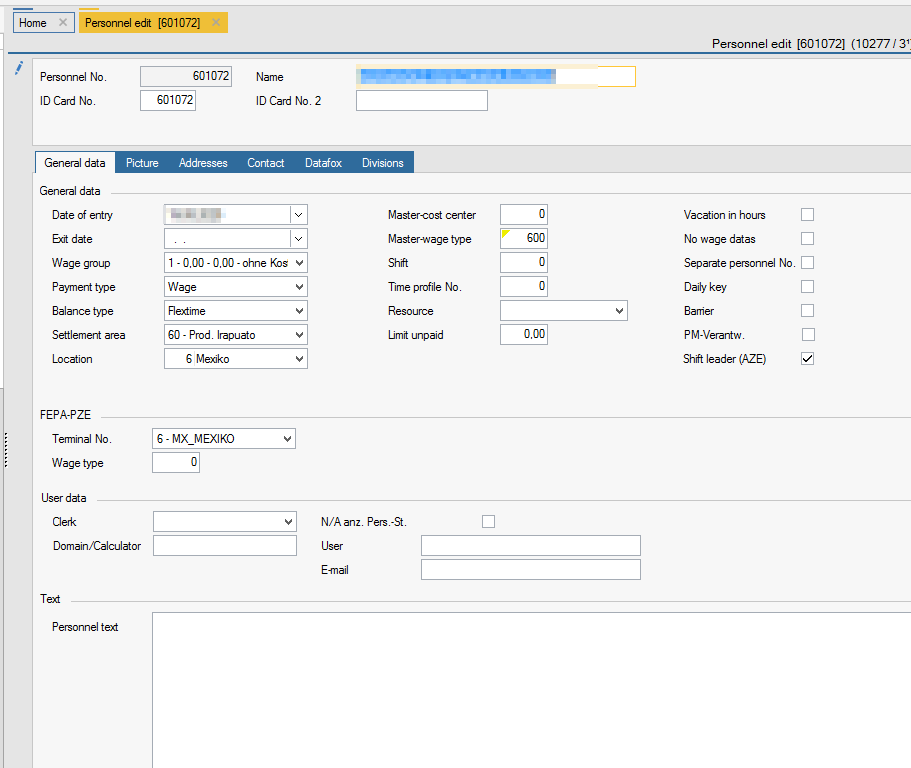
Rest and other tabs can remain empty if only the AZE is done - would only be important if you do the personnel time recording via FEPA, then it would have to be filled in differently. Therefore, if you have authorisation to edit personnel, you must not change anything for personnel at other locations!
After recording the personnel, the personnel must still be released so that they can report working times via AZE. Continue with Instructions for release of personnel
Swap workplace
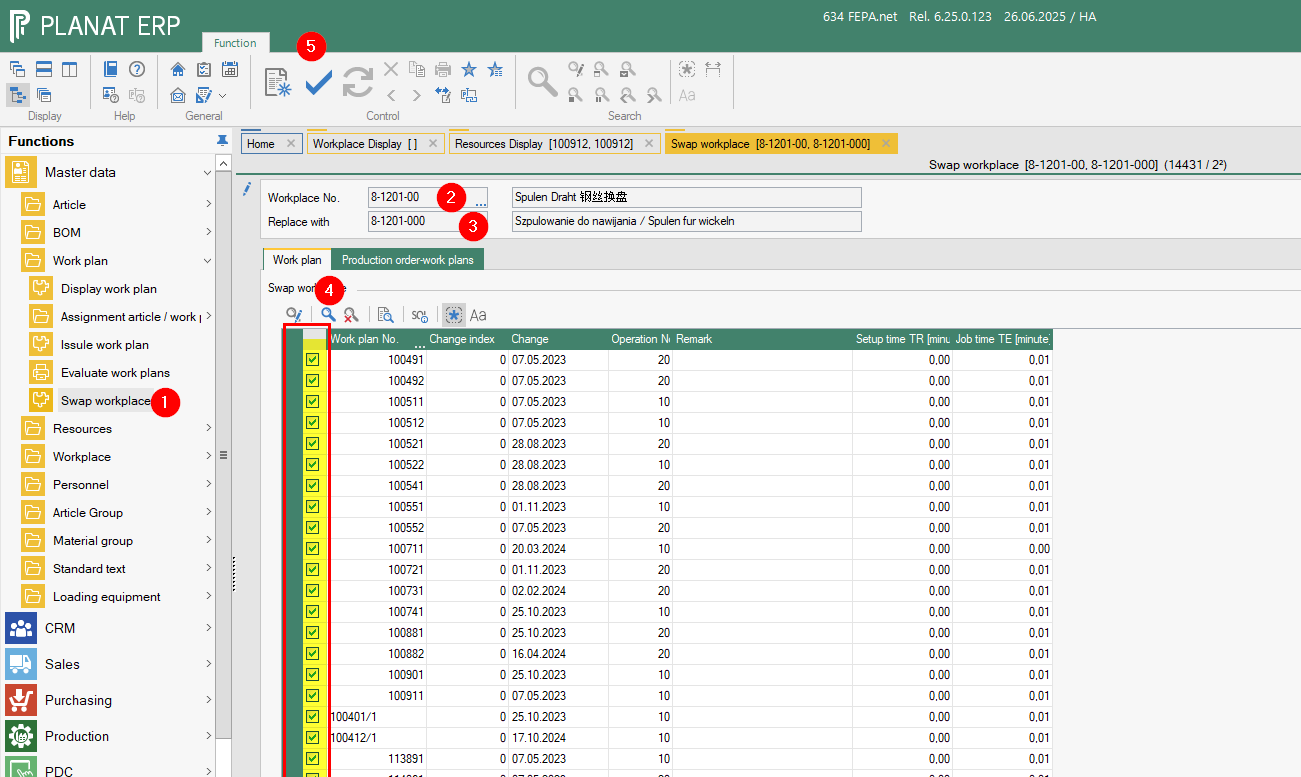
- open FEPA function
Master data > work plan > Swap workplace - enter the old workplace number currently used in the work plan
- enter the new workplace number that should replace the currently used workplace in the work plan
- press the magnificent glass of the search and FEPA load all work plans in which the work place is used - with the mark you decide which work plan will changed (Yellow mark)
- With the save button FEPA change all work plans an replace the work place.
Copy workplace
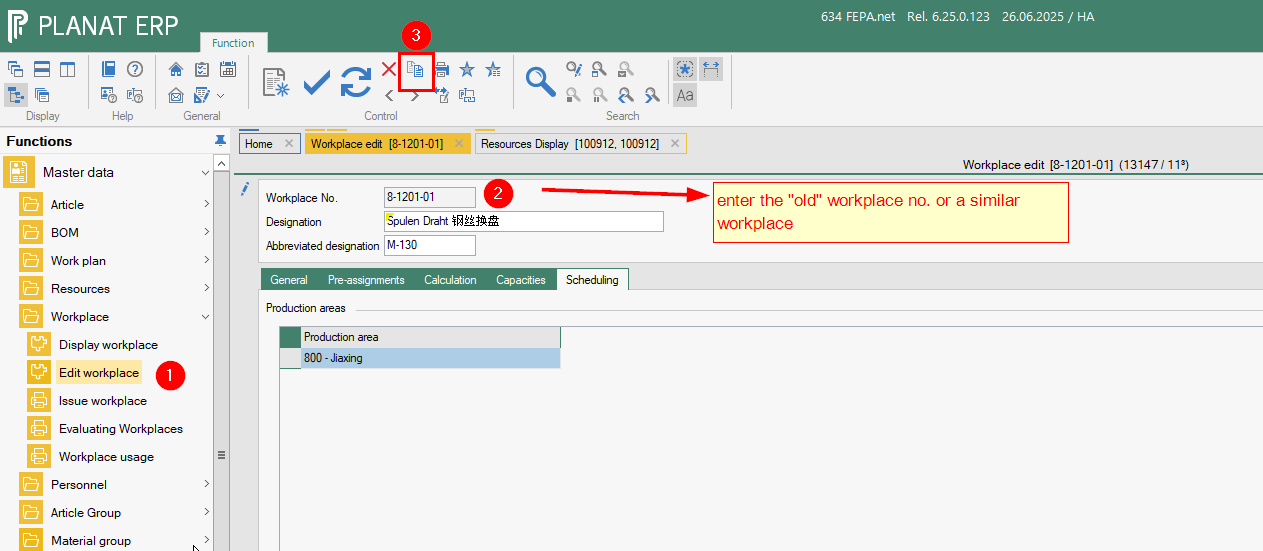
- open a workplace with function
edit workplace - enter the "old" workplace no. or a similar workplace no. and press enter
- press the copy button

-
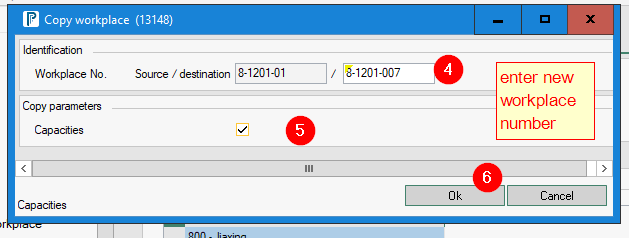
enter a new workplace number
-
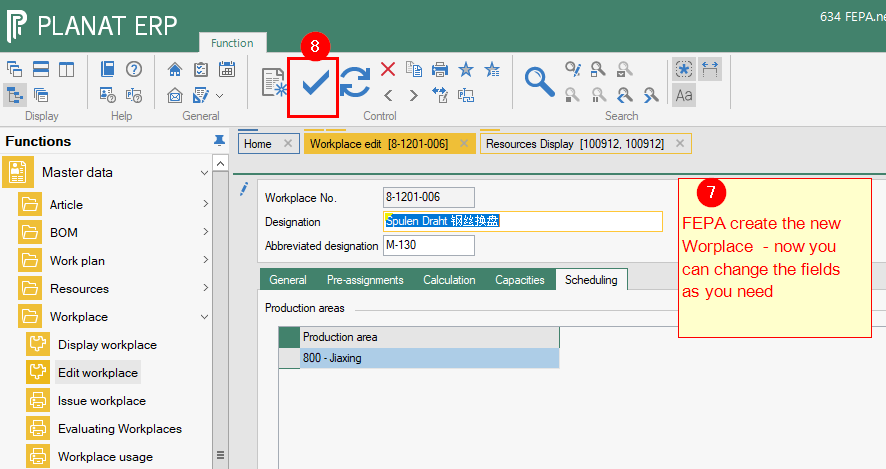
press ok button and a new worplace will becreated an opended

-
Change alle fields and in all tabs !
-
press the save button to save the new work place.